AutoDesigner Best Practices
This document describes best practices on how to prepare input files, set up jobs and address common issues for AutoDesigner R-group Design and AutoDesigner Core Design in drug discovery projects.
Preparing Input Files and Validating Settings
Starting Ligand Selection
It is highly recommended to choose a starting ligand that is either the FEP+ reference or a closely related ligand. This ensures that the fixed portion of the ligand for all generated ideas is aligned with the FEP+ reference so that the output poses can directly be used in AL-FEP+.
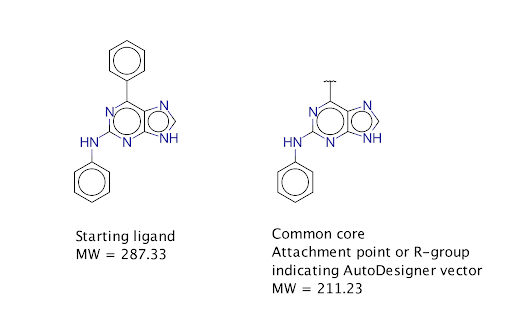
Ideally, the starting ligand should already have an R-group at the position where you want to enumerate (so R≠H). For the common core you then remove that R-group and replace it with an attachment point.
There are a number of benefits to this:
-
The property space that is used for guidance is more in line with ligands that already have an R-group
-
The built in SMARTS filters are adjusted for the starting ligand, so already having an R≠H ensures they are adjusted correctly
-
As part of the AutoDesigner R-Group Design workflow a full exhaustive PathFinder reaction-based enumeration is carried out on the starting ligand. If R=H there are no routes that apply to the starting ligand and this step of the workflow will not produce outputs. In the case of the example below there will be many routes (e.g. Suzuki coupling) that are found for the starting ligand by breaking the carbon-carbon bond between the aromatic rings.
-
If there is an existing R-group in the starting ligand it will increase the number of outputs in the matched molecular pair transform stage as all MMPs for the existing R-group are found.
LigPrep and Charge State Settings
To ensure the desired charge state for the compounds generated in AutoDesigner it is essential to make sure LigPrep settings and charge settings in the target property space are set correctly. By default the AutoDesigner workflows use the following LigPrep settings: -epik -s 32 -pht 0.5. It is recommended to run LigPrep with these settings to confirm that the desired ligand state is generated. The LigPrep settings together with the “Ligand total charge”: i_epik_Tot_Q and “Ligand absolute total charge”: i_epik_Tot_abs_Q determine which ligand states are generated and pass the LigPrep filters.
The AutoDesigner workflows also use an Epik State Penalty Filter, which is set to a maximum state penalty of 1 for intermediary filtering and 0.5 for the final filtering cascade. In order to make sure that the desired ligand charge states are explored in the AutoDesigner workflow it is highly recommended to run LigPrep on the starting ligand using the default, or custom if required, LigPrep settings and confirming that the desired state is generated with an Epik State Penalty ≤ 0.5 and a Total Charge and Total Absolute Charge that match the intended charge settings for the Target Property Space. For example the default ligfilter file that is used in the final filter cascade for a neutral, non-zwitterionic, ligand series would look like this:
r_epik_State_Penalty > 0.5
i_epik_Tot_Q != 0
i_epik_Tot_abs_Q != 0
If required custom LigPrep settings can be used and the workflows support all the LigPrep command line arguments. In some cases it can also be helpful to use a custom filter file. This filter file can contain a wide range of filters, ranging from SMARTS matches to charge state and custom state penalty filters in case the default filter would be too strict.
Docking Model
The AutoDesigner workflows use Glide docking at several stages of the workflow. The docking model in AutoDesigner is required to have a core constraint. The best practices for the docking model are as follows:
-
Start by building a docking model based on a pose of the starting ligand and make sure to test the docking model with the starting ligand structure to make sure the ligand docks as expected.
-
Make sure there is room to grow for the vector that you want to explore. For this reason it is also recommended to have a starting ligand with an R-group at the position where you want to enumerate (so R≠H). To visualize the available space you can look at the protein and ligand surface or test the docking model with a couple of test ligands.
-
To ensure the best alignment of the output poses from the AutoDesigner generated ideas we recommend truncating your molecule down to the fixed part of the ligand and setting the Core atoms to the “All heavy atoms” option. If the reference ligand is the same as the part that remains fixed and the core atoms are set to “All heavy atoms” every generated ligand will be aligned on the fixed portion and sample the part of the ligand that is being explored by AutoDesigner.
-
If the generated docking model fails for the starting ligand this is usually due to clashes of the input pose. As a result any aligned pose will have the same clashes and fail to dock. If this is the case there are a couple of options to fix this issue. First, you can change the scaling of the Van der Waals radii, or other docking parameters. Another option would be to dock the starting ligand without core constraints, while keeping H-bond constraints. This way a new input can often be generated that is slightly different and no longer has clashes with the receptor. You can then generate a docking model using the new input pose for the core constraint. Note of caution: Ensure that removing the core constraint does not result in the ligand drifting into an alternative binding mode that is biologically irrelevant.
Potential Setup Issues Leading to Job Failures
The AutoDesigner workflows have built in validation for the inputs and settings to help prevent job failures. The following section discusses some potential reasons for job failures and how to avoid these issues.
Target Property Space Configuration
Defining the property space is a critical step for any AutoDesigner job. The goal is to ensure the chemical space aligns with the project goals. By default the AutoDesigner workflows validate the property space and only allow job submission if the selected property space includes the property space of the starting ligand. This setting can be switched off and it can make sense to do so if the portion of the ligand that is being replaced does not fit the desired space, e.g. replacing an aromatic ring for a new R-group that does not contain an aromatic ring. Despite this validation, it is possible to set up the property space in such a way that only few compounds survive the filtering process based on the property space settings. For example, if the goal is to replace a methyl group, but the maximum molecular weight setting would prevent anything bigger than a methyl group from passing the property space filtering step, the output would only contain a very small number of compounds, especially given that there are other filters in the filtering cascades.
Incorrect Charge State
Setting the incorrect charge state in the target property space can lead to job failures or undesired charge states of the AutoDesigner generated compounds. For this reason it is important to make sure the charge state settings are set according to the desired output; see the “Prepare input files and validate settings” for additional information.
Docking Model Issues
To avoid issues with the docking model it is important to validate the docking model. As part of the initial step of the AutoDesigner workflows the docking model is validated. Depending on the settings it is possible to have a docking model that is considered valid, but only allows for the starting ligand to pass. Please see “Prepare input files and validate settings” for best practices regarding the docking model setup.
Known Limitations
For the AutoDesigner R-Group Design the fixed common core of the starting ligand cannot contain isotope labeled atoms e.g., -CD3, [13CH3]. Please use the non-isotope labeled version of the starting ligand in these cases.
The AutoDesigner Core Design workflow only allows one common R-group with a single attachment point indicating the new core + R-groups.
Multiple disconnected fixed R-groups are not supported and multiple attachment points are also not supported.
| Error/Symptom | Root Cause | Corrective Action/ Best Practice |
|---|---|---|
| Job Submission Blocked | The properties of the starting ligand do not fall within the defined Target Property Space. | Adjust the property space limits to include the starting ligand. If the deviation is intentional (e.g., replacing an aromatic ring with a non-aromatic group), you may disable this validation setting. |
| Low or Zero Output (Filtering) | Target Property Space settings are too restrictive. For example, a tight Molecular Weight limit may prevent any new R-groups from passing the filter. | Widen the property ranges (e.g., increase Max MW) to allow sufficient "room" for the R-group enumeration to occur. |
| Incorrect Charge States | Mismatch between Target Property Space charge settings and the states generated by LigPrep/Epik. | Run LigPrep on the starting ligand (default: -epik -s 32 -pht 0.5) to confirm the output matches your Property Space settings (e.g., i_epik_Tot_Q). |
| Docking Validation Failed | The docking model cannot reproduce the starting ligand pose, often due to clashes in the input structure. |
1. Adjust VdW scaling. 2. Dock the starting ligand without core constraints (keeping H-bond constraints) to relieve clashes, then use this new pose to build the model. |
| No output from Docking | The docking model is valid but too constrained. It likely only fits the starting ligand and rejects all enumerated ideas | Ensure "Core atoms" are set to "All heavy atoms" on the fixed portion only. verify there is "room to grow" in the binding pocket for the new vector. |
| Isotope Error | The fixed common core contains isotope-labeled atoms (e.g., -CD3), which are not supported. | Remove isotopes from the fixed portion of the starting ligand. Use the non-isotope labeled version of the starting ligand.This would only be an issue in AutoDesigner R-Group Design. |
| Core Design Failure | The input defines multiple disconnected R-groups or multiple attachment points. | Redefine the input to ensure there is only one common R-group with a single attachment point indicating the new core. |