AutoDesigner R-Group Design Documentation
This document describes how you can set up and run AutoDesigner R-Group Design (AutoDesigner) in Maestro. The compounds generated by AutoDesigner can be used as input for Active-Learning FEP.
AutoDesigner R-Group Design Documentation Contents
- Preparing Glide Inputs
- Workflow Overview
- Setup
- LigPrep
- Glide Docking
- Filters
- FEP+ Amenability Filter
- Additional Filters
- Running AutoDesigner R-group Design
- Output
Preparing Glide Inputs
Before you can run the AutoDesigner R-Group Design workflow, you need to create the input files for the Glide Docking steps with Maestro. AutoDesigner requires a docking model with core constraints. Although not required, the Docking input file can have additional requirements, such as hydrogen bond constraints and/or positional constraints. The Glide docking stages used in the final filtering cascade automatically ignore the additional requirements and only use the core constraint. The Glide docking stage in the final filtering cascade uses all constraints that are present in the Glide input file. For the Glide docking stages in AutoDesigner the following files are required:
-
Glide grid file (.zip)
-
Glide input file (.in)
-
A reference ligand file (.reflig.maegz)
You can access the Receptor Grid Generation and Ligand Docking panels from the Tasks menu in Maestro.
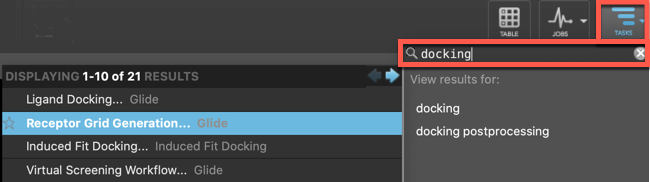
If you want to learn how to use Glide, follow the tutorial Structure-Based Virtual Screening Using Glide.
To perform a simple ligand docking calculation which will generate the required input files, follow these steps:
-
Set up a Glide grid file for the target receptor. Open the Receptor Grid Generation Panel in Maestro and set up the grid for the docking calculation. The grid is stored in a ZIP file inside the job directory with the job name.
-
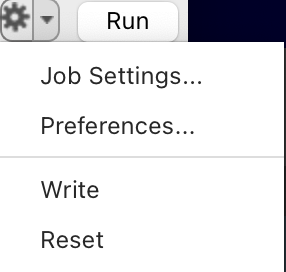
Prepare a Glide ligand docking calculation. Open the Ligand Docking Panel in Maestro and prepare a ligand docking calculation. During the AutoDesigner workflow, only parts of the molecule are changed, while a core remains fixed. To ensure consistent binding modes, core constraints are required when preparing the files for the docking calculations. For more information, see Glide Constraints. We recommend truncating your molecule down to the fixed common core and using the All heavy atoms option. Another option is to use the Maximum common substructure, however, this can sometimes lead to issues if the substructure detected is too large to allow for some wanted flexibility. For additional suggested settings see the Glide Docking section. Save the job files to your computer. Go to the gear icon in the Job Settings toolbar and click Write. We recommend docking a few example ligands in order to test the docking setup. See the Glide Docking section for additional information and recommended options.
Workflow Overview
The AutoDesigner R-Group Design workflow consists of a multistage search algorithm that carries out successive rounds of chemical space exploration and filtering starting from a single starting ligand. The algorithm uses four different methods to thoroughly explore chemical space:
-
Matched molecular pair (MMP) transforms
-
PathFinder reaction-based enumeration
-
Recursive trimming
-
R-group decoration
The following flowchart is an overview of the AutoDesigner algorithm:
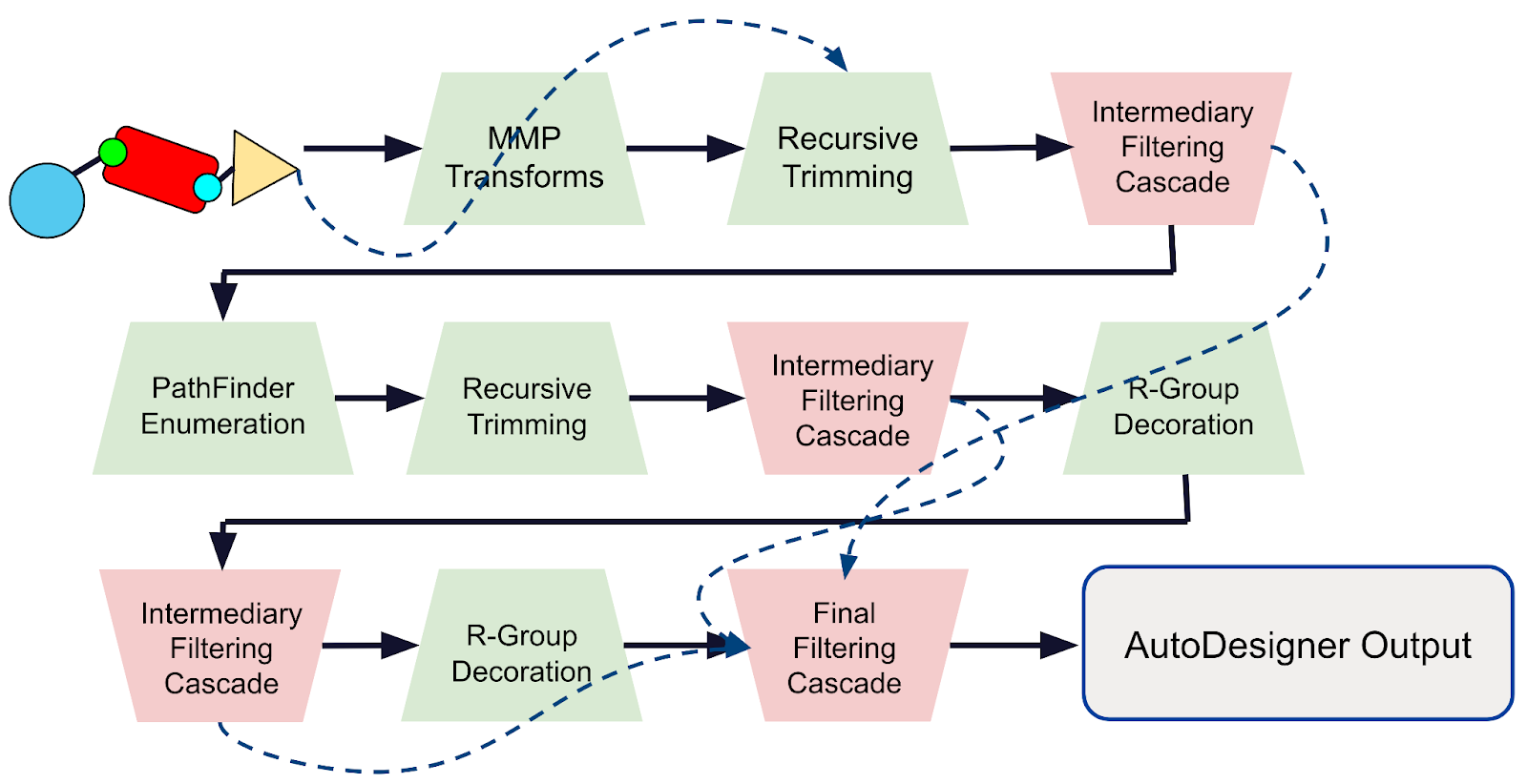
The generative stages are depicted by the green trapezoids and the filtering stages are depicted by the red inverted trapezoids. The dotted lines represent outputs from different stages that are forked and appended to either the recursive trimming inputs, or the inputs of the final filtering cascade.
AutoDesigner uses progressive filtering cascades that employ a range of different filtering techniques. The order of the filtering steps is based on computational efficiency, and there are two different types of filtering cascades. The intermediary filtering stages use fewer filters and are set up to let compounds through that could potentially be rescued in later stages. The final filtering cascade uses all available filters and the strictest settings so that only compounds that fit all of the desired criteria are retained. The various filters used in the filtering cascades will be described in more detail below.
Setup
In the Setup tab of the panel, you can provide the starting ligand, desired common core, LigPrep settings, and Glide Docking settings. You can also provide a job name for the AutoDesigner job, and configure job settings.
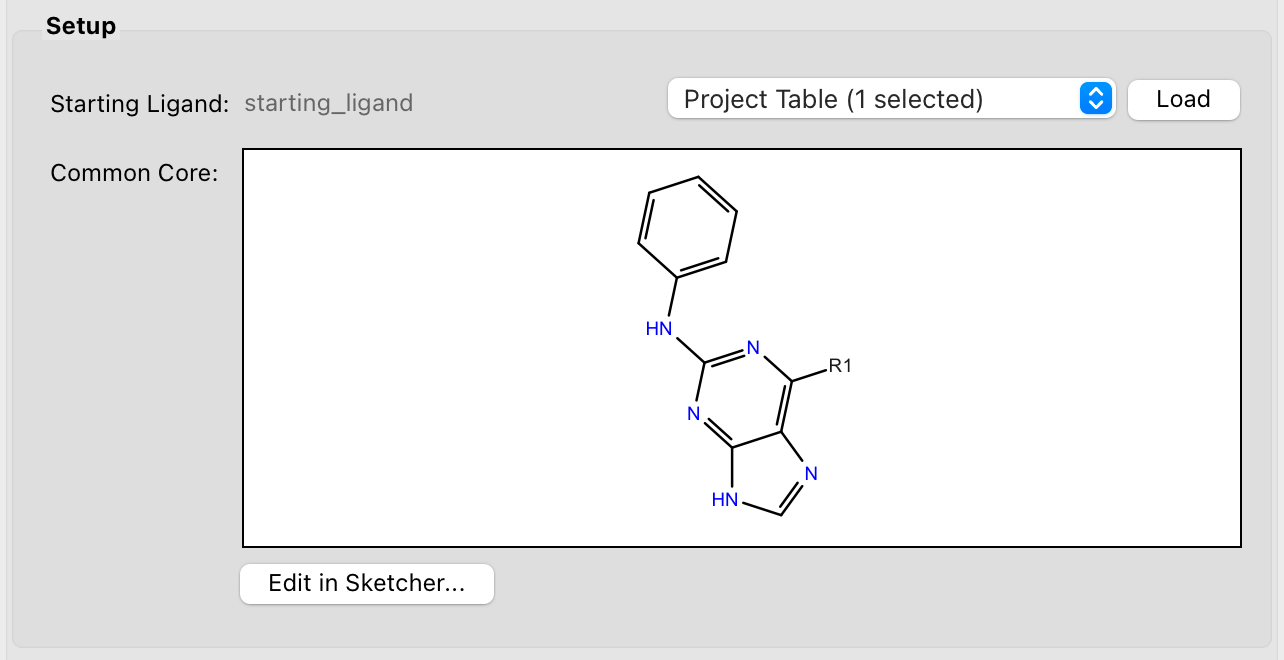
The Starting Ligand is the initial input structure for the AutoDesigner algorithm.
-
Starting Ligand:
-
Import from Project Table or Workspace: Select a single ligand structure as the starting ligand and click Load
-
Once the Starting Ligand has been loaded a copy of the ligand will also appear in the Common Core window. The next step would be to click on Edit in Sketcher to edit the common core and indicate the location of the R-group using the R+ button in the sketcher followed by clicking the Save button.
LigPrep
In the LigPrep step, low energy 3D structures of the compounds are generated.
LigPrep generates 3D structures, adds hydrogen atoms, generates tautomers and ionization states according to the target pH, generates 3D conformations and minimizes them. Finally, another property filter removes compounds with unwanted properties. The standard ligfilter file that is generated filters ligands based on their total charge, total absolute charge, and Epik state penalty. By default the ligfilter file filters all ligands with a state penalty > 1 in the intermediary filtering cascades, and all ligands with a state penalty > 0.5 in the final filtering cascade.
See The LigPrep Process in the Schrödinger Suite documentation.
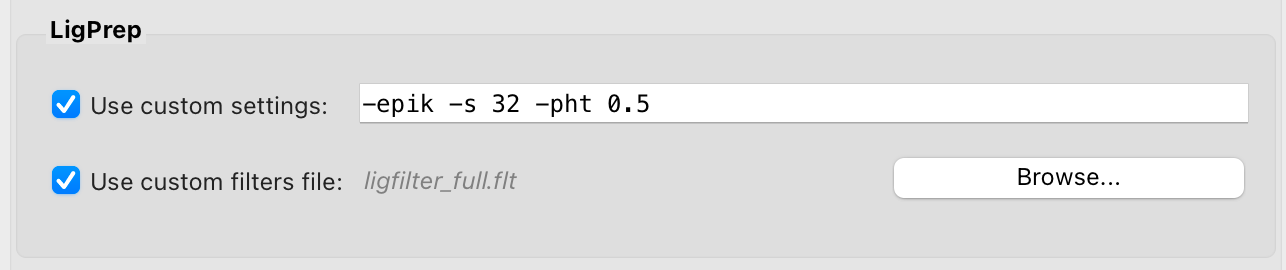
Select Use custom settings to enter custom LigPrep options in the text box (see ligprep -long_help Command Help). If left unchecked the default AutoDesigner LigPrep settings are used. The defaults are:
-
-epik Use Epik to assign and evaluate protonation states
-
-s 32 Generate up to 32 stereoisomers per input structure
-
-pht 0.5 pH tolerance for the protonation assignment
Select Use custom filters and click Browse to upload a custom LigPrep property filter (ligfilter, see LigPrep Use of ligfilter) file. If left unchecked, the standard AutoDesigner ligfilter files will be generated and used.
Glide Docking
In the last step of each filtering cascade in AutoDesigner, the prepared compounds are docked to a receptor using a docking model with core constraints. When you are Preparing Glide Inputs, it is recommended to dock a few example ligands (e.g. the starting ligand) in order to validate the docking setup.
Although not required, the Docking input file can have additional requirements, such as additional hydrogen bond constraints and/or positional constraints. The Glide docking stages used in the intermediary filtering cascades automatically ignore the additional requirements and only use the core constraint. The Glide docking stage in the final filtering cascade uses all constraints that are present in the Glide input file. It is important to note that if none of the molecules generated can satisfy the constraints, the AutoDesigner job will not have any molecules in the final output.
Since AutoDesigner does not filter the docked structures on the docking score, the following settings for the docking model are recommended (See Ligand Docking Panel in Maestro).
-
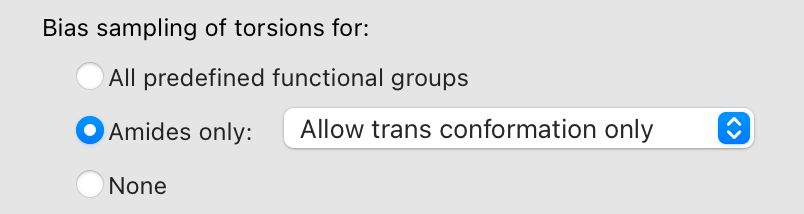
To avoid cis amide conformations it is recommended to bias the sampling of torsions to only allow the trans conformation.
-
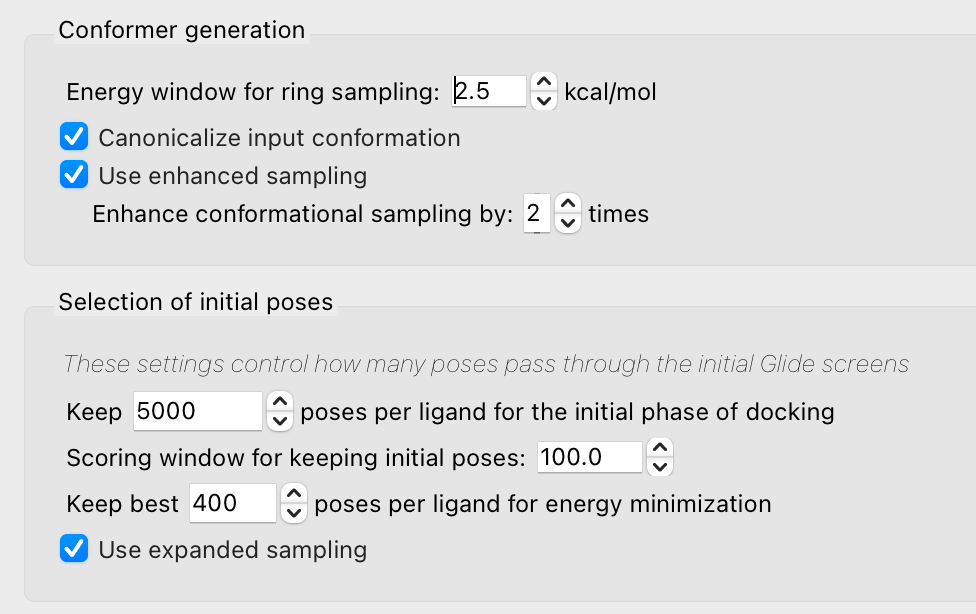
To increase sampling in both the conformer generation and initial pose selection it is recommended to use enhanced sampling by two times in the conformer generation, and to use expanded sampling in the selection of initial poses (Advanced Settings):
-
A core constraint docking model is required and it is recommended to use a reference ligand that consists of the fixed common core of the AutoDesigner job, i.e. the starting ligand minus the R-group to be replaced. Since all these atoms are present in every ligand, the All heavy atoms setting can be used for the Core atoms. Each ligand is aligned to the fixed common core and only the R-group is sampled, resulting in aligned ligands as the final output from AutoDesigner.
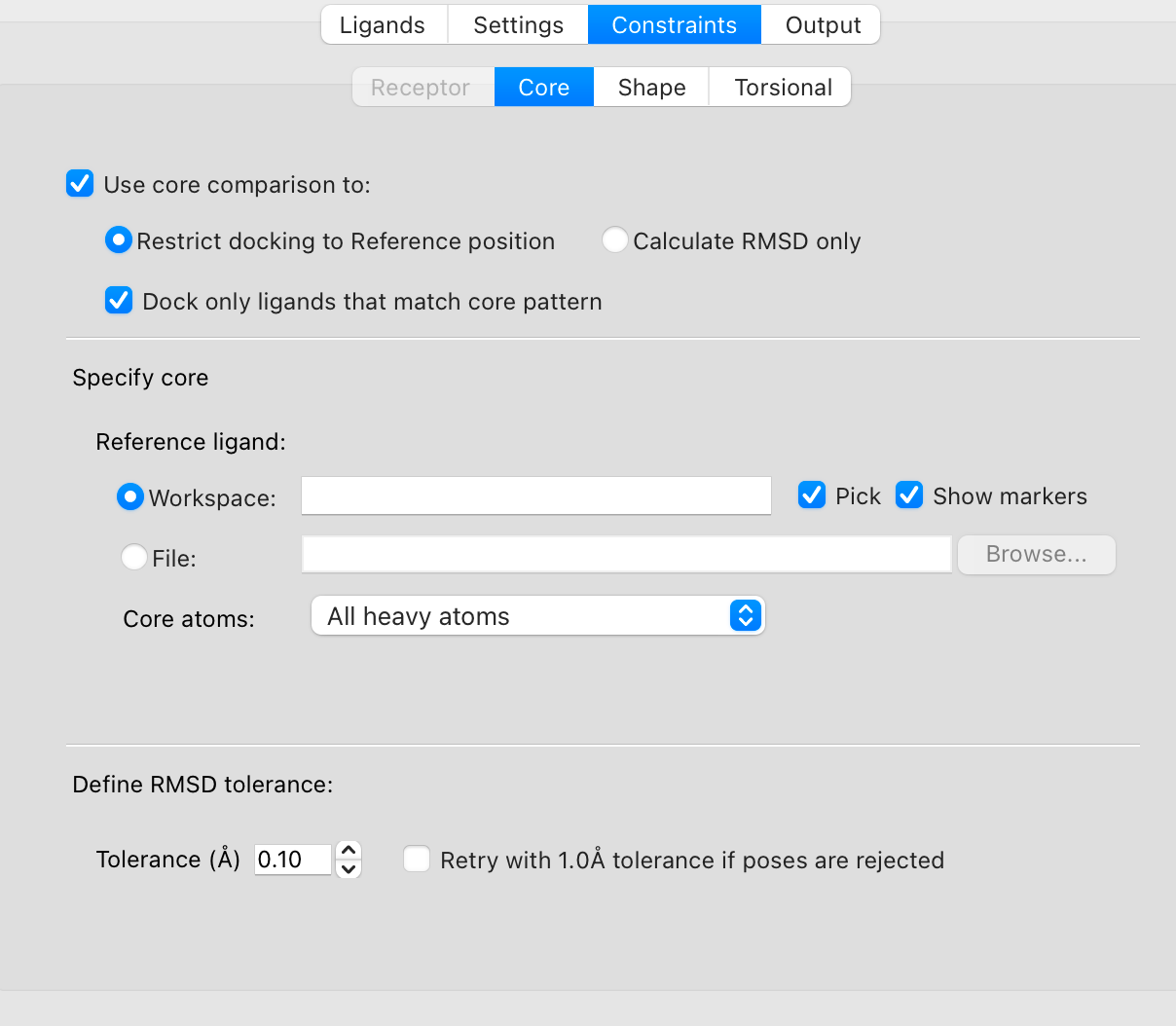
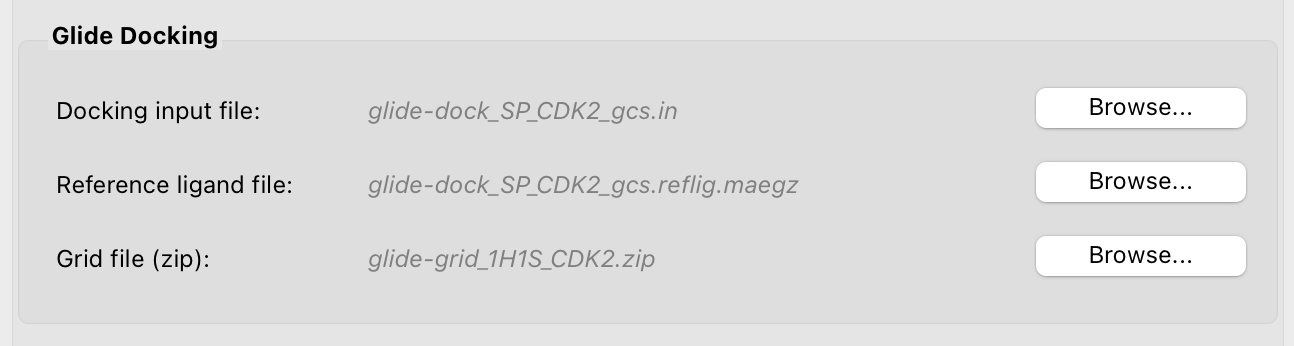
The following files will need to be selected:
-
Docking input file: Click Browse to navigate to a Glide input file (.in). See The glide Command for a description of the input file.
-
Reference ligand file: Click Browse to navigate to a structure file that defines the reference structure and core constraint for docking (.reflig.maegz).
-
Grid file: Click Browse to navigate to a Glide grid file (.zip).
Filters
AutoDesigner R-group Design (AutoDesigner) contains a number of filtering steps. There are two types of filtering cascades: Intermediary Filtering Cascades and Full Filtering Cascade, and each of these cascades contain a number of steps that filter outputs based on physicochemical properties, synthetic complexity, chemical stability, known structural liabilities, charge state, and the compound’s ability to dock in the receptor. The substructure based filtering is automatically adjusted each run to ensure the starting ligand and common core pass the substructure filter. To configure the filters you can either click on Define filters or switch to the Filters tab in the panel.
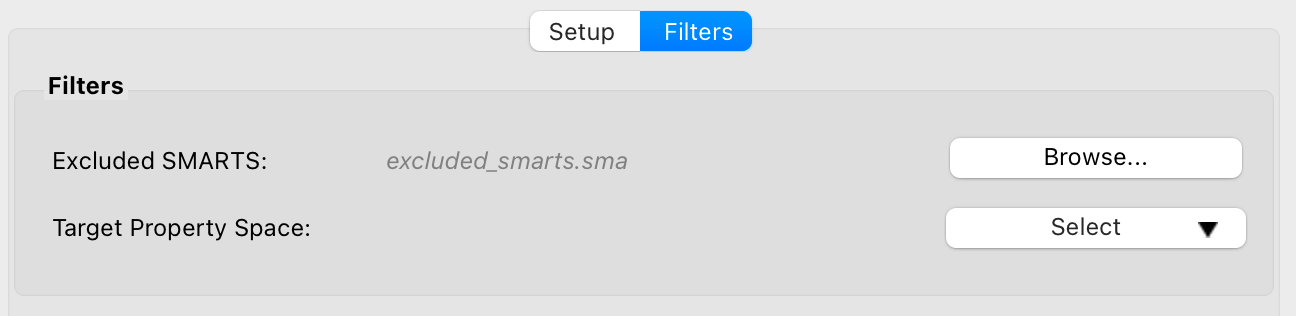
Excluded SMARTS
To exclude certain chemotypes (e.g. previously explored series, competitor compounds) from the AutoDesigner output, you can click Browse to select an optional SMARTS file (*.sma). This file should contain one or multiple SMARTS patterns (one pattern per line) and will filter out compounds if they match one or more patterns in the file.
Target Property Space
Configuring the Target Property Space is very important to ensure that the AutoDesigner outputs meet the project requirements. In total there are 21 properties that can be configured, and the properties are calculated for the entire molecule. Upon selecting a starting ligand for the job, the properties for the starting ligand are shown in the Target Property Space panel for reference. By default the Target Property Space settings have to include the property space of the starting ligand. In rare cases, it can make sense for the Target Property Space to be outside the starting ligand property space, and in that case the Require property space include starting ligand should be unchecked.
You can configure the Target Property Space settings by clicking Select, and choosing Configure. This will open up the Target Property Space panel.
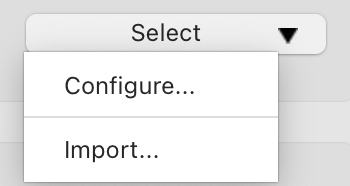
Previously saved Target Property Space settings can also by loaded by clicking Select, and choosing Import and selecting a *.propspace file and modify the Target Property Space settings if desired. Target Property Space settings can be saved by clicking the Export button in the Target Property Space panel. Once configured click Save to return to the main Filters panel.
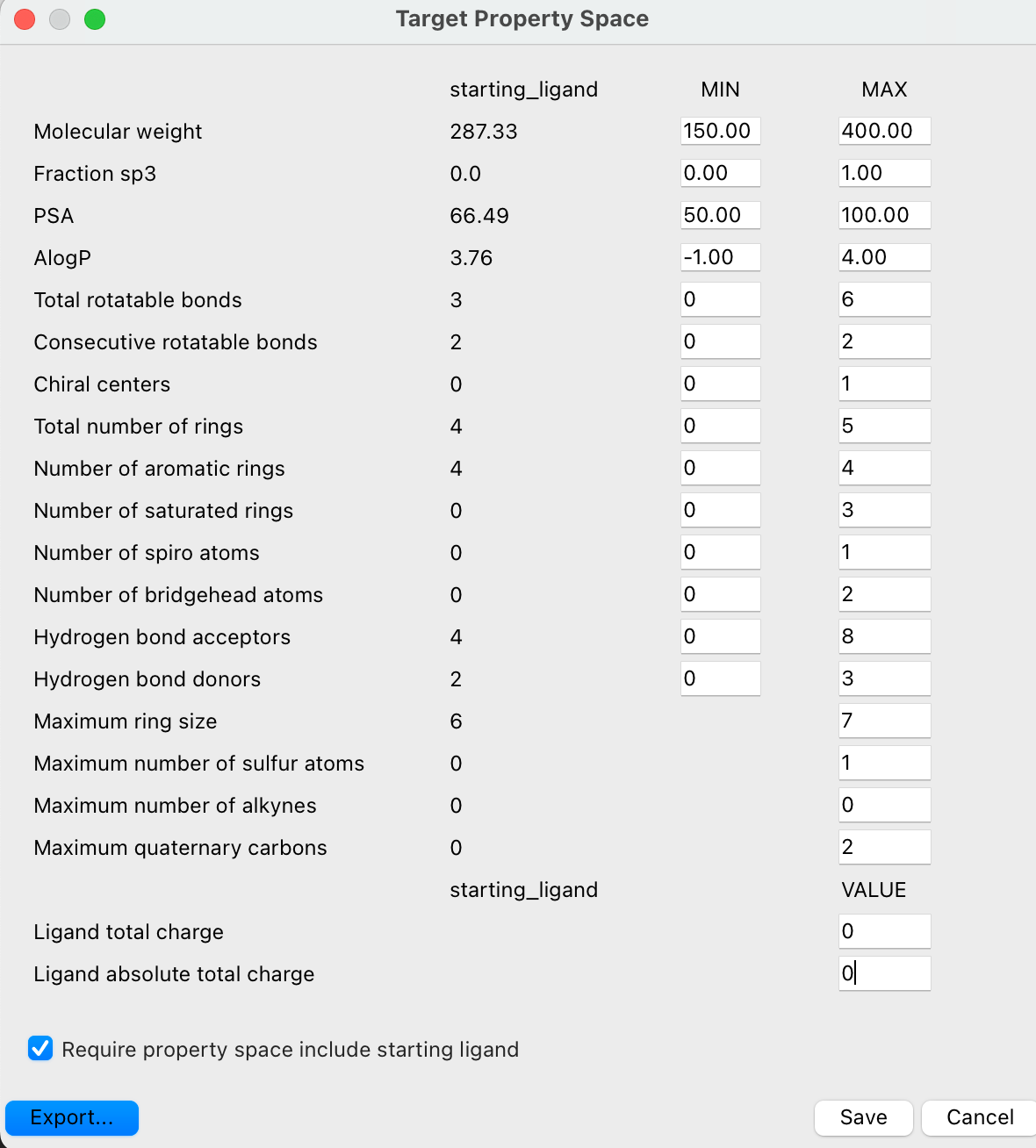
The Target property space consists of the following properties:
-
Molecular weight: Molecular weight of the molecule.
-
Fraction sp3: Fraction of the carbon atoms in the molecule that are sp3 hybridized.
-
PSA: Total polar surface area for the molecule excluding sulfur and phosphorus atoms.
-
AlogP: AlogP for the molecule.
-
Total rotatable bonds: The total number of rotatable bonds in the molecule.
-
Consecutive rotatable bonds: The longest consecutive rotatable bond count in a molecule.
-
Chiral centers: The number of chiral centers in a molecule
-
Total number of rings: The total number of rings for a molecule. Note: fused bicyclic ring systems (e.g. indole, naphthalene) count as two rings
-
Number of aromatic rings: The total number of aromatic rings for a molecule. Note: fused bicyclic ring systems (e.g. indole, naphthalene count as two rings)
-
Number of saturated rings: The total number of saturated rings for a molecule.
-
Number of spiro atoms: The number of spiro atoms (atoms shared between rings that share exactly one atom).
-
Number of bridgehead atoms: The number of bridgehead atoms (atoms shared between rings that share at least two bonds).
-
Hydrogen bond acceptors: The number of hydrogen bond acceptors (HBA) for a molecule.
-
Hydrogen bond donors: The number of hydrogen bond donors (HBD)for a molecule.
-
Maximum ring size: The maximum size of the largest ring in a molecule.
-
Maximum number of sulfur atoms: The maximum number of sulfur atoms in a molecule.
-
Maximum number of alkynes: The maximum number of alkynes in a molecule.
-
Maximum quaternary carbons: The maximum number of non-spirocyclic quaternary carbons attached to any combination of four carbon, nitrogen, oxygen, or sulfur atoms.
-
Maximum number of 5,5-rings: The maximum number of 5,5-fused ring systems in a molecule
Each AutoDesigner job explores only a single charge state and there are two settings that in combination determine the charge state of the ligands. Ligands that do not satisfy the ligand total charge and ligand absolute charge will be filtered. To make sure the ligands have the expected charge state it is recommended to run ligprep on the starting ligand from Maestro or from the command line. See the ligprep section for additional information.
Ligand total charge: The total charge of a molecule after ligprep, combining all positive and negative charges. For example, a molecule with a protonated amine and no additional charges would have a total charge of +1.
Ligand total absolute charge: The total absolute charge of a ligand after ligprep. The ligand total absolute charge is the absolute charge state for the full molecule adding up all charged atoms. For example, a zwitterionic molecule with one positive and one negative charge would have a total absolute charge of 0.
FEP+ Amenability Filter
The FEP+ Amenability Filter only keeps compounds that are suitable for relative binding free energy calculations. Compounds are regarded as amenable if they are similar to a reference compound. The similarity is evaluated based on the number of heavy atoms in the maximum common substructure (mcs) compared to the total number of heavy atoms in the reference and target.
A perturbation, that is, the difference between compound and reference compound, is acceptable if the number of heavy atoms not in the maximum common substructure (mcs) is less than a threshold for both compounds:

and

You can adjust the following settings for the FEP+ Amenability Filter:
-
FEP References:
-
Project Table — select one or more compounds in the Project Table and click Load to use the selected compound(s) as reference(s) for the FEP+ amenability score calculation.
-
From File — Select a file by clicking on Browse to select a SMILES file containing one or more compounds and click Open to use the selected compound(s) as reference(s) for the FEP+ amenability score calculation.
The total number of entries selected for FEP References is displayed.
-
-
FEP Max HAC perturbation: Specify the maximum number of heavy atoms allowed to change in a perturbation. This is evaluated as the number of heavy atoms of the compound or reference (whichever is greater) minus the number of heavy atoms in the mcs. The default value is 10 heavy atoms.
Generally, the starting ligand would be selected as the FEP reference. Selecting more than 1-3 reference ligands is discouraged as this step requires calculating the maximum common substructure for every molecule with respect to the reference molecules.

Note: A warning message will be shown when the FEP reference contains any non-ligands.
Additional Filters
There are a number of optional filtering steps that can be used to further tailor the output to the project requirements. It is important to keep in mind that if none of the compounds pass the selected filters and filtering criteria there will be no output, so a proper understanding of the filtering behavior is essential.
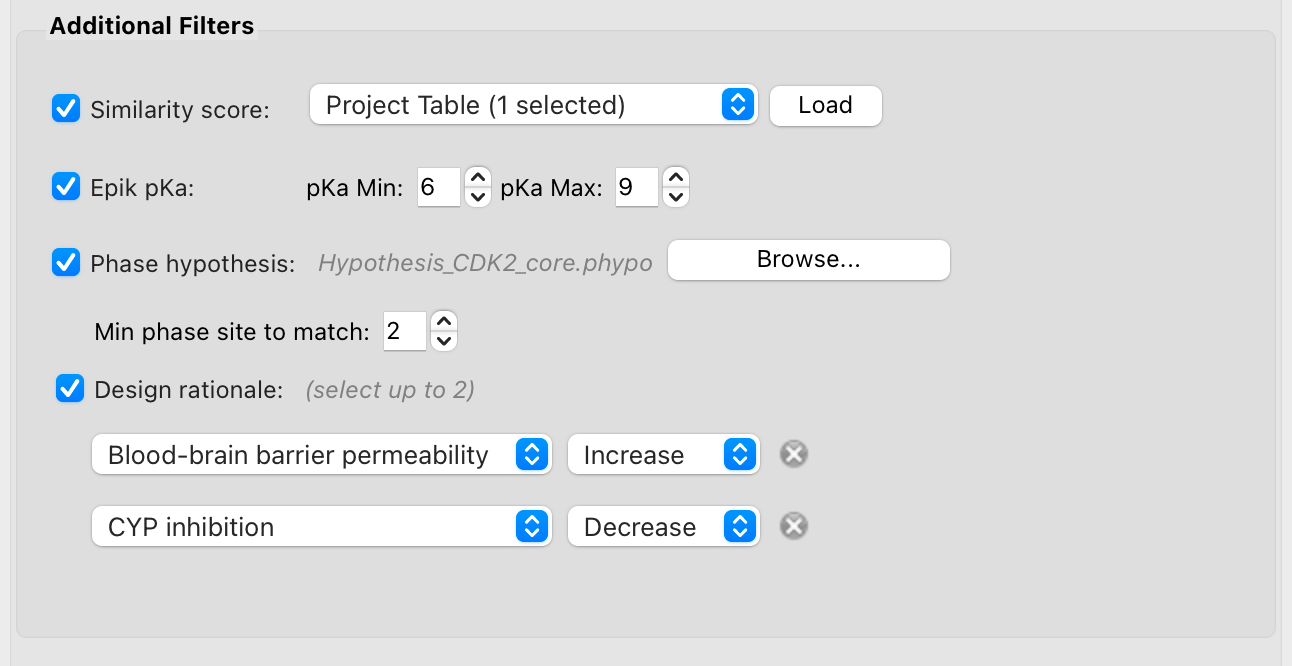
Similarity score: This feature calculates the Tanimoto similarity of the newly generated R-groups of all generated ideas in the final AutoDesigner output with the R-groups of up to 5 compounds from the Project Table. The Tanimoto similarity calculation excludes the common core. Compounds with a maximum Tanimoto similarity of < 0.1 are filtered out. Selecting this feature also adds the Tanimoto similarity score of the R-group compared to each of selected structures.
Epik pKa: The Epik pKa filter can be used to filter molecules on the pKa of the R-group vector explored by the AutoDesigner job. This filter can be used to modulate the pKa of basic amine containing molecules and filter molecules if the pKa of the hydrogens on a formally charged nitrogen atom are outside the pKa min and pKa max.
Phase hypothesis: A Phase hypothesis can be used to filter the final docked poses in place using a Phase hypothesis (*.phypo) file generated in Maestro. The Phase pharmacophore hypothesis can be set up using the Develop Pharmacophore Panel in Maestro. The desired features can be selected and the resulting *.phypo file that is created can be selected by clicking the Browse button. The docked poses from AutoDesigner are scored in place and any compound that does not match the minimum number of phase sites required is filtered out.
Design rationale: The Design rationale feature scores each of the generated AutoDesigner compounds for their ability to increase or decrease a selection of ADMET endpoints compared to the starting ligand based on combinations of relevant physicochemical properties. Up to two endpoints can be selected, and you can select to either decrease or increase compared to the starting ligand.
-
Blood-brain barrier permeability
-
CYP time-dependent inhibition
-
hERG inhibition
-
Ligand complexity
-
Ligand rigidity
-
Liver microsome stability
-
Metabolic stability
-
OAT2 inhibition
-
Off-target liability potential
-
Permeability
-
Pgp efflux
-
Plasma protein binding
-
Solubility
-
Volume of distribution (Vss)
Running AutoDesigner R-group Design
Before submitting the job, you can edit the job name and click on the gear icon to configure the job settings. AutoDesigner requires a Driver host and a CPU subhost with 1,024 processors. The driver node must be a driver-exclusive node and we recommend a driver node with 8 cores, 64GB RAM, 2TB SSD scratch (e.g. n2-highmem-8). For compute nodes, we recommend compute instances with 16 cores, 32GB RAM, 200GB scratch (e.g. c2d-highcpu-16).
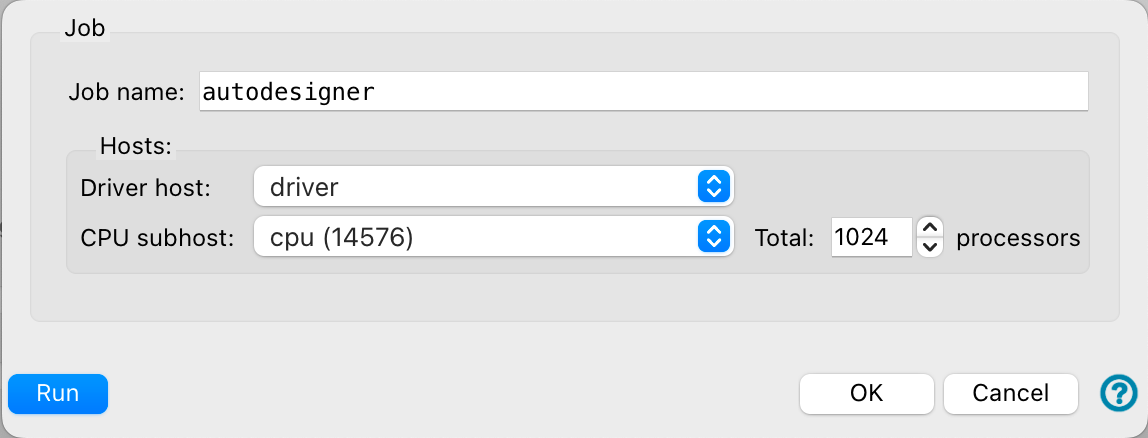
Once all the settings have been set and the required input files have been selected the AutoDesigner job can be submitted by clicking “Run” if submitting from the local machine to the cluster is possible. If direct submission is not possible you can click on the dropdown arrow next to the cogwheel to “Write” the job. This will write all the required job files to the job directory. This job directory can then be copied to the cluster and after setting the correct -HOST and -SUBHOST settings in the <jobname>.sh file with the launch command, the job can be submitted.
Note: It is strongly recommended to use no less than 1024 processors per AutoDesigner job. A warning message will appear if using fewer than 1024.
Output
Once the AutoDesigner job completes, the job directory will contain the full set of outputs as a maestro file (autodesigner_full.maegz), a sample set containing 1,000 randomly selected compounds (autodesigner.maegz), a pdf report of the run (autodesigner_report.pdf), and a log file (autodesigner.log).