Running Jaguar Jobs
Maestro provides a few ways of running Jaguar jobs. You can select a task in the Task Tool, make settings, then start the job, or you can use a set of preexisting input files and run them as a single job (click the Tasks button and browse to Jaguar → Run Input Files).
Whenever you run a calculation that does not have any geometry-dependent settings with multiple structures as input, a Jaguar script is created to run the calculation on each structure.
You can submit a job either from Maestro or from the command line. Information on submitting jobs from the command line with the jaguar run command can be found in The jaguar Command. This section describes the submission of jobs from Maestro.
You can submit the Jaguar job by clicking the Run button in the relevant panel. The job is run with the current job settings. To change the job settings, you can use the Settings button to open the Job Settings dialog box. See Starting Jobs from Maestro for more information. For more detailed information on this dialog box, click the Help button.
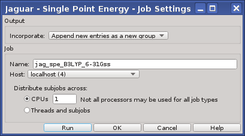
If you want to run a parallel job, you must select a multiprocessor host, and specify the number of CPUs to use. Batch jobs with multiple input structures can be distributed over multiple CPUs, so you can select a multiprocessor host and specify the number of CPUs to use for these jobs also. For jobs that can be parallelized over OMP threads, you can specify the number of threads. See Running Jaguar Jobs over Multiple Processors for more information about parallel jobs.
If you want to monitor the progress of a job, you can do so by clicking the Jobs button on the toolbar.

This gives basic information on the job; for more information, click Monitor in the Jobs panel to open the Monitor Panel. See Managing Jobs for more information on job control and monitoring.