Reading Jaguar Input Files into Maestro
If you already have Jaguar input files containing geometries (either with or without information on the type of calculation to perform), you can read them using the Jaguar Read dialog box, which you open by choosing Read from the Settings button menu on the Job toolbar. Click the arrow next to the button to open the menu.
This dialog box is a file selector with the usual file browsing tools. By default, information is displayed for the current working directory.
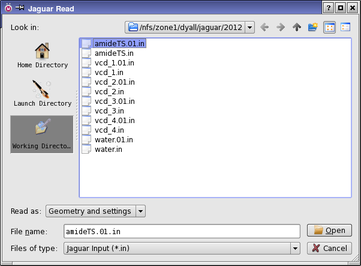
In addition to these tools, it has a Read as option menu, for determining what is read from the input file. When you read a Jaguar input file, you can read the geometry only, the settings only, or you can read the entire input file. To read just the geometry, choose Geometry only from the Read as option menu. To read just the settings, choose Settings only from the Read as option menu. To read the entire input file, choose Geometry and settings from the Read as option menu.
If you read in a geometry only from a file, Jaguar also tries to obtain information on the molecular charge.
If you read the settings, with or without the geometry, they are used to determine the Jaguar task, which might not be the task you chose when you opened the Jaguar panel. For example, if you chose Single Point Energy, then read an input file for a geometry optimization including the settings, the task is reset to Optimization.
Note that Maestro discards @, *, and # symbols when a Jaguar input file is read. This means that any counterpoise atoms, atoms for Hessian refinement, and constraints that were set in the input file are no longer set.
The structures in the input file are added as entries in the Project Table, named with the stem of the input file name by default. For example, reading h2o.in creates an entry named h2o.
To read geometries from files generated or used by other programs, you must import them into Maestro using the Import panel. The files are imported using the file format conversion program, OpenBabel [26], and must be in a format recognized by Babel. Maestro does not read any information other than the geometry from these files. If you want other information, such as a Hessian, you can cut and paste it into a Jaguar input file.