Animation of Jaguar Frequencies
Maestro can display vibrational animations based on Jaguar frequency data. This data is written in a file with a .vib extension when you perform a frequency calculation. The vibrational data is incorporated when the job finishes, and a V button is added in the Title column for each entry that has vibrational data—much like the S button for surface data. Clicking the button opens the Vibration panel, in which you can select the frequency to be animated and control the amplitude and speed of the animation. You can switch modes and change entries during the animation.
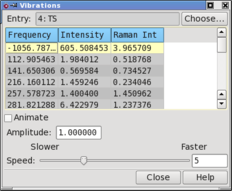
If the frequency job was not incorporated for any reason, you can read the restart file into the Jaguar panel, then import the vibrational data by choosing Data → Import → Vibrational Data in the Project Table panel.
To view vibrational animations from calculations run with previous versions of Jaguar, you can quickly generate the .vib file using the Jaguar restart file from a frequency calculation using the following procedure:
| 1. | Read the restart file into the Jaguar panel. |
The structure is displayed in the Workspace and an entry is created in the Project Table.
| 2. | In the SCF tab, set Maximum iterations to 0. |
| 3. | In the Properties tab, select Vibrational frequencies in the table, then select Use available Hessian in the Vibrational frequencies section. |
| 4. | Run the job. |
An alternative to making the settings is to edit the input file, and in the gen section, change ifreq=1 to ifreq=−1, and add maxit=0. The former setting means “use available Hessian for calculating frequencies” and the latter setting means “skip the SCF”.
The job should take only a few seconds, even for a large molecule. When the job finishes, a new entry is added to the Project Table that includes a V button in the Vib column, with which you can open the Vibrations panel.
You can also generate a Molden input file after a frequency calculation, enabling you to visualize the frequencies with this program. See File Output Keywords in the Jaguar Input File for more information on writing a Molden input file.