Monitored Torsions Panel
This panel is used to set up torsions to be monitored during a dynamics simulation. Results are saved in the .mmo file.
To open this panel, click Torsions in the Monitor tab of the Dynamics panel or the MC/SD panel.
- Using
- Features
- Additional Resources
Using the Monitored Torsions Panel
To define a dihedral angle to be monitored, choose Atom or Bond from the Pick menu, and click on four atoms or three bonds in the Workspace that define a dihedral angle. When the dihedral angle is defined, the four atoms appear in the list at the top of the panel. The defined dihedral angles are marked with a red solid line, a dotted line through the dihedral angle, and an eye icon. The selected angle has a thicker line.
To redefine an item, select it in the list and then pick the atoms or bonds in the Workspace.
To delete a torsion from the list, select it in the list and click Delete. To delete all monitored torsions, click Delete All.
Monitored Torsions Panel Features
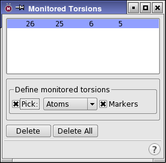
- Monitored torsions list
-
Lists the torsions to be monitored. After the fourth atom is picked, a new entry appears in the list.
- Define monitored torsions section
-
The Define monitored torsions section contains the standard picking controls, which are used to select atoms that define a torsion. It also contains a Markers option, which you can use to show markers for the monitored torsions in the Workspace.
- Delete button
-
To delete a monitored torsion, select it in the Monitored Torsions List, then click Delete.
- Delete All button
-
Click this button to delete all monitored torsions.