Maestro Assistant (Beta)
Maestro Assistant is Schrödinger's agentic interface that answers questions, provides information, applies styling, and executes tasks in the workspace for the user. Maestro Assistant is powered by Google's state-of-the-art Gemini models.
Maestro Assistant can only answer questions using the current Schrödinger documentation and does not have knowledge of general scientific concepts not covered in the documentation.
Maestro Assistant supports dozens of languages. To switch from English, simply send a prompt in another language. If the language is supported, the Assistant will automatically switch to match it.
To open this panel, do one of the following:
- Click the Tasks button and browse to Other Applications → Maestro Assistant (Beta)
- In the Maestro main window, choose Help → Ask the Maestro Assistant (Beta)
Maestro Assistant has three modes: ASK, AUTO, and EXECUTE as well as feedback buttons and other options.
Additional Information
ASK
The ASK option is on by default when opening Maestro Assistant from a panel help button. 
The CONTEXT option menu is shown in Maestro Assistant with the selected panel help selected (for example, when clicking on the Help button from the Ligand Docking panel, "Ligand Docking" will be shown in the CONTEXT text box in Maestro Assistant). Other options in the CONTEXT option menu include All Documentation or other recently opened panel help topics. Any panel that is open will appear in the CONTEXT drop down list during the Maestro session. When the panel is closed, it no longer remains in the CONTEXT drop down. CONTEXT can only be applied from the panel's help button, it is not currently possible to enter the panel name in the dialog box.
Use the ASK option for specific questions related to that panel.
Examples:
Hide hydrogens
Color atoms blue
Apply mesh surface
Tips for asking effective questions:
- Add a context sentence to your question, which can give information about what you are trying to do, what tool you are using, or what you might have already tried. For example, instead of asking “How to build a molecule?”, try asking “I am using Maestro to build water. I tried 2D Sketcher but do not want to build it as a 2D model. How do I do this?”
- Do not ask multiple questions within the same query. If two questions are related, try using the same context sentence for each question. Maestro Assistant evaluates each question independently and does not take previous questions into account.
- If you are not happy with an answer, you can try rephrasing the question. Keep in mind that LLMs have inherent randomness and different variations of a question may give different answers.
AUTO

The AUTO option is on by default when opening Maestro Assistant from the Task menu, Favorites Toolbar, or the Maestro Help menu.
Use the AUTO option for general questions, commands or actions.
Examples:
Hide hydrogens
Color atoms blue
Apply mesh surface
Tips for getting information:
- I am looking to dock proteins. What tools can I use for this?
- Protein to Protein Docking : describe the algorithm and the score.
- How do I get to the panel for running a molecular dynamics simulation of water molecules in the ligand binding site?
EXECUTE
The EXECUTE option is on by default when opening Maestro Assistant from the Style Toolbox.
Type commands, actions or a combination of steps for Maestro Assistant to execute those actions.
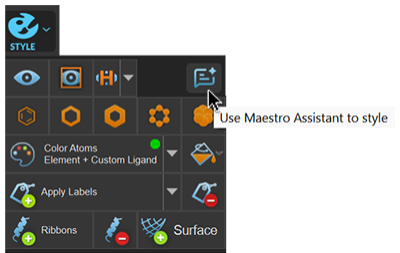
Examples:
- Color carbons cyan
- Remove hydrogens
- Apply CPK
Tips for effective commands:
- Be specific.
- Do not make multiple commands within the same execution.
- If you are not happy with the execution, you can try rephrasing the command.
Thumbs up / Thumbs down
Press the thumbs down or thumbs up icon to provide feedback on the quality of the answer, action or execution. Use the optional text box to provide details on the feedback.

Copy
Use the copy button to copy the response.

Privacy and Security
Maestro Assistant sends only the natural language text query to the large language model (LLM). The text query and some session context are sent via an encrypted web request.
Proprietary molecular structures, coordinates, and sequences never leave the user's local firewall.
- Maestro Assistant uses a Retrieval-Augmented Generation (RAG) process. The query is first used to search Schrödinger's secure documentation on Schrödinger servers. Maestro retrieves relevant excerpts from Schrödinger's documentation (the 'context') and sends them, along with your text query, to the LLM. Proprietary structures and data are NEVER included in this context.
- Once the Assistant interprets your intent, all resulting commands (e.g., coloring, importing, etc.,) are executed locally on your machine, ensuring your scientific data never leaves your firewall.
- Customer queries and data are not used to train Maestro Assistant public models.
- Currently, Maestro Assistant does not allow using a different LLM API key. Maestro Assistant uses custom search and retrieval functionality before querying the LLM to ensure the accuracy of the responses.
Frequently Asked Questions (FAQ)
Where is the AI model running? (locally, at Schrödinger data centers, or at third party data centers?)
Because Maestro Assistant is powered by Google's Gemini models the AI reasoning engine (the LLM) runs at a third party data center (Google). However, all resulting scientific calculations and commands are executed locally on the user's hardware.
What data is sent exactly? What is part of the "context" sent with the request?
Only the user's text query and relevant excerpts retrieved from official Schrödinger documentation are sent as context. Proprietary structures, coordinates, and sequence data are never included in this context.
Under which data protection regulation is the data processed?
Because Maestro Assistant utilizes Google Cloud Vertex AI as its enterprise backend, the data is processed under Google Cloud’s enterprise compliance frameworks. This ensures compliance with major global regulations including GDPR, CCPA, SOC 2/3, and ISO 27001. Furthermore, customer queries and data are explicitly not used to train public foundation models, and data is encrypted in transit.
Disable Maestro Assistant
Maestro Assistant can be disabled in the Preferences panel. Open Preferences and select Maestro Assistant under General, then clear the Enable Maestro Assistant (Beta) option. This hides the assistant from the Help menu, panel help button menus, and the Workspace toolbar.
Current Limitations
Maestro Assistant is currently a beta offering. User feedback is integrated in ongoing development efforts to maximize its effectiveness and address its limitations.
- Knowledge scope—Maestro Assistant can only answer questions using the current Schrodinger documentation. It does not have knowledge regarding general scientific concepts not covered in the documentation.
- LLM Hallucinations—While LLMs are powerful, they can sometimes generate incorrect or nonsensical information. User discretion is advised. If an answer is unsatisfactory, press the thumbs down icon.
- Language Support—Maestro Assistant’s language capabilities are bound by the LLM's supported languages, which is currently over 40 of the most common ones.
- Saved State—You can ask follow up questions up to one hour after a previous query. Beyond one hour, Maestro Assistant has no memory of previous conversations. If you quit a Maestro session, questions and answers from the current session are not saved. Please make sure to copy down answers you find useful.
Technical Details
Maestro Assistant is powered by Google's state-of-the-art Gemini models. The question submitted into the interface is identified as the user input, which is converted into an embedding. The embedding is used to query the vector database, retrieving relevant document chunks. The retrieved chunks and the original question are structured into a prompt using a template. The LLM is sent that input, and produces an output sent to the user, along with the relevant docs.