Moving Atoms
There are two main ways of moving sets of atoms in Maestro. One is to adjust bond distances, angles, or dihedrals, or other connectivity-related atom groupings (see Adjusting Bond Lengths, Angles, and Dihedrals). The other is to translate or rotate a set of atoms as a rigid body, without reference to the connectivity. For each kind of operation, a banner is displayed with instructions and some tools. These operations change the coordinates of the structures. You can also rotate and translate the view, which does not change the coordinates—see Changing the Workspace View for more information.
To move a set of atoms as a rigid body, you use the Move Atoms tools. The Move Atoms banner is displayed when you click the Move button in the 3D Builder panel,

choose Edit → Move Atoms, or press Ctrl+G (⌘G).

While the banner is up, the mouse actions that you use for changing the view (translate and rotate) are now applied to the selected atoms, which you can move to any location, and rotate about their centroid. If the mouse action for rotation or translation is bound to the left mouse button, the adjustment actions might take precedence—see below on adjustments.
- You can change the center of rotation by middle-clicking on an atom in the selection.
- You can change the selection in the usual way if you want to move a different set of atoms.
- You can undo the last action with Ctrl+Z (⌘Z).
- You can cancel the changes made for the current atom selection by clicking Cancel or pressing Esc. The banner closes.
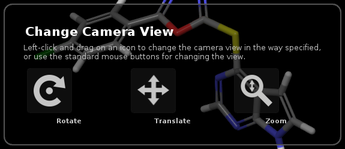
If you want to change the view while using these tools, hold down the Spacebar. An overlay appears on the Workspace (Change Camera View) that allows you to choose the view change and then use the left mouse button to make the change; alternatively you can use the normal mouse actions to change the view. The overlay is hidden while you change the view (move the mouse) and reappears again when the view change is done. Releasing the Spacebar returns you to moving selected atoms and hides the overlay.
"Sculpting" is a special action in which you drag a single selected atom (with the left mouse button) to a new location. When you release it, a short force-field minimization is performed on the atom and its surroundings to allow the structure to adjust to the change.
While moving atoms to a new location or orientation, you may want to adjust some other distances, angles, or dihedrals—for example, to make room for the moved atoms. Adjusting bond distances, angles, and dihedrals can be done by selecting the atoms and then dragging horizontally in the Workspace with the left mouse button. The default adjustment type is dihedral rotations. You can choose the type of adjustment by clicking the ellipsis button on the banner

and choosing from the menu that opens.
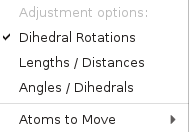
The current adjustment type is displayed when you hover over the word "adjustments" in the instruction text. The regular adjustment markers are displayed when adjustment is in effect.
If your left mouse button is used for rotation or translation, the adjustment takes precedence over the rotation or translation. To rotate or translate the selected atoms, you will have to choose an adjustment that does not match the number of atoms selected. This is the case for PyMOL mode (used in the BioLuminate and Materials Science profiles) or Trackpad mode, where left mouse performs rotation.
When you select the appropriate number of atoms for the adjustment type, adjustment markers are displayed and you can move the left mouse button horizontally to make the adjustment. The attached atoms can also be moved, depending on the choice from the Atoms to Move submenu. The default is All Attached Atoms, but you can choose Attached Terminal Atoms to include only terminal atoms such as H or a halogen, or Single Atom Only to move just the last atom in the selection (the "moving" atom). These settings do not apply to Dihedral Rotations, which move all attached atoms.
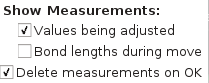
If you want to see measurements for relevant quantities during move operations, there are a few settings that you can make for what is shown. To make the settings, click the Settings button  at the top left of the banner. A menu opens, with the following items:
|
|