Building Structures from Fragments
The tools for building a structure from fragments are in the 3D Builder panel, which you open by clicking the Build toolbar button.

Then click Add Fragments to open the fragment selection tool.
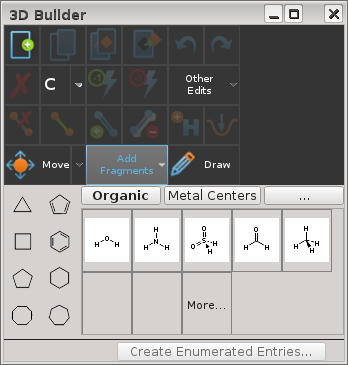
The ring fragments are always available. By default, a small selection of organic fragments is shown, as a palette. If you are building coordination complexes, click Metal Centers to display metal fragments in a few different coordination geometries. If you need other fragments, click the ... button or the More tile to open the Fragments Panel, where there is a wide variety of fragments of different types that you can use for building. If you choose an organic fragment in the Fragments panel that is not in the palette, it is added to the palette as well as being used to build. The most recently used fragments are collected in a separate tab in the Fragments Panel, which you display by choosing Recent from the Fragments option menu.
Note that you can build a structure using just carbons, and then change carbon to some other element (for example, by right-clicking on the atom and choosing Set Element).
Fragments are added to the atoms that are selected in the Workspace. Each selected atom in the Workspace is replaced by the principal atom of the fragment, and one or more hydrogens are removed from the fragment and the Workspace structure to ensure that the valency is satisfied.
So for example, if you select a hydrogen atom in the Workspace, it is replaced with the principal atom of the fragment, and a hydrogen is removed from the fragment to make the bond with the structure. If you select a carbon atom that is bonded to two other carbons, and click on the planar amine fragment, the carbon is replaced with the nitrogen and two hydrogens are removed from the fragment. The fragment can replace the selected atom provided that the number of bonds to the selected atom from non-hydrogen atoms is not greater than the number of hydrogens in the fragment.
If you have one or more bonds selected, and you click a ring fragment, each bond is fused with one of the bonds in the ring.
If the Workspace has a structure in it but there are no atoms selected in the Workspace, a fragment can be placed in the Workspace as a separate molecule. The pointer changes to indicate that you are placing a free molecule rather than a fragment, and a banner is displayed. The fragment is placed at the position where you click. The new molecule is added to the entry that is included in the Workspace. If there is more than one entry in the Workspace, you are prompted to choose which entry you want to add the molecule to.
If the Workspace is empty, the fragment is placed in the Workspace (as a molecule) when you click on it, and a new entry is created with a default name for the new structure.
When a fragment is added to a structure, a menu icon (4 horizontal lines) is displayed near the fragment that allows you to take actions on the fragment. The menu icon is removed when you edit the structure or when you display or hide atoms.
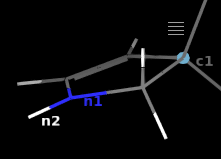
The items on the menu depend on the nature of the fragment added and hence the available actions, listed below.
-
Change Connection Point—Change the connection point on the fragment to another atom. Other connection points are marked as yellow diamonds. Hovering over a connection point displays arrows for the possible connections, if there is more than one. The marker turns green to indicate that it will become the new connection point if clicked. Click on an arrow to choose the connection or click the marker to choose the default arrow (shown in green), or the only connection if there are no arrows. Press Esc to reset to the previous connection point.
-
Change Connection Side—Change the side of the ring that is connected to the Workspace structure, when a bond is replaced with the fragment. The other sides of the ring (bonds) are marked with yellow diamonds. Click the marker to change the site of fusion to that side (bond).
-
Flip to Alternate H—Change the fragment connection to a different hydrogen atom on the same fragment atom.
-
Flip Orientation—Flip the orientation of the ring (the ring normal points in the opposite direction), so that it is fused the other way.
-
Rotate Dihedral— Rotate the fragment around the bond that connects it to the Workspace structure. The Rotate Dihedral banner is displayed, which allows you to change the fragment that is rotated and to minimize the structure after the rotation.
-
Select Fragment— Select the atoms in the fragment, so you can perform actions on the fragment. By default, the atoms you picked to add fragments to remain selected (unless you are using the chaining option to move the selection).
-
Remove Fragment—Remove the fragment and replace it with the original atoms, i.e. undo the fragment addition.
-
Reset Fragment—Reset the fragment to its original attachment geometry when changing the connection point or side.
Note: Fragments created by selecting a single atom across a set of overlaid structures have just one Fragment menu that operates on all the overlaid fragments. Only Select and Remove are offered in these circumstances.
After you have added a fragment to a selected atom, you may want to add another fragment. To do this you have to move the selection to the new attachment point. If this is a hydrogen, you can just press Tab to move the selection to the nearest hydrogen (fewest bonds away from the selected atom). Pressing Tab again cycles through the hydrogens attached to the same atom. If there are two hydrogens at the same distance from the original selected atom, the one with the highest atom number is selected (as this is likely the most recently added).
For information on building metal complexes, see Building Coordination Complexes.
Custom Fragments
In addition to the 3D Builder fragments, you can use a fragment from the clipboard to add to one or more selected atoms. To do this:
-
Display the structure that contains the desired fragment in the Workspace.
-
Select the atoms of the desired fragment.
The fragment must have only one atom whose bonds to the rest of the structure are broken to form the fragment (the "principal" atom).
-
Choose Edit → Copy or press Ctrl+C (⌘C).
The fragment is copied to the clipboard.
-
Display the structure (or structures) you want to add the fragment to.
-
Choose the atoms that you want to replace with the fragment.
You can choose atoms with hydrogens attached (e.g. methyl groups) or with multiple bonds. The number of bonds of the target atom to the rest of the structure must match the number of bonds broken to form the fragment.
-
Choose Edit → Paste Special → As Added Fragment
To paste a fragment from the clipboard onto a single site in a structure, you can also right-click the atom to be replaced and choose Paste Fragment.
Once you paste the fragment, a menu icon is displayed just as for the Builder fragments.