Surface Manager Panel

|
Surfaces. Toggles the display of surfaces in the Workspace. If there is at least one entry in the project and a surface is present, the |
 button opens the
 Manage the surfaces associated with project entries. This includes selecting surfaces or volumes to display, setting parameters for the appearance and display of surfaces, importing and exporting surfaces, and deleting surfaces.
To open this panel, choose Workspace → Surface → Manage Surfaces
- Features
- Additional Resources
Surface Table Panel Features
- Table
-
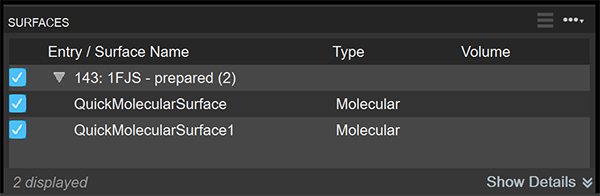
The Surface Table consists of the following columns:
Entry / Surface Name Entry ID and title of the entry that contains the surface. Name of the surface. You can edit this field to create a unique surface name within each entry.
Type Lists the type of surface: molecular surface, Van der Waals, extended radius, density, potential, orbital, spin, hydrophobic, or hydrophilic.
Volume Display or undisplay the volume for that entry in the Workspace. You can use shift-click to display multiple volumes in the Workspace, and you can use control-click or middle-click to display or undisplay individual volumes. Volume display can be set up in the Volume Color Map Editor Panel.
You can select rows in the table with the usual click, shift-click and control-click. With the exception of Import, the buttons below the table act only on the selected rows.
Right-clicking and holding in the surface table opens a shortcut menu from which you can change the surface color (constant color and color by property), style, and transparency, for the selected rows. For a fuller description of the options, see the Surface Display Options Dialog Box topic.
-
- Global Actions menu button
- Click the global actions menu button on top of the panel to access the following options:
-
- Import Surface or Volume—Open a file browser to import a surface or volume file. After selecting a file, the Choose Entry for Surface/Volume Dialog Box
- Export All Data—Export all surface and volume data. Only available when surfaces are present.
- Delete All—Delete all surfaces. Only available when surfaces are present.
- Change Creation Defaults—Open the Creation settings in the Preferences Panel. Only available when surfaces are present.
- Change View Settings—Open the Viewing settings in the Preferences Panel. Only available when surfaces are present.
- Float Pane—Detach the panel from its docked position and display it as a standalone floating dialog. The panel can be moved freely and returns to its last position when reopened. The floating state does not persist across Maestro sessions. When the panel is floating, this option changes to Dock Pane, which returns the panel to its docked position.
- Help—Open the help topic for this panel.
Additional actions are available by right-clicking a row in the surface table, including options to show, hide, duplicate, delete, and change display settings for individual surfaces. See the Surface Display Options Dialog Box for details on display options.
- Show / Hide Details toggle
-
The Show / Hide Details toggle, located at the bottom right of the table, shows or hides the Details Section which contains Display options and an Info section. By default the following values are displayed:
- Display option
-
The Display option, enabled by default and shown as active with "Display" located at the right side of the panel, has the following options:
-
- Transparency
Set the default transparency of the front surface (Overlay) and the back surface (Underside) in the text boxes. They are synchronized by default as shown with the link button active to the right of the text boxes. You can unlink by clicking the link button to the right of the boxes. These controls affect how transparent or opaque the surface is. Transparency only affects surfaces drawn in Solid style. Other styles are always drawn fully opaque. The transparency defined here sets the maximum transparency when angle-dependent transparency is in use (see under Viewing settings in the Preferences Panel).
- Transparency
-
- Limit size relative to atoms
Select this option to choose atom size. Displays option selection items.
-
Å number selector - choose the size of the Å
-
Load Selection
-
Define ASL - opens ASL for limit Dialog Box
-
All - choose the size of the Å
-
+ - choose from a variety of options including Workspace Selection, Displayed Atoms, Protein, etc.
-
Pick option and option menu, Show Markers option - choose between Atoms, Residues, Chains, Molecules or Entries and whether to show markers.
-
- Limit size relative to atoms
- Info section
-
Displays properties of the selected surface. When multiple surfaces are selected, the properties are shown in a comparison table with one row per surface. The table columns include Surface Name, Volume, Iso, σ, Cubic Max, Area, Lim, and Comment. Volume-specific columns are hidden when only molecular surfaces are selected. Click a column header to sort the table. Double-click a Comment cell to edit it.