Elemental Enumeration Panel
Use the Workspace structure to generate a set of modified structures in which selected atoms have been changed (transmuted) to another element. All possible transmutations are performed on the selected atoms, within defined bounds. The new structures are added to the project.
To open this panel, click the Tasks button and browse to Materials → Enumeration → Elemental.
The following licenses are required to use this panel: MS Maestro
- Using
- Features
- Additional Resources
Using the Elemental Enumeration Panel
Substituting elements can be used to tune the electronic properties of a molecule, which could be used as a ligand in an organometallic complex, for example.
To run an elemental enumeration:
- Include the source structure in the Workspace.
- Enter the element symbols for the target elements or click Periodic Table to choose the elements; or select Vacancy to delete atoms (create vacancies).
- Pick the atoms to transmute on the Workspace structure or select an element symbol to transmute all atoms of that element.
- Specify limits on the minimum and maximum number of transmuted atoms.
- Choose whether to keep or eliminate duplicate structures.
- If you want a random selection from the set of all possible structures, select Randomly choose and specify a percentage. Each structure has that percent chance of being kept, so the total number of structures produced may differ from that exact percentage of the total.
- Specify a Job name for the enumeration.
- Click Run.
The transmuted structures are added to the Project Table as a new entry group. All possible combinations are created (and from these a random subset may be chosen). This means that for a structure with high symmetry, like benzene, there will be redundant structures, unless you choose to eliminate duplicates. The structure titles include information on the transmutation performed.
The number of attached hydrogens is changed so that the proper valence of the target element is satisfied. If the target is a vacancy, hydrogens are not added to the elements bonded to the removed atom, so they may have unsatisfied valences. The charge state is not modified, so if for example you change a benzene carbon to an oxygen, the oxygen atom will have three bonds and no charge. You will have to change the charge or the bond orders before using the structure for calculations.
In order to keep atom numbering as consistent as possible in the enumerated structures, the atom ordering is changed so that all heavy atoms occur first and all hydrogen atoms follow. This is done because the number of hydrogens may change in the transmutation. The reordered parent structure is also added as part of the new group. The atom numbers appearing in the title of each enumerated structure refer to the atom numbers of the reordered structures.
This panel is primarily designed for transmutation of a set of atoms to one or more elements, for example conversion of a set of aromatic hydrocarbons into a set of N-heterocycles. If you want to transmute other atoms to other elements, you must display each of the structures from a transmutation in turn, and then perform the next transmutation.
You can also change elements manually, without using this panel—see Changing Bond Orders, Formal Charges, and Elements.
Elemental Enumeration Panel Features
- Transmute atoms to options
- Atoms to transmute section
- All atoms of element option menu
- Pick atoms in Workspace option
- Transmute atoms table
- Remove Selected Rows button
- Minimum transmutations per structure box
- Maximum transmutations per structure box
- Total combinations defined text
- Eliminate duplicates based on unique SMILES strings option
- Randomly choose option and text box
- Job toolbar
- Status bar
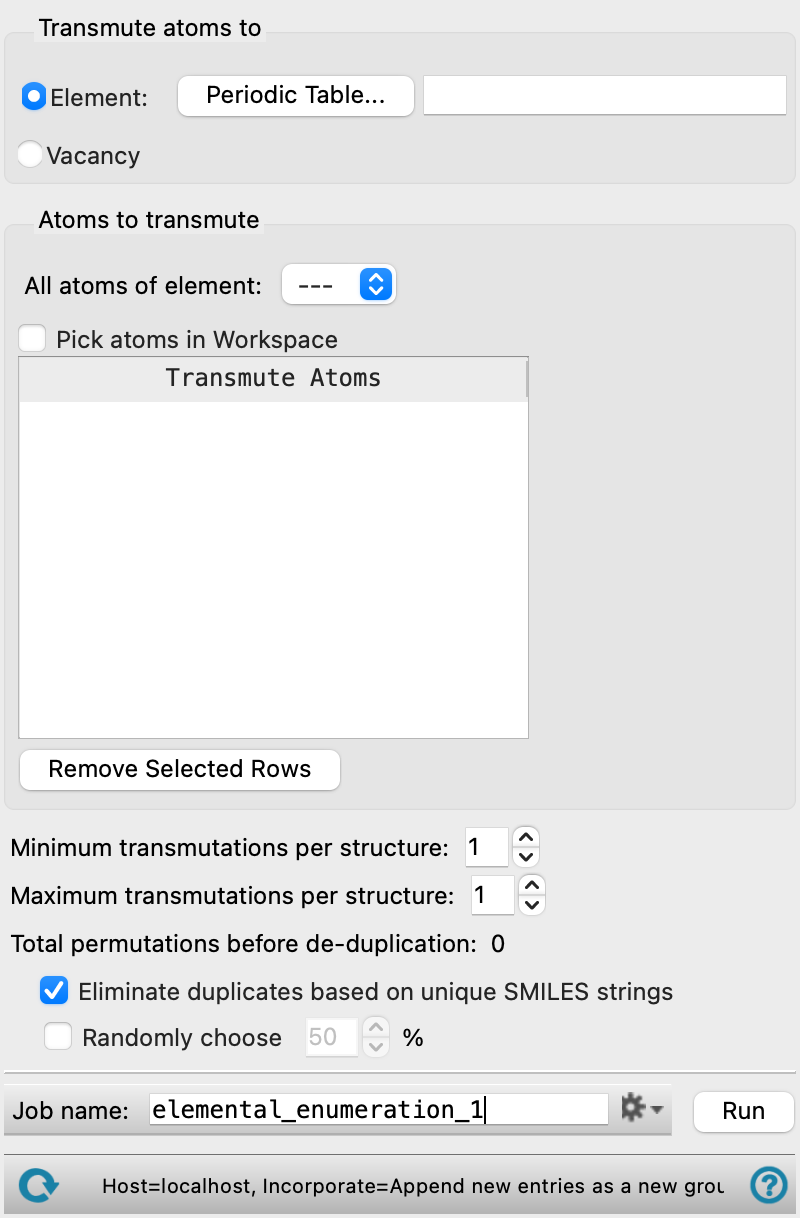
- Transmute atoms to options
-
Select an option for the target of the transmutation:
-
Element—Enter a list of element symbols in the text box, separated by commas, for the elements that you want to transmute atoms to, or click Periodic Table to choose an element in a periodic table. You can choose a single element or multiple elements from the periodic table. The elements you pick from the periodic table are added to the list.
-
Vacancy—Delete the atom and any attached hydrogens. No adjustments are made to the bonds to the deleted atom: they remain as unsatisfied valences. You can add hydrogens later if you wish. This option is probably most useful for metal clusters.
-
- Atoms to transmute section
-
In this section, you specify the atoms to be considered for transmutation. Atoms picked for transmutation are marked in the Workspace with a cyan-colored marker. To remove the markers, clear the Transmute atoms table, or reset or close the panel.
- All atoms of element option menu
-
Use this option menu if you want to select all atoms of a particular element for transmutation. The option menu is populated with the element symbols for the atoms in the Workspace structure. Choose the element whose atoms you want to transmute from this menu. Each instance of this element in the Workspace is listed in the Transmute Atoms table.
- Pick atoms in Workspace option
-
Select this option to pick the atoms in the Workspace structure that you want to transmute. You can only pick one atom at a time. Each atom is added to the table after it has been picked.
- Transmute atoms table
-
Lists the atoms that have been picked for transmutation. You can select multiple rows in the table to remove them from the list.
- Remove Selected Rows button
-
Remove the selected rows from the list of atoms to transmute.
- Minimum transmutations per structure box
-
Specify the minimum number of transmutations per structure.
- Maximum transmutations per structure box
-
Specify the maximum number of transmutations per structure. This number must not be greater than the number of atoms selected for transmutation.
- Total permutations before de-duplication text
-
This text reports the total number of transmuted structures defined by the list of atoms to be transmuted and the minimum and maximum transmutations per structure.
- Eliminate duplicates based on unique SMILES strings option
-
Eliminate any duplicate structures by comparing their unique SMILES strings. Duplicates can occur if the structure has symmetry and you pick symmetry-related atoms to transmute.
- Randomly choose option and text box
-
Select this option to keep a random subset of the possible transmuted structures, and specify the percentage in the text box. The percentage is the chance that each individual structure is kept, not the fraction of the total number of structures that is kept. For example, a setting of 50 gives each structure a 50% chance of being kept, so the total number of structures produced may differ from half of the total. This can be useful for creating a random set of bimetallic clusters with a given stoichiometry, for example.
- Job toolbar
- Status bar
Manage job submission and settings. See Job Toolbar for a description of this toolbar.
The Job Settings button opens the Elemental Enumeration - Job Settings Dialog Box, where you can make settings for running the job.
The status bar displays information about the current job settings and status for the panel. The settings includes the job name, task name and task settings (if any), number of subjobs (if any) and the host name and job incorporation setting. The job status can include messages about job start, job completion and incorporation.
Use the Reset button  to reset the panel to its default settings and clear any data from the panel.
The status bar also contains the Help button  , which opens the help topic for the panel in your browser. If the panel is used by one or more tutorials, hovering over the Help button displays a
  button, which you can click to display a list of tutorials (or you can right-click the Help button instead). Choosing a tutorial opens the tutorial topic.