Locate Rings and Spears Panel
Locate parts of the structure in the Workspace that go through the middle of ("spear") a ring.
To open this panel, click the Tasks button and browse to Materials → Tools → Locate Rings and Spears.
The following licenses are required to use this panel: MS Maestro
- Using
- Features
Using the Locate Rings and Spears Panel
This panel enables you to find parts of a structure that are entangled, where a bond goes through the middle of a ring ("spears the ring"). Such structures can be generated during automated building procedures, such as when building polymers or enumerating structures on a scaffold. Once the ring-spears are located, you can step through each instance to zoom in on it in the Workspace, and take whatever action you need to fix the structure. You might want to manually move the atoms so that the bond no longer traverses the ring, or you might want to try rebuilding the structure with different choices of options so that it is not entangled.
The ring-spear instances are colored with a color of your choice (red by default), and the representation for the atoms is set to ball-and-stick. Note that the color scheme and the representation remain when you close the panel. You can use the toolbars to reapply a color scheme or representation.
We recommend that you use this panel after building a polymer, especially if you have built the polymer with specific dihedrals, or chosen not to avoid clashes.
Locate Rings and Spears Panel Features
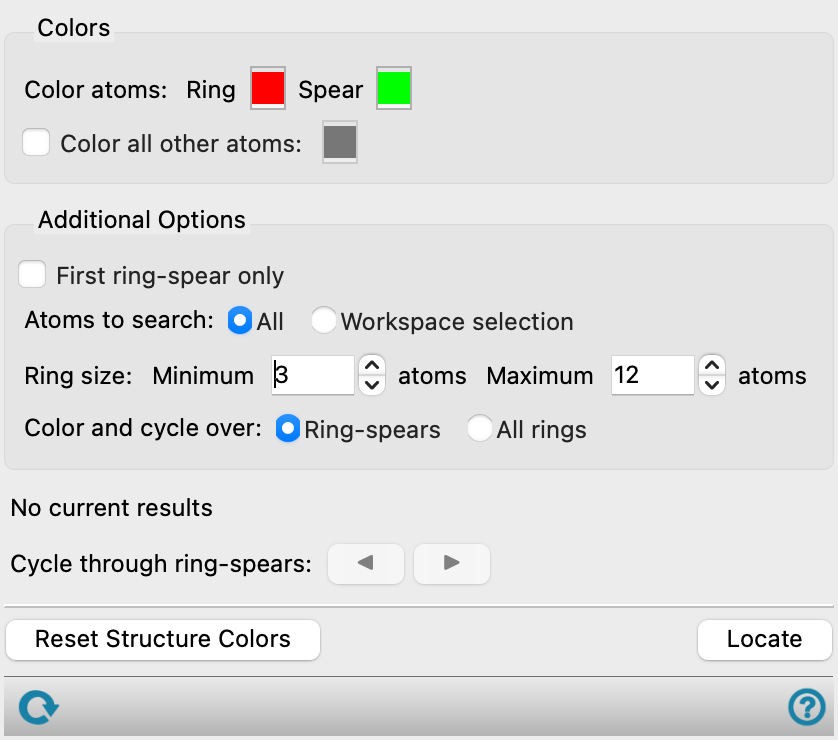
- Color atoms color buttons
-
Choose the colors for the ring atoms (Ring) and the atoms of the bond that traverse the ring (Spear) by clicking the color buttons and choosing the color in the color selector. The color used is shown on the color button.
- Color all other atoms option and color button
-
Select this option if you want to color all atoms other than those involving the ring-spearing with the color shown on the color button. Click the button to open a color selector to choose a new color.
- First ring-spear only option
-
Select this option to color just the first instance of ring-spearing found, and zoom the view in to this instance.
- Atoms to search options
-
Select an option for the atoms to search for rings and ring-spears, from All or Workspace selection.
- Ring size text boxes
-
Specify the range of ring sizes in the rings to be searched, by entering the minimum and maximum number of atoms in the rings in the Minimum and Maximum text boxes.
- Color and cycle over options
-
Select an option for the objects to color and cycle over, from Ring-spears or All rings. The label of the Cycle through buttons changes with the choice.
- Cycle through object buttons
-
Click the arrow buttons to cycle through the instances of ring-spears or of rings in the specified range, in the Workspace. The view zooms in to each instance so you can examine it more closely.
- Reset Structure Colors button
-
Change the colors of the atoms in the Workspace back to the original colors.
- Reset button
-
Reset the settings in the panel to their default values.
- Locate button
-
Click this button to locate the rings and ring-spear instances. The atoms in these instances are colored and drawn in ball-and-stick.