Restart Workflow Panel
Restart one of the restartable Materials Science workflows, chosen by job type. Restarting can be done on jobs that fail due to problems such as resource, hardware, or network issues.
To open this panel, click the Tasks button and browse to Materials → Tools → Restart Workflows.
The following licenses are required to use this panel: MS Maestro, additional licenses are workflow dependent
- Using
- Features
Using the Restart Workflow Panel
To restart a job:
-
Choose the type of job from the Job type option menu.
-
Choose an option for locating the job:
- Load from job database allows you to choose from the job database.
- Manually locate job directory allows you to browse the file system for the directory containing the job files.
-
Select the job you want to restart:
- If you chose Load from job database, choose the job from the table below.
- If you chose Manually locate job directory, enter the full path of the job directory in the Path text box, or click Browse and navigate to the job directory.
-
Click Run to restart the job, or click the Job Settings button to change the job host or settings and restart the job.
Restart Workflow Panel Features
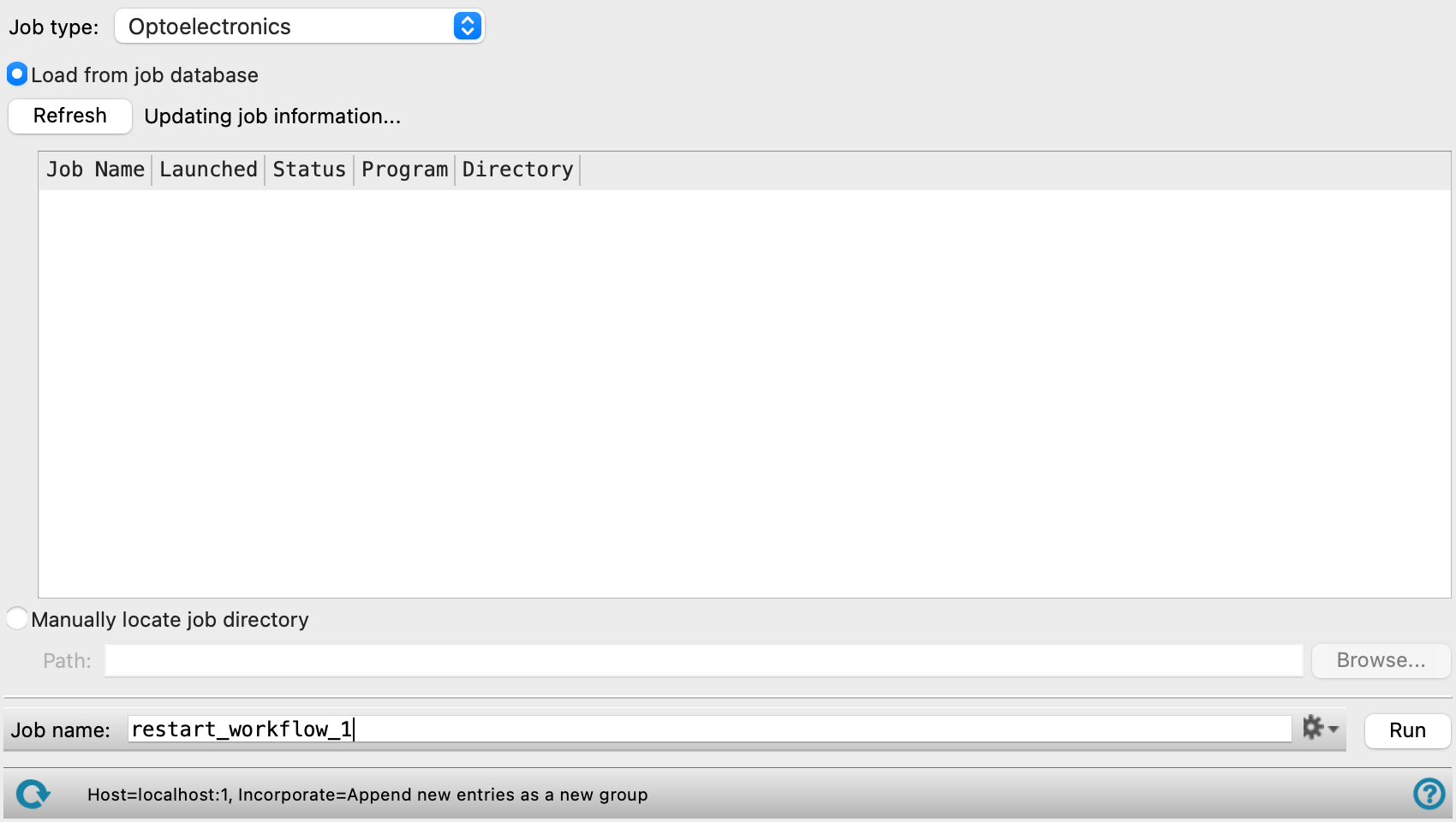
- Job type option menu
-
Choose the type of job (workflow) that you want to restart.
- Load from job database option
-
Choose the job to restart from the list in the job table below, which is loaded from the job database.
- Job table
-
Select the row for the job you want to restart from this table. Only one row can be selected, as each job must be started individually.
- Manually locate job directory option
-
Choose the job to restart by specifying the job directory.
- Path text box and Browse button
-
Enter the full path to the job directory of the job you want to restart in this text box, or click Browse and navigate to the job directory. The job directory name is usually the same as the job name. If the job directory is incompatible with the chosen job type, a warning is displayed when you try to restart the job.
- Job toolbar
-
Manage job submission and settings. See Job Toolbar for a description of this toolbar.
The Job Settings button opens the Restart Workflow - Job Settings Dialog Box, where you can make settings for running the job.
- Status bar
-
The status bar displays information about the current job settings and status for the panel. The settings includes the job name, task name and task settings (if any), number of subjobs (if any) and the host name and job incorporation setting. The job status can include messages about job start, job completion and incorporation.
Use the Reset button
 to reset the panel to its default settings and clear any data from the panel.
 The status bar also contains the Help button
 , which opens the help topic for the panel in your browser. If the panel is used by one or more tutorials, hovering over the Help button displays a
  button, which you can click to display a list of tutorials (or you can right-click the Help button instead). Choosing a tutorial opens the tutorial topic.