Playback Settings Pane
Make settings for playback of a trajectory, including the playback itself, positioning of the structures, display of atoms and other features. Changes to the settings are applied immediately, and affect playback if it is in progress. When settings are altered, they are stored in the project for the current trajectory. The latest settings are applied to any new trajectory (i.e. for which settings have not been modified and stored).
To open this pane, click the Playback Settings button on the Trajectory toolbar.
- Features
- Additional Resources
Playback Settings Pane Features
- Basic tab
-
Make basic settings for playing, appearance, and structure content.
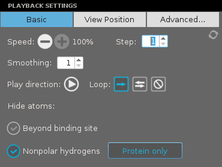
- Speed buttons
-
Increase or decrease the speed of the playback. Decreasing the speed introduces a delay between the display of frames. The button for increasing speed (+) is disabled once you reach the maximum speed (no delay). The percentage increase in speed from the minimum is shown next to the buttons, and the buttons increment the percentage in steps of 10%.
- Step text box
-
Specify the number of frames to advance for each step in the playback.
- Reset button
-
Reset all the settings to their defaults.
- Smoothing text box
-
Smooth the trajectory playback by averaging the coordinates over the specified number of frames.
- Play direction button
-
Specify the direction of play. Click the button to switch the play direction from forward to reverse; the button changes to indicate the play direction.
- Loop buttons
-
These buttons allow you to automatically repeat the playback of the trajectory (looping) once it reaches the end. The button for the current mode is highlighted.

display frames in the direction of play, then repeat 
reverse direction each time the beginning or end of the list is reached 
turn off looping - Hide atoms options
-
Select an option for the atoms to hide while playing the trajectory. These options are not present in the Materials Science suite. Hiding atoms allows you to focus on the part of the trajectory you are interested in, so that it is not obscured by the rest of the atoms (such as waters).
-
Beyond binding site—hide atoms beyond the binding site region, which is specified in the Advanced Playback Settings Dialog Box.
-
Nonpolar hydrogens—hide nonpolar hydrogens. Click Protein only to hide only the nonpolar hydrogens of the protein; click again to display the nonpolar protein hydrogens. The default is to hide them.
Alternatively, you can choose which atoms to display in the Advanced Playback Settings Dialog Box, by using the Display only options. The Hide atoms options are disabled if you set the Display only options to show only the currently displayed atoms.
-
- View Position tab
-
Make adjustments to the view of the structures in the trajectory, to remove drift or other motion relative to the coordinate system.
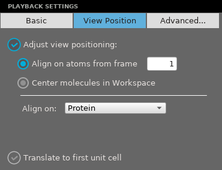
- Adjust view positioning option
-
Turn on adjustment of the view so that it is aligned or centered on some structural feature.
- Align on atoms from frame option and text box
-
Align the trajectory on atoms from the frame specified in the text box. You can choose the atoms to align on from the Align on option menu (see below). The alignment is done by rigid-body superposition of the atoms to minimize the RMSD between frames. This alignment removes drift and reorientation of the selected atoms, so that their relative motion is more easily examined.
- Center molecules in Workspace option
-
Center the view on the centroid of the selected molecules in the Workspace. You can select the molecules using the Center on option menu (see below).
- Align on/Center on option menu
-
Choose the structures to align the view on or to center the view on. The menu gives a choice of common structural features, and a Custom Selection option, for which standard tools for selecting atoms are displayed below the menu (see Picking Tools).
- Translate to first unit cell option
-
Translate atoms so that they all lie inside the first unit cell. With this option, atoms that cross the boundary during the simulation reappear on the other side of the unit cell. By default, atoms that cross the cell boundary during the simulation are shown outside the unit cell with bonds to atoms inside the unit cell.
When you select Translate to first unit cell, the simulation box is displayed. It remains displayed when this option is deselected. You can hide it again in the Advanced Playback Settings Dialog Box, by deselecting Show simulation box.
- Advanced button
-
Opens the Advanced Playback Settings Dialog Box, which offers other settings for controlling the trajectory playback. If the trajectory is playing when this dialog box is opened, play pauses, and resumes when the dialog box is closed.