Adjusting Peptide and Ring Conformations
Sometimes you may want to adjust the orientation of part of a structure that involves more than a simple rotation about a bond angle or a dihedral defined by bonded atoms. Maestro provides adjustment options that rotate part of specific structures about an axis through two atoms.
After you have made the adjustment, you should minimize the parts of the structure that are close to the parts that were moved, as these have not been adjusted. You could for example use the Expand Selection tool to expand the selection to include these parts, and then minimize. See Adding Atoms to the Selection for more information on the Expand Selection tool.
Peptide plane adjustments
For peptides, you can rotate the plane of the peptide linkage (around the axis between the C alpha atoms) or just the carbonyl plane. To do this,
-
Select an atom in the linkage.
-
Edit → Adjust → Peptide Plane Rotations or Edit → Adjust → Carbonyl Plane Rotations.
A banner opens for the adjustment. The banner for the peptide plane rotation is shown below.

You can also open the banner first by choosing the menu item, then selecting the atom in the linkage. The menu items are also available from the Move menu in the 3D Builder panel.
-
Drag with the left mouse button to rotate the peptide linkage fragment.
As the axis of rotation passes through two atoms (the C alpha and the nitrogen or the next C alpha), only the atoms in between are moved.
-
Click OK in the banner to confirm the change, Cancel to cancel it.
Ring conformation changes
To change the conformation of a ring, you can rotate part of the ring around the axis between two selected atoms that are not directly bonded. This allows you, for example, to flip cyclohexane from the chair to the boat conformation. To do this,
-
Pick the two atoms in the Workspace that define the axis you want to rotate around.
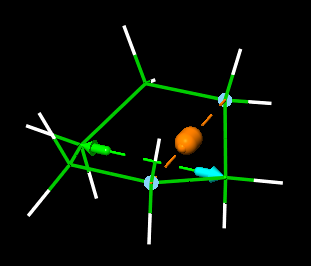
The axis is marked with an orange dotted line with a spindle shape in the middle. Arrows point to the two fragments; the cyan arrow points to the ring fragment that moves. To change the fragment that moves, click the green arrow.
-
Edit → Adjust → Change Ring Conformations.
The Change Ring Conformations banner is displayed.

You can also open the banner first by choosing the menu item, then selecting the atoms. This item is also available from the Move menu in the 3D Builder panel.
-
Drag with the left mouse button to rotate the ring fragment around the marked axis.
As the axis passes through two atoms, only the atoms on these two atoms and those in between are moved, along with all atoms attached to them. The attached atoms should not be bonded to another part of the ring. The groups attached to the atoms on the axis rotate to the expected position for the new ring conformation.
-
Click OK in the banner to confirm the change, Cancel to cancel it.