Making Measurements in the Workspace
Maestro provides tools for making measurements between objects in the Workspace. These tools are available from a banner, which is displayed when you click Measure on the Favorites toolbar, click on an existing measurement, choose Workspace → Measure, or use the Task Tool:
- Click the Tasks button and browse to Structure Analysis → Measure
- Click the Tasks button and browse to Workspace Operations → Measure

All the measurements in the Workspace are listed in the Measurements Toolbox.
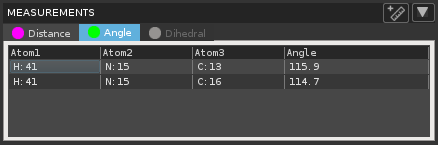
You can open this toolbox by right-clicking on the Measurements button, or pausing the pointer over this button, then clicking the ellipsis button that appears above it.

Measurements have a shortcut menu, which is displayed when you right-click on a measurement. The pointer icon changes to a ruler when you pause over a measurement label, to indicate that you can operate on the measurement. The specific items are described in the topics on the particular operations you can perform on measurements.
Measurements are stored only while the measured objects are in the Workspace.
If you are making measurements on a periodic structure (such as used for molecular dynamics simulations), the measurement can take into account the periodic boundaries. For example, a distance measurement between an atom on one side of the unit cell and another atom on the other side would actually show the distance between the first atom and the closest image of the second atom in the neighboring cell. This behavior is governed by a preference (see Measurements Preferences in the Preferences Panel topic). Measurements that are made in a periodic structure can be shown when you are viewing a trajectory, and are updated for each frame when it is displayed in the Workspace.
The topics listed below give information on making, displaying, using, and managing different kinds of measurements.