Task Tool
The Task Tool is the access point for all of the applications and commonly used tools in Maestro.
To display this tool:- click the Tasks button on the Workspace Main Toolbar.

- Using
- Features
- Additional Resources
Task Tool Features
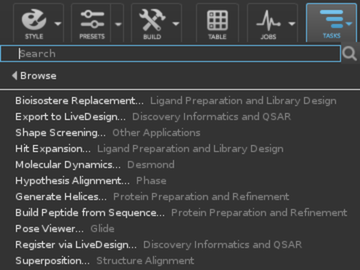
- Search tool
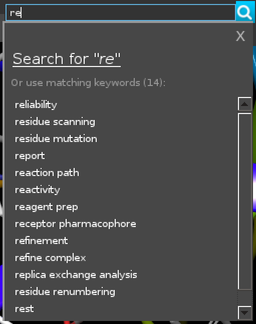
This tool allows you to locate a task or panel by searching. The search includes the names of the items in the Browse tool, keywords that are linked to particular tasks or panels, and the text description of a task or panel that is shown in the Browse tool. The search also supports approximate matching, so minor typos or spelling variations still return relevant results.
Results are ranked by relevance, with exact matches to task names or keywords always taking top priority at the absolute top of the list. For partial or semantic matches, the system prioritizes new features and recommended workflows while lowering the rank of legacy or deprecated panels.
The search box has the keyboard focus when you open the Task Tool, so that you can immediately start typing to run a search. When you start typing in the search box, a suggested completion list is displayed below the search box. Click on an item from the list to select it for the search. Click the search button or press Enter to perform the search.
If you press Enter to run the search, you can keep typing to change the search, and press Enter to run the search again.
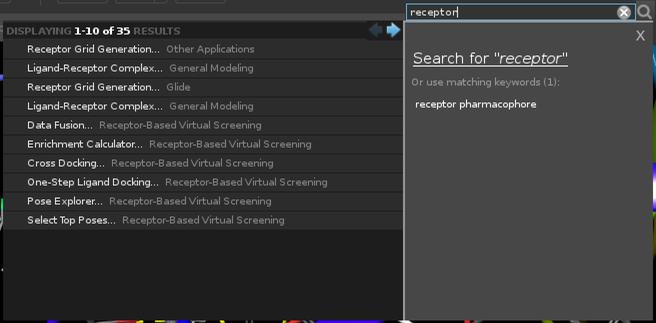
The search results are shown in a pane below the search box. Click on a result to open the panel or perform the action. If there are more results and the one you want isn't listed, click the arrow button to display the next page of results.
- Browse tool
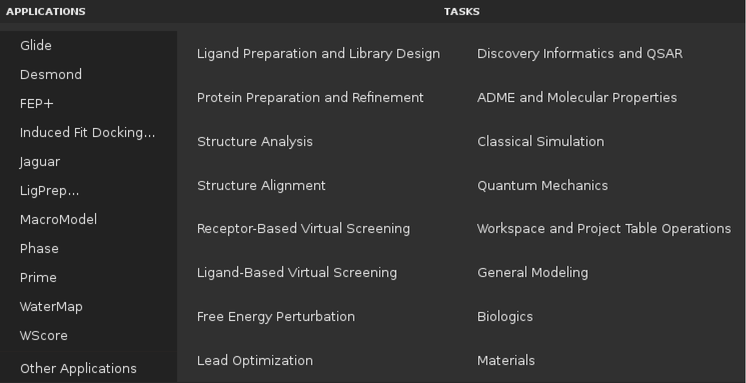
This tool allows you to locate a task or panel by browsing lists of subject categories, applications, panels and tasks. The lists are hierarchical, so you can narrow the search from the broadest categories to the specific application or task. Each list is displayed in a separate pane, which opens when you click a subject category in a higher-level list.
When hovering over an item, category items that open another list are colored gray, action items that perform a task or open a panel are colored blue. You can click the star outline that appears next to an item when you hover to add the item to the Favorites Bar
- Recently used list
This is a list of your recent actions, which you can use to reopen a panel or redo a task. It is displayed below the Browse tool. You can right-click on a list item to delete it.