CREST Panel
Perform a conformational search for a small molecule using CREST technology.
To display this panel, click the Tasks button and browse to Materials → Quantum Mechanics → Workflows → CREST
The following licenses are required to use this panel: MS Maestro, MS Reactivity
- Features
- Additional Resources
CREST Panel Features
- Use structures from option menu
- Open Project Table button
- Charge text box
- Number of unpaired electrons text box
- Conformational Sampling tab
- Job toolbar
- Status bar
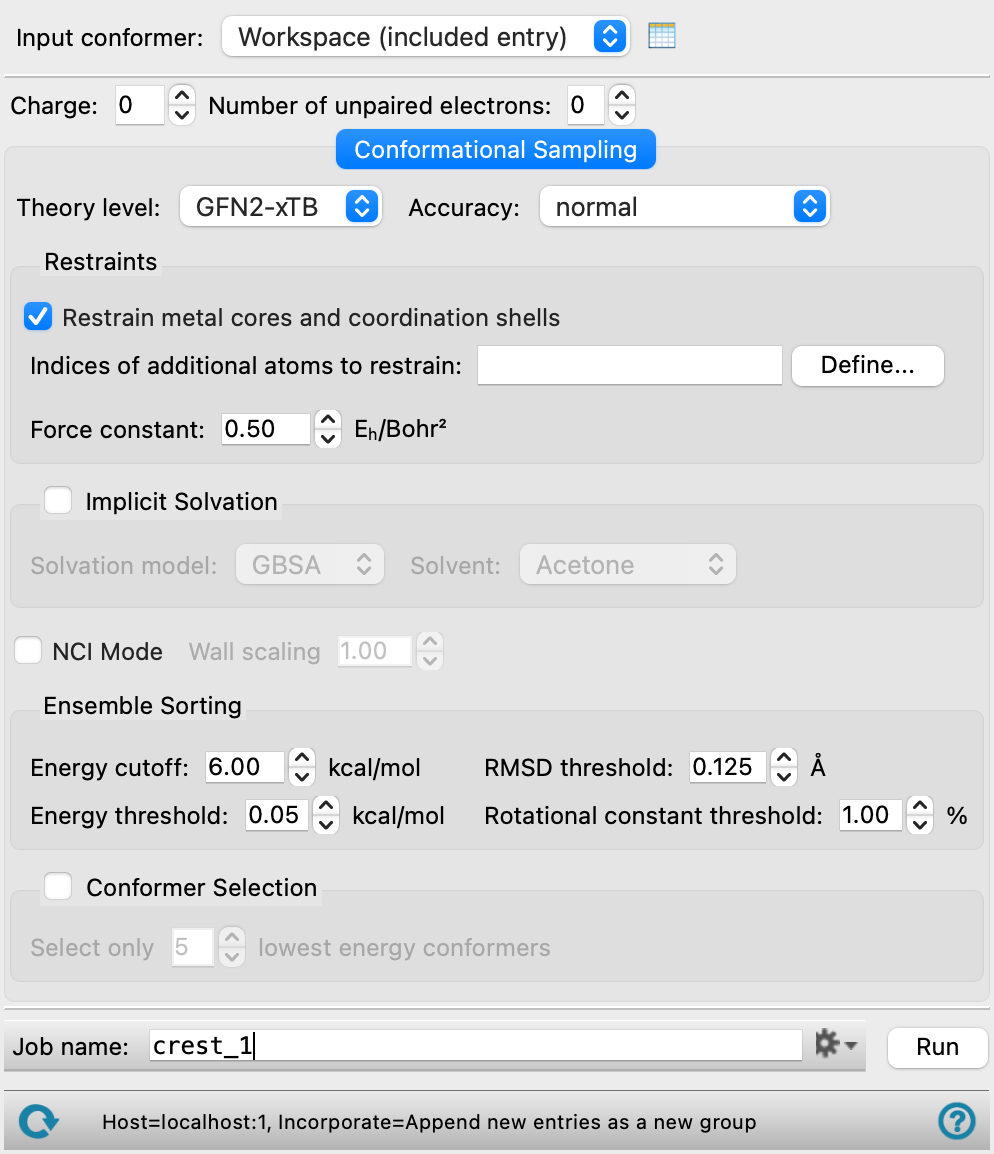
- Use structures from option menu
-
Choose the structure source for the current task.
- Workspace (included entry)—Use the entry that is currently included in the Workspace. Only one entry must be included in the Workspace.
- Workspace (included entry)—Use the entry that is currently included in the Workspace. Only one entry must be included in the Workspace.
- Open Project Table button
-
Open the Project Table panel, so you can

- Charge text box
-
Specify the charge on the input conformer.
- Number of unpaired electrons text box
-
Specify the number of unpaired electrons in the input conformer.
- Conformational Sampling tab
-
text
- Theory level option menu
-
Select the level of theory for the conformational search. There are two options for use of the QM method xTB, and one for traditional force fields.
- Accuracy option menu
-
Choose the level of accuracy for the evaluation of energies. These options control parameters such as cutoffs and convergence.
- Restraints section
-
Specify restraints on atoms for the search.
- Restrain metal cores and coordination shells option
-
Restrain metal atoms and the atoms that are immediately coordinated to the metals. Eta ligands are excluded from the restraints.
- Indices of additional atoms to restrain text box and Define button
-
Specify the indices of atoms to restrain other than metals and coordination shells. Enter the atom indices in the text box, or click Define to open the Atom Selection Dialog Box and select the additional atoms in the Workspace or by ASL.
- Force Constant text box
-
Specify the force constant for restraining the atoms, in atomic units (hartrees/bohr2).
- Implicit Solvation option and section
-
Select this option to perform the conformational search with an implicit solvent. The default is to perform the search in the gas phase.
- NCI mode option
-
Turn on non-covalent interaction mode.
- Wall scaling option
-
Specify the scaling factor for determining the hardness of the inner wall for noncovalent interactions.
- Ensemble Sorting section
-
Make settings for sorting the ensemble of conformers.
- Energy cutoff text box
-
Specify the energy cutoff relative to the lowest energy conformer for discarding conformers. Conformers with energies above the threshold are discarded.
- RMSD threshold text box
-
Specify the minimum RMS difference between corresponding atom locations in two distinct conformers. If the RMSD is less than this value, the conformers are considered the same and only one of them is kept.
- Energy threshold option
-
Specify the minimum energy difference between two distinct conformers. If the energy difference is less than this value, one of the conformers is discarded.
- Rotational constant threshold option
-
Specify the minimum rotational constant difference between two distinct conformers. If the rotational constant difference is less than this value, one of the conformers is discarded.
- Conformer Selection option and section
-
Select this option to select a given number of conformers. By default, all that pass the sorting cutoffs are kept.
- Job toolbar
-
Manage job submission and settings. See Job Toolbar for a description of this toolbar.
The Job Settings button opens the CREST - Job Settings Dialog Box, where you can make settings for running the job.
- Status bar
-
 to reset the panel to its default settings and clear any data from the panel.
If you can submit a job from the panel, the status bar displays information about the current job settings and status for the panel. The settings include the job name, task name and task settings (if any), number of subjobs (if any) and the host name and job incorporation setting. The job status can include messages about job start, job completion and incorporation.
The status bar also contains the Help button
 , which opens an option menu with choices to open the help topic for the panel (Documentation), launch Maestro Assistant, or if available, choose from an option menu of Tutorials. If the panel is used by one or more tutorials, hover over the Tutorials option to display a list of tutorials. Choosing a tutorial opens the tutorial topic.