Enumerate Disordered Systems Panel
Create binary disordered systems from all possible combinations of two molecule types taken from two sets of structures, with a specified ratio of the number of structures of each type.
To open this panel: click the Tasks button and browse to Materials → Enumeration → Multiple Disordered Systems.
The following licenses are required to use this panel: MS Maestro, OPLS (optional), MS Force Field Applications (optional)
- Using
- Features
- Additional Resources
Using the Enumerate Disordered Systems Panel
This panel performs the same task as the Disordered System Builder Panel, with a reduced set of options. Each system is built by placing the centroids of the molecules on a regular grid, and randomizing the orientation of the molecules (the Snap to Grid option from the Disordered System Builder Panel), with optional steric packing to increase the density of the system. The basic procedure is as follows:
- Select structures in the Project Table (or Entry List) for the first group of structures.
- Click the Load Selected Entries button for Group A.
- Select structures in the Project Table (or Entry List) for the second group of structures.
- Click the Load Selected Entries button for Group B.
- Set the total number of molecules in the Molecules text box.
- Set the ratio of the number of molecules in the two groups in the A:B ratio text box.
- (Optional) Set the random seed.
- (Optional) Choose whether to use steric packing or not.
- Enter a job name in the Job name text box, and click Run.
You can perform the enumeration for coarse-grained structures, but you cannot mix coarse-grained and all-atom structures, or prepare Desmond model systems (as the force field is not available).
To write out the input file and a script for running the job from the command line, click the arrow next to the Settings button  and choose Write.
Enumerate Disordered Systems Panel Features
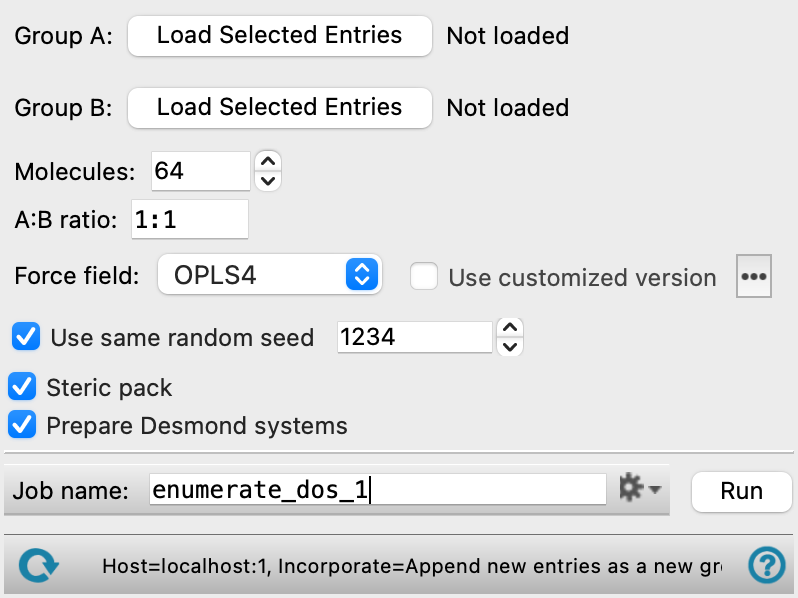
- Group A button
-
Specify the structures for the first group by selecting the entries in the Project Table and clicking the Load Selected Entries button.
- Group B button
-
Specify the structures for the second group by selecting the entries in the Project Table and clicking the Load Selected Entries button.
- Molecules text box
-
Specify the number of molecules to include in the disordered system simulation box.
- A:B ratio text box
-
Specify the ratio of the number of molecules from each set in the form n
:m. The ratio must be specified so that it can be applied exactly. - Force field option menu
-
Choose the force field for the model systems.
- Use customized version option
-
Use your customized version of the OPLS4 or OPLS5 force field, rather than the standard version in the distribution.
If the customized version is missing or invalid, the text of this option turns orange and an orange warning icon is displayed to the right, with a tooltip about the problem.
- Parameter set button
-
Select the set of custom parameters for the OPLS4 or OPLS5 force field. Opens the Set Custom Parameters Location Dialog Box.
- OPLS5 Metals force field options button (
 )
) -
Click this button to open a popdown pane with options for enabling the OPLS5 Metals force field. This button is only displayed when OPLS5 is selected as the force field.
- Enable OPLS5 Metals force field (beta) option
-
Select this option to use the OPLS5 Metals force field for systems containing supported metals. The supported metals are Ca, Fe, Ir, Mg, Pt, Zn. The OPLS5 Metals force field is significantly slower than the standard OPLS5 force field. Only available after the input structures have been analyzed successfully and the criteria for using the OPLS5 Metals force field has been met.
- Analyze Structures button
-
Click this button to analyze the input structures and determine whether the OPLS5 Metals force field can be used. The analysis checks that the structures contain supported metal elements and that the coordination environment around each metal center is compatible with the OPLS5 Metals force field. If the structures meet the criteria, the Enable OPLS5 Metals force field (beta) option becomes available. If the input structures change after the analysis, the analysis must be repeated.
- Use same random seed option and text box
-
Select this option to use the same random seed for each disordered system, and specify the random seed in the text box. This choice allows you to reproduce the systems later, by using the same seed.
- Steric pack option
-
Maximize the density of the system by moving the molecules towards the center of the cell, while avoiding steric clashes.
- Prepare Desmond systems option
-
Prepare systems for simulation with Desmond, which involves adding force-field information to produce
.cmsfiles. Cannot be used for coarse-grained systems, for which the force field is not available. - Job toolbar
-
Manage job submission and settings. See Job Toolbar for a description of this toolbar.
The Job Settings button opens the Enumerate Disordered Systems - Job Settings Dialog Box, where you can make settings for running the job.
- Status bar
-
The status bar displays information about the current job settings and status for the panel. The settings includes the job name, task name and task settings (if any), number of subjobs (if any) and the host name and job incorporation setting. The job status can include messages about job start, job completion and incorporation.
Use the Reset button
 to reset the panel to its default settings and clear any data from the panel.
 The status bar also contains the Help button
 , which opens the help topic for the panel in your browser. If the panel is used by one or more tutorials, hovering over the Help button displays a
  button, which you can click to display a list of tutorials (or you can right-click the Help button instead). Choosing a tutorial opens the tutorial topic.