Enumerate Periodic Structures Panel
Enumerate atomic substitutions in a periodic structure to generate new structures, for example with distributions of vacancies or dopants.
To open this panel: click the Tasks button and browse to Materials → Enumeration → Periodic Systems.
The following licenses are required to use this panel: MS Maestro
- Using
- Features
- Additional Resources
Using the Enumerate Periodic Structures Panel
The enumeration generates all symmetrically unique periodic cells obtained from a cell in the Workspace by substituting selected atoms with atoms of other elements or with vacancies. The procedure defines a set of n atoms, out of which a number of atoms, k (k ≤ n) are transmuted in all possible combinations to a chosen element or a vacancy. Thus a single such transmutation produces nCk structures in principle; however only the symmetrically unique cells are generated, which may be less than this number, depending on the symmetry.
You can define multiple transmutations, each with a different set of target atoms, elements to which they are transmuted, and k values, so that the final structures can have substitutions for multiple atoms with several elements at different concentrations. For example, you might replace some Ga atoms with In and As atoms with P in GaAs.
To set up and run the transmutations:
-
Display in the Workspace the periodic structure that you want to perform enumeration on. Enumerations cannot be performed on coarse-grained structures.
-
Select atoms in the Workspace for transmutation.
You can select the atoms by picking them in the Workspace, or by using any of the selection tools. See Selecting Atoms for a full description of these tools. You might, for example, select some or all atoms of a given element, in a sublattice, or in one or more planes. You must pick the atoms after opening the panel, as it does not use an existing atom selection.
-
Enter a name in the Selected atoms text box for the transmutation.
This name is listed in the table below. It is recommended that you change the default name, "Atom set", to one that defines the transmutation, e.g. 5 Si to 2 Ge.
-
Click Add Transmutation.
A row of controls for defining the transmutation is displayed.
-
Click Set Element and choose the element or a vacancy from the periodic table that is displayed.
The choice is displayed on the button when you close the periodic table window.
-
Enter the minimum and maximum number of atoms (k) to transmute from the atom set in the Concentration text boxes.
-
Repeat steps 4 – 6 for transmutations of the same atoms to other elements.
-
Click Save.
The transmutation is listed in the table, and the values stored for use in the job.
-
Repeat steps 2 – 8 for transmutations of other atoms.
-
Specify a job name, and click Run to run the job or click the Settings (gear) button to make job settings before running the job.
Note: Coarse-grained structures cannot be used with this panel.
Note: The job can only be run on a Linux or a Mac host. The program for performing the transmutation is not available on Windows.
To write out the input file and a script for running the job from the command line, click the arrow next to the Settings button  and choose Write.
Enumerate Periodic Structures Panel Features
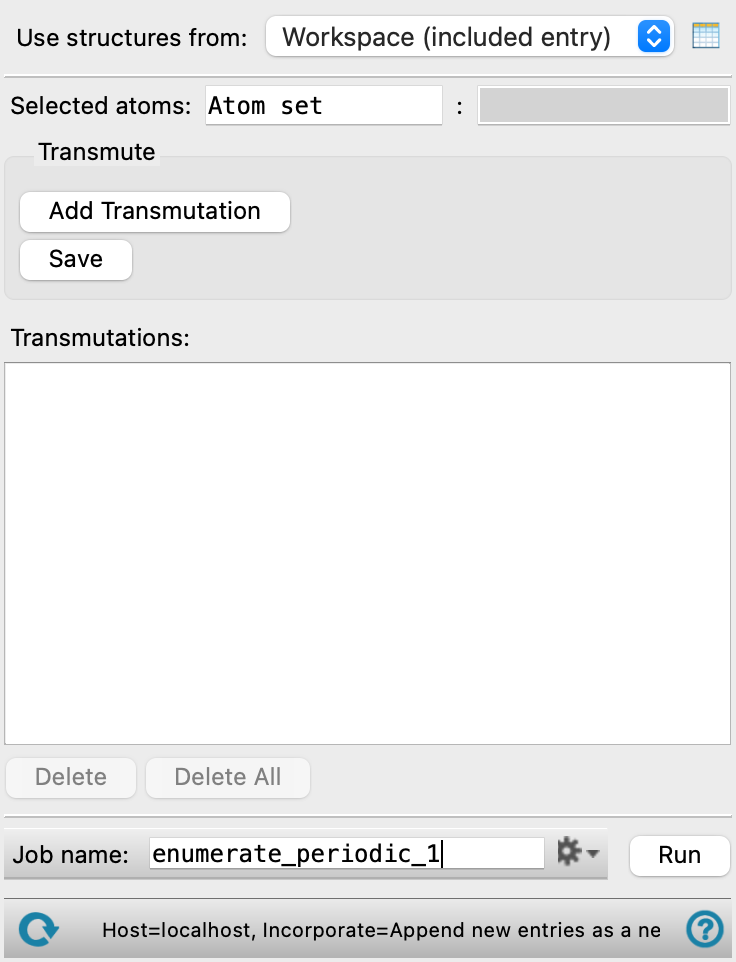
- Selected atoms text boxes
-
Specify a name for the atom set selected for enumeration in the first text box. The second text box shows the atoms that have been picked in the Workspace for the atom set. Different atom sets cannot have any atoms in common.
- Add Transmutation button
-
Add a row of controls to define a transmutation for the current set of selected atoms. The controls consist of a Set Element button, Concentration text boxes, and an X button to delete the transmutation. You can add multiple transmutations, which allows you to transmute the same set of atoms to different elements in the same run. Each defined transmutation is applied independently.
- Set Element button
-
Select the element to transmute the selected atoms to. Opens the Choose Element dialog box which has a periodic table for selection of the element and a Vacancy button to create a vacancy at the sites of the selected atoms. The choice of element replaces the text on the button when you close the dialog box.
- Concentration text boxes
-
Specify the minimum and maximum number of atoms out of the selected atom set that are to be substituted. All possible combinations of the specified numbers of atoms in the set of selected atoms are enumerated.
- Save button
-
Add the transmutations defined by the atom set, the elements, and the numbers of substitutions to the list in the Transmutations table. The Selected atoms text boxes are cleared and the transmutation rows are removed, ready for a new transmutation definition.
- Transmutations table
-
Lists the transmutations, using the label defined for the Selected atoms. You can select multiple rows for deletion.
- Delete and Delete All buttons
-
Delete the selected transmutations from the table, or delete all transmutations.
- Sort output by Ewald energy option
-
Select this option to rank the output structures by Ewald energy, with lowest energy first. The Ewald energy is calculated using common oxidation states for each element. The energy is added to the output as a structure property with the name r_matsci_Ewald_Total_Energy_(eV).
- Job toolbar
-
Manage job submission and settings. See Job Toolbar for a description of this toolbar.
The Job Settings button opens the Enumerate Periodic Structures - Job Settings Dialog Box, where you can make settings for running the job.
- Status bar
-
The status bar displays information about the current job settings and status for the panel. The settings includes the job name, task name and task settings (if any), number of subjobs (if any) and the host name and job incorporation setting. The job status can include messages about job start, job completion and incorporation.
Use the Reset button
 to reset the panel to its default settings and clear any data from the panel.
 The status bar also contains the Help button
 , which opens the help topic for the panel in your browser. If the panel is used by one or more tutorials, hovering over the Help button displays a
  button, which you can click to display a list of tutorials (or you can right-click the Help button instead). Choosing a tutorial opens the tutorial topic.