Extract Clusters Panel
Extract dimers or clusters from a set of molecules that are displayed in the Workspace, and write them to a file or add them to the Maestro project. The set of molecules must be part of a Desmond model system and are suggested to be finite.
To open this panel: click the Tasks button and browse to Materials → Structure Builders → Extract Clusters.
The following licenses are required to use this panel: MS Maestro
- Features
- Additional Resources
Extract Clusters Panel Features
- Use structures from option menu
- Open Project Table button
- File name text box and Browse button
- Create options
- Maximum intermolecular distance text box
- Measurement option menu
- Limit cluster centers to those of type option and menu
- Limit dimers to only those that contain number molecules of type option and menus
- Structure selection options
- Number of structures text box
- Job toolbar
- Status bar
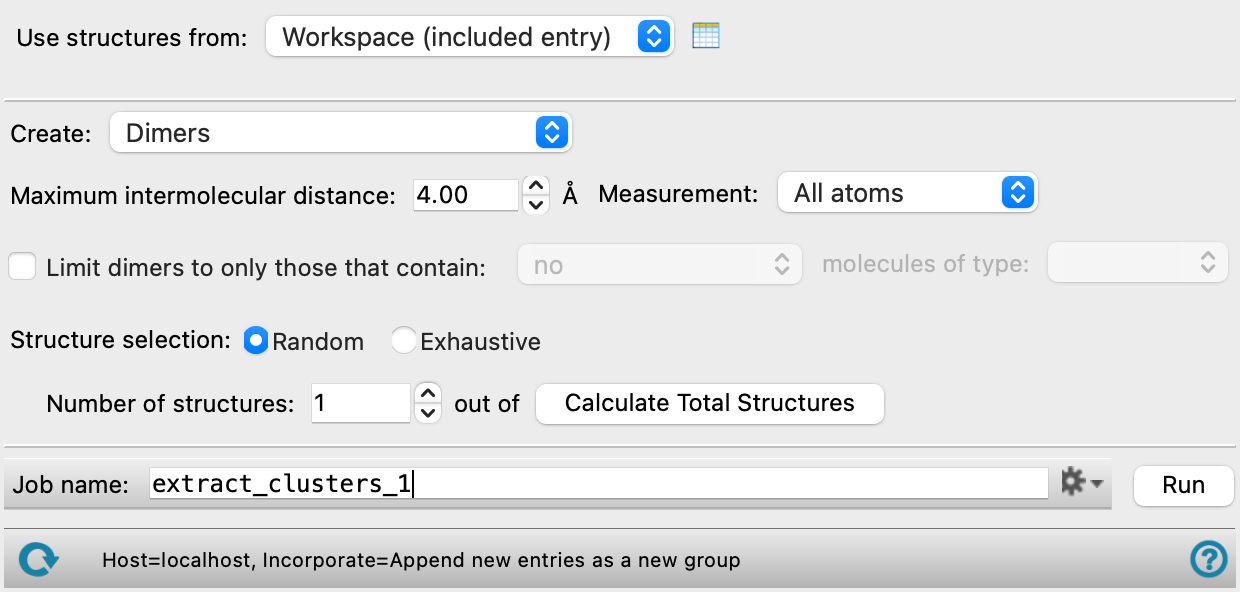
- Use structures from option menu
-
Choose the structure source for the extraction.
- Workspace (included entry)—Use the entry that is currently included in the Workspace. Only one entry must be included in the Workspace.
- File—Use the specified file. When this option is selected, the File name text box and Browse button are displayed.
- Open Project Table button
-
Open the Project Table panel, so you can

- File name text box and Browse button
-
Enter the file name in this text box, or click Browse and navigate to the file. The name of the file you selected is displayed in the text box.
- Create options
-
Select an option for the type of structure to create.
-
Molecules—extract single molecules from the source structure.
-
Dimers—extract dimers from the source structure.
-
Nearest neighbor clusters—extract clusters that consist of a molecule and its nearest neighbors. The central molecule is styled in CPK representation.
-
Nearest neighbor dimer clusters—extract clusters that consist of a dimer and its nearest neighbors. The dimer is extracted in the same way as with the Dimers option, and the nearest neighbors of both molecules in the dimer are added. The dimer is styled in CPK representation.
-
- Maximum intermolecular distance text box
-
Specify the maximum distance between two molecules for them to be considered as pairs in a dimer or as nearest neighbors. The distance that is compared to this value is the smallest distance between any atom in one molecule and any atom in the other molecule. Any pair of molecules for which this distance is larger than the value specified in the text box is not considered when defining dimers or nearest neighbors for extraction.
Not available if Molecules is selected for Create.
- Measurement option menu
-
Specify the way in which the intermolecular distance is measured for determining whether two molecules are within the maximum distance.
- All atoms—take the smallest distance between atoms of any kind in each molecule.
- Heavy atoms— take the smallest distance between heavy atoms in each molecule.
- Center of mass—take the distance between the centers of mass of the molecules.
Not available if Molecules is selected for Create.
- Limit cluster centers to those of type type option and menu
-
Limit the clusters created to those that have the specified molecule type at the center. The type menu contains labels that identify the unique structures in the source. This option is only present if you selected Molecules or Nearest neighbor clusters for Create.
- Limit dimers to only those that contain number molecules of type type option and menus
-
Limit the dimers created by the types of molecules that are in the parent structure. The type menu contains labels that identify the unique structures in the source. This option is only present if you selected Dimers or Nearest neighbor dimer clusters for Create.
- Structure selection options
-
Select an option for the structures to extract. Random extracts the number of structures specified in the Number of pairs text box, chosen at random. Exhaustive extracts all pairs or clusters of molecules.
- Number of structures text box
-
Specify the number of pairs of molecules to extract at random. The total number of pairs is reported to the right.
- Job toolbar
-
Manage job submission and settings. See Job Toolbar for a description of this toolbar.
The Job Settings button opens the Extract Clusters - Job Settings Dialog Box, where you can make settings for running the job.
- Status bar
-
The status bar displays information about the current job settings and status for the panel. The settings includes the job name, task name and task settings (if any), number of subjobs (if any) and the host name and job incorporation setting. The job status can include messages about job start, job completion and incorporation.
Use the Reset button
 to reset the panel to its default settings and clear any data from the panel.
 The status bar also contains the Help button
 , which opens the help topic for the panel in your browser. If the panel is used by one or more tutorials, hovering over the Help button displays a
  button, which you can click to display a list of tutorials (or you can right-click the Help button instead). Choosing a tutorial opens the tutorial topic.