Generate Molecular Materials Descriptors Panel
Generate molecular descriptors suitable for materials applications, to use in machine learning.
To open this panel: click the Tasks button and browse to Materials → Informatics → Molecular.
The following licenses are required to use this panel: MS Maestro, Jaguar (optional), Canvas (optional), QikProp (optional)
- Using
- Features
- Additional Resources
Using the Generate Molecular Materials Descriptors Panel
To write out the input file and a script for running the job from the command line, click the arrow next to the Settings button  and choose Write.
Generate Molecular Materials Descriptors Panel Features
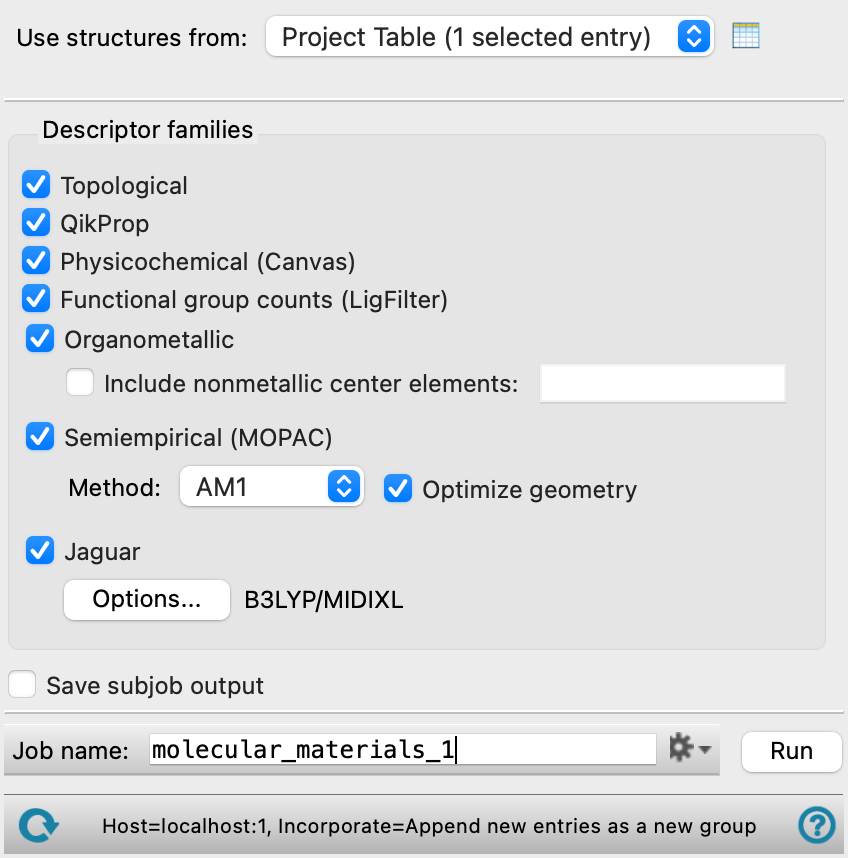
- Use structures from option menu
-
Choose the structure source for the current task.
- Project Table (n selected entries)—Use the entries that are currently selected in the Project Table or Entry List. The number of entries selected is shown on the menu item.
- Workspace (n included entries)—Use the entries that are currently included in the Workspace, treated as separate structures. The number of entries in the Workspace is shown on the menu item.
- File—Use the specified file. When this option is selected, the File name text box and Browse button are displayed.
- Project Table (n selected entries)—Use the entries that are currently selected in the Project Table or Entry List. The number of entries selected is shown on the menu item.
- Open Project Table button
-
Open the Project Table panel, so you can

- File name text box and Browse button
-
Enter the file name in this text box, or click Browse and navigate to the file. The name of the file you selected is displayed in the text box.
- Descriptor families section
-
This section lists the families of descriptors that can be selected for generation. Some of the descriptors have options that you can specify.
- Topological option
-
Generate topological descriptors. These are the same as in the Molecular Descriptors Panel, and all of them are generated.
- QikProp option
-
Generate descriptors with the ADME program QikProp. This generates pharmacologically relevant properties—see QikProp Properties for more information. All properties are generated.
- Physicochemical (Canvas) option
-
Generate all physicochemical properties produced by running canvasMolDescriptors.
- Functional group counts (LigFilter) option
-
Generate descriptors from properties, general attributes, and functional group counts by running ligfilter Command Help. All ligands are taken as passing the filter, and all properties are generated. See Ligand Filtering Panel and Filtering Structures by Property: ligfilter for more information.
- Organometallic option
-
Generate transition metal descriptors commonly used for catalysis for structures containing a metallic center. The bond angle, total buried volume, and the buried volume including only the largest ligands are calculated for the complex. A buried volume contour plot is also generated; both the PNG image and the CSV file containing the data used to generate the plot are saved. The bite angle, cone angle, bond length, stoichiometry, denticity, hapticity, and haptic_character are calculated for each ligand in the complex.
- Include nonmetallic center elements option and text box
-
Generate organometallic descriptors for coordination complexes with nonmetallic centers. List the symbol of any nonmetallic center element, separated by a comma. The organometallic descriptors described above are calculated for structures containing the elements listed in the text box.
- Semiempirical (MOPAC) option
-
Generate properties using the MOPAC program. The properties generated are the same as in the Molecular Descriptors Panel. See the Semiempirical Module Guide for more information.
- Jaguar option
-
Run the
qm_descriptors.pyscript to generate atomic and molecular descriptors from DFT calculations with Jaguar. The orbital energies and multipole moments are added from these calculations to the set of descriptors. See qm_descriptors.py: Generate and Extract Descriptor Sets for information on the descriptors generated.- Options button
-
Set Jaguar options for the descriptor calculations. Opens the Jaguar Options - Generate Molecular Materials Descriptors Dialog Box. This dialog box also allows you to specify additional Jaguar keywords. The solvent (if any), level of theory, and basis set are shown to the right of the button.
- Save subjob output option
-
Save the output files from all programs, which are run as subjobs.
- Job toolbar
-
Manage job submission and settings. See Job Toolbar for a description of this toolbar.
The Job Settings button opens the Generate Molecular Materials Descriptors - Job Settings Dialog Box, where you can make settings for running the job.
- Status bar
-
The status bar displays information about the current job settings and status for the panel. The settings includes the job name, task name and task settings (if any), number of subjobs (if any) and the host name and job incorporation setting. The job status can include messages about job start, job completion and incorporation.
Use the Reset button
 to reset the panel to its default settings and clear any data from the panel.
 The status bar also contains the Help button
 , which opens the help topic for the panel in your browser. If the panel is used by one or more tutorials, hovering over the Help button displays a
  button, which you can click to display a list of tutorials (or you can right-click the Help button instead). Choosing a tutorial opens the tutorial topic.