Microkinetics Deposition Analysis Panel
Analyze microkinetic modeling calculation results for deposition processes.
To display this panel: click the Tasks button and browse to Materials → Quantum Mechanics → Surface Science → Microkinetic Deposition Analysis
The following licenses are required to use this panel: MS Maestro, MS Microkinetics
- Features
- Additional Resources
Microkinetics Deposition Analysis Panel Features
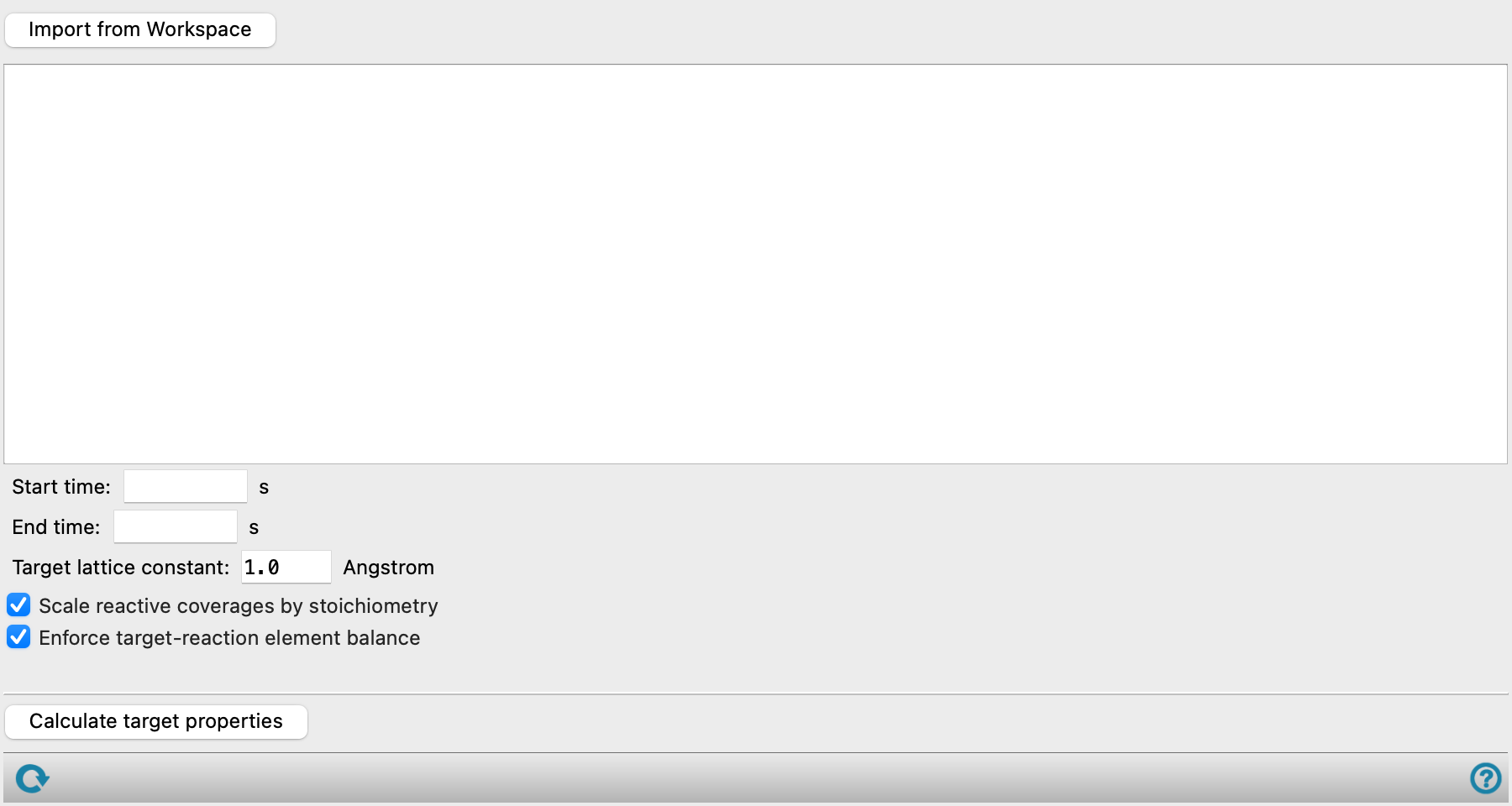
- Import from Workspace button
- Microkinetics deposition analysis table
- Start time text box
- End time text box
- Maximum time text
- Target lattice constant text box
- Scale reactive coverages by stoichiometry option
- Enforce target-reaction element balance option
- Coverages warning text
- Calculate target properties button
- Status bar
- Import from Workspace button
-
Click to import the structure from the Workspace. There must be only one entry included in the Workspace and it must be an output from the Microkinetic Modeling Panel. Some values in the panel are imported from the structure. The entry name is displayed to the right.
- Microkinetics deposition analysis table
-
Analyze the deposition process for a target material. The identification of species and their corresponding properties is described in the table below. Each column in the microkinetics deposition analysis table is populated via one of three ways:
-
Import—Values are populated using the Import from Workspace button. These values are based upon results from the Microkinetic Modeling Panel.
-
Input— Values must be specified by the user. If the import data is changed, these values are retained for species that match the previous import and reset for those that don't.
-
Output—Values are populated using the Calculate target properties button.
Name Description Type Species Lists all gases and bulk solids from the microkinetic modeling calculation as rows. An additional row is added for the target material which is determined using the reaction coefficients defined in the Target definition column. The target material is the bulk solid that the user is interested in depositing or etching via gas-induced surface chemistry.
Import Turnover in period (site-1) The cumulative turnover of the species over the specified time period is reported from the results of the microkinetic modeling calculation. The turnover for the target material (Ntarget) is determined using the turnover of each species and the reaction coefficients defined in the Target definition column.
Import Mass change in period (ng/cm2) The mass change in period for each species is calculated from the turnover and Avogadro’s constant (NA) as follows:

Import Target definition Input stoichiometric reaction coefficients of a balanced chemical equation that has the deposited material as solid product. The reaction coefficients for the species in the table can be negative for reactants or positive for products. The target material is populated after clicking the Calculate target properties button.
Input Thickness increment in period (Å) The thickness increment is calculated for the target material using the turnover of the target (Ntarget) and the specified Target lattice constant.
Output Stoichiometry in period The stoichiometry of the gas or bulk species is determined using the turnover of each species and the reaction coefficients and is reported as a percentage. Output Status A gas with a reaction coefficient < 0 is labeled as an Inlet gas; a gas with a reaction coefficient > 0 is labeled is a By-product gas; a solid with a reaction coefficient < 0 is labeled as Etched; a solid with a reaction coefficient > 0 is labeled as Deposited; and anything with a reaction coefficient = 0 is left blank. Output Dose of gas in period (Langmuir) The dose of gas in period is calculated for inlet gases using the pressure, pgas(t), from the output of the microkinetic modeling calculation:

Output Flux of gas incident per surface site ((site*s)-1) The flux of gas incident per surface site is calculated for inlet gases using the pressure, pgas(t), from the output of the microkinetic modeling calculation as follows:

where ᴪgas(t) is the instantaneous momentum flux given by
 .
.Output Sticking coefficient s_0 The sticking coefficient is calculated as follows:

where Ntarget is the turnover of the target material, Rgas(t) is the sum of coverages of sites for adsorption reactions with this inlet gas and pgas(t) and ᴪgas(t) are defined above.
Output -
- Start time text box
-
The start time of the simulation time for analysis is initially specified from the imported structure. Edit the time period to be analyzed by changing this value.
- End time text box
-
The end time of the simulation time for analysis is initially specified from the imported structure. Edit the time period to be analyzed by changing this value.
- Maximum time text
-
Displays the maximum simulation time as determined from the imported structure. Only present when a structure is imported. Noneditable.
- Target lattice constant text box
-
Specify the inter-layer spacing that is used to calculate the thickness increment.
- Scale reactive coverages by stoichiometry option
-
Select this option to scale reactive coverages based upon their specified stoichiometry.
- Enforce target-reaction element balance option
-
Select this option to ensure the chemical equation specified in the Target definition column is balanced prior to populating analysis results.
- Coverages warning text
-
Displays a warning when there are coverages less than zero or greater than one present in the deposition analysis. Sticking coefficients in this case are calculated using 0 for a coverage less than 0 and 1 for a coverage greater than 1. Noneditable.
- Calculate target properties button
-
Click to analyze the deposition process for a target material and populate the microkinetics deposition analysis table with data.
- Status bar
-
 to reset the panel to its default settings and clear any data from the panel.
If you can submit a job from the panel, the status bar displays information about the current job settings and status for the panel. The settings include the job name, task name and task settings (if any), number of subjobs (if any) and the host name and job incorporation setting. The job status can include messages about job start, job completion and incorporation.
The status bar also contains the Help button
 , which opens an option menu with choices to open the help topic for the panel (Documentation), launch Maestro Assistant, or if available, choose from an option menu of Tutorials. If the panel is used by one or more tutorials, hover over the Tutorials option to display a list of tutorials. Choosing a tutorial opens the tutorial topic.