Perform Order Parameter Analysis Panel
Perform a structural or geometric order parameter analysis on an MD simulation.
To open this panel: click the Tasks button and browse to Materials → Classical Mechanics → Trajectory Analysis → Order Parameter Calculations.
The following licenses are required to use this panel: MS Maestro
- Overview
- Using
- Features
- Additional Resources
Overview of Order Parameter Analysis
The order parameter is calculated as (1/N) Σi=1,N P2(cosθi), where cos θi is determined from the scalar product of a vector for the descriptor and the vector for the director, and P2(cosθi) is the second-order Legendre polynomial, (3 cos2θi−1)/2.
- 1 : perfect alignment along the director, either parallel or antiparallel
- −1/2 : perfect alignment perpendicular to the director.
- 0 : random orientation with respect to the director; or isotropic orientation; also perfect alignment at the "magic angle" (54.7°) where P2 is zero.
A zero value—or any value between the limits of 1 and −1/2—can be arrived at in multiple ways. For example, a random or isotropic set of orientations would have a zero order parameter. A set in which 1/3 of the descriptors were aligned along the director and 2/3 were aligned perpendicular to the director would also give a zero order parameter. If one is looking for small deviations from perfect alignment, values in the middle of the range indicate that the desired alignment was not found, regardless of the actual distribution of alignments.
Using the Perform Order Parameter Analysis Panel
You can view the results in the Order Parameter Analysis Results Viewer Panel (click the Tasks button and browse to Materials → Classical Mechanics → Trajectory Analysis → Order Parameter Results). To open this panel from the entry group for the results of a job .
.
To write out the input file and a script for running the job from the command line, click the arrow next to the Settings button  and choose Write.
Perform Order Parameter Analysis Panel Features
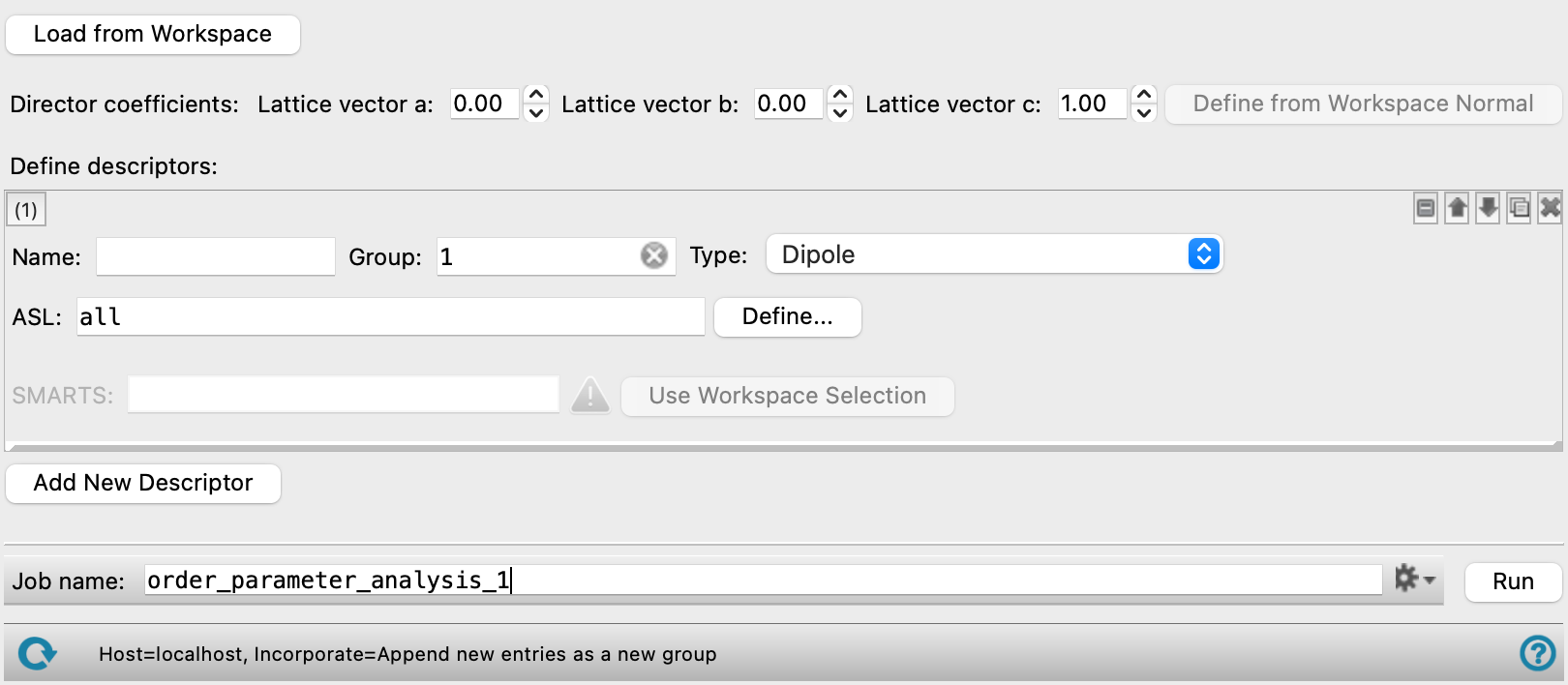
- Load from Workspace button
-
Load the structure in the Workspace into the workflow. The structure must be the output structure from an MD simulation. If there is no structure in the Workspace, a file selector opens so you can locate an output Desmond CMS file (
-out.cms) from a simulation. Displaying the structure in the Workspace allows you to use Workspace selection to define the descriptors. - Director coefficients text boxes
-
Define the director (the vector that specifies the direction in which the order is expected) in terms of the lattice vectors, by entering the coefficient of each lattice vector in the text boxes. The values in these text boxes are replaced if you use the Define from Workspace Normal button.
- Define from Workspace Normal button
-
Obtain the director vector from the Workspace. The vector is the z axis of the Workspace view, i.e. the vector pointing out of (normal to) the screen. You should rotate the structure in the Workspace so that you are looking along the desired vector, then click this button. The Director coefficients text boxes are filled in with the values obtained from this vector.
- Define descriptors area
-
Define the descriptors for which you want to run an order analysis. A separate analysis is run for each descriptor.
- Descriptor tools
-
These tools are used to define each descriptor.
- Descriptor label
-
The label indicates the step number and the type of the step. It is updated if the step type is changed or the step is moved. If the step settings are hidden, the label gives a brief summary of the main step parameters.
- descriptor management buttons
-
These buttons perform display and ordering operations on the descriptor. They allow for easy duplication and rearrangement of descriptors.


Show or hide the contents of the descriptor. When hidden, only the descriptor number, label (if any) and these buttons are displayed. This is useful when you have a number of descriptors and want to compare two separate descriptors, for example. 

Move the descriptor up or down one place in the list. 
Duplicate the descriptor. This is useful for creating similar descriptors with variations on the settings. 
Delete the descriptor. - Name text box
-
Enter a name for the descriptor in this text box. The name is used to identify the descriptor in the output and results viewer.
- Group text box
-
Specify the group to which the descriptor belongs. The group name is used to identify the group in the output and results viewer. The descriptors in the group are added to a single output CSV file for viewing, so that you can plot the order parameter against the descriptor definition. For example, you might want to define a descriptor for each component in a heterogeneous system, and show the order parameter for each descriptor on the same plot.
- Type option menu
-
Choose the descriptor type from this option menu. The descriptor type defines the type of vector used for the descriptor to define the order parameter. The types are:
- Dipole—use the dipole moment of the specified atoms.
- Acentric Dipole—use the dipole of the specified atoms to calculate the acentric dipole order parameter. Allows for differentiation between centrosymmetric and acentric ordering of dipolar systems.
- Principal moment of inertia—use the principal moment of inertia of the specified atoms.
- Nonunique SMARTS bond—use the bond vectors for the bonds that match the SMARTS pattern. Each match must have only two atoms that are bonded to each other.
- Unique SMARTS pair—use the vector between the two atoms that match the SMARTS pattern. The SMARTS pattern must match only once in each molecule in the atom set for the descriptor, and must match exactly two atoms in the molecule.
- Normal to unique SMARTS triple—use the normal to the plane between the atoms that match the SMARTS pattern. The SMARTS pattern must match only once in each molecule in the atom set for the descriptor, and must match exactly three atoms in the molecule.
- ASL text box and Define button
-
Define the atoms for which the descriptors are computed, by entering an ASL expression in the text box, or click Define to use standard atom selection tools to select the atoms. You can use the atom definition to restrict the descriptor to a part of the system instead of the whole system, e.g. a particular molecule type in a heterogeneous system.
- SMARTS text box and Use Workspace Selection button
-
For SMARTS-based descriptors, enter the SMARTS pattern in this text box, or select the atoms in the Workspace and click Use Workspace Selection to generate the SMARTS pattern. The SMARTS pattern is applied to the atoms defined by the ASL expression for the descriptor.
- Add New Descriptor button
-
Add a new set of descriptor tools to define a new descriptor.
- Job toolbar
-
Manage job submission and settings. See Job Toolbar for a description of this toolbar.
The Job Settings button opens the Perform Order Parameter Analysis - Job Settings Dialog Box, where you can make settings for running the job.
- Status bar
-
The status bar displays information about the current job settings and status for the panel. The settings includes the job name, task name and task settings (if any), number of subjobs (if any) and the host name and job incorporation setting. The job status can include messages about job start, job completion and incorporation.
Use the Reset button
 to reset the panel to its default settings and clear any data from the panel.
 The status bar also contains the Help button
 , which opens the help topic for the panel in your browser. If the panel is used by one or more tutorials, hovering over the Help button displays a
  button, which you can click to display a list of tutorials (or you can right-click the Help button instead). Choosing a tutorial opens the tutorial topic.