Materials Science Panel Explorer Panel
Learn which Schrödinger tools are the best fit for your research.
To display this panel: click the Tasks button and browse to Materials → Find panels related to your interests
- Using
- Features
- Additional Resources
Using the Materials Science Panel Explorer Panel
Filter all available materials science panels to find those of interest. Please note that this tool only filters core materials science panels, other panels you may use, such as AutoTS: Perform Calculations Panel or System Builder Panel, are still available for use but are not included in this tool. For a web-based version of similar functionality, please see the Materials Science Panel Explorer.
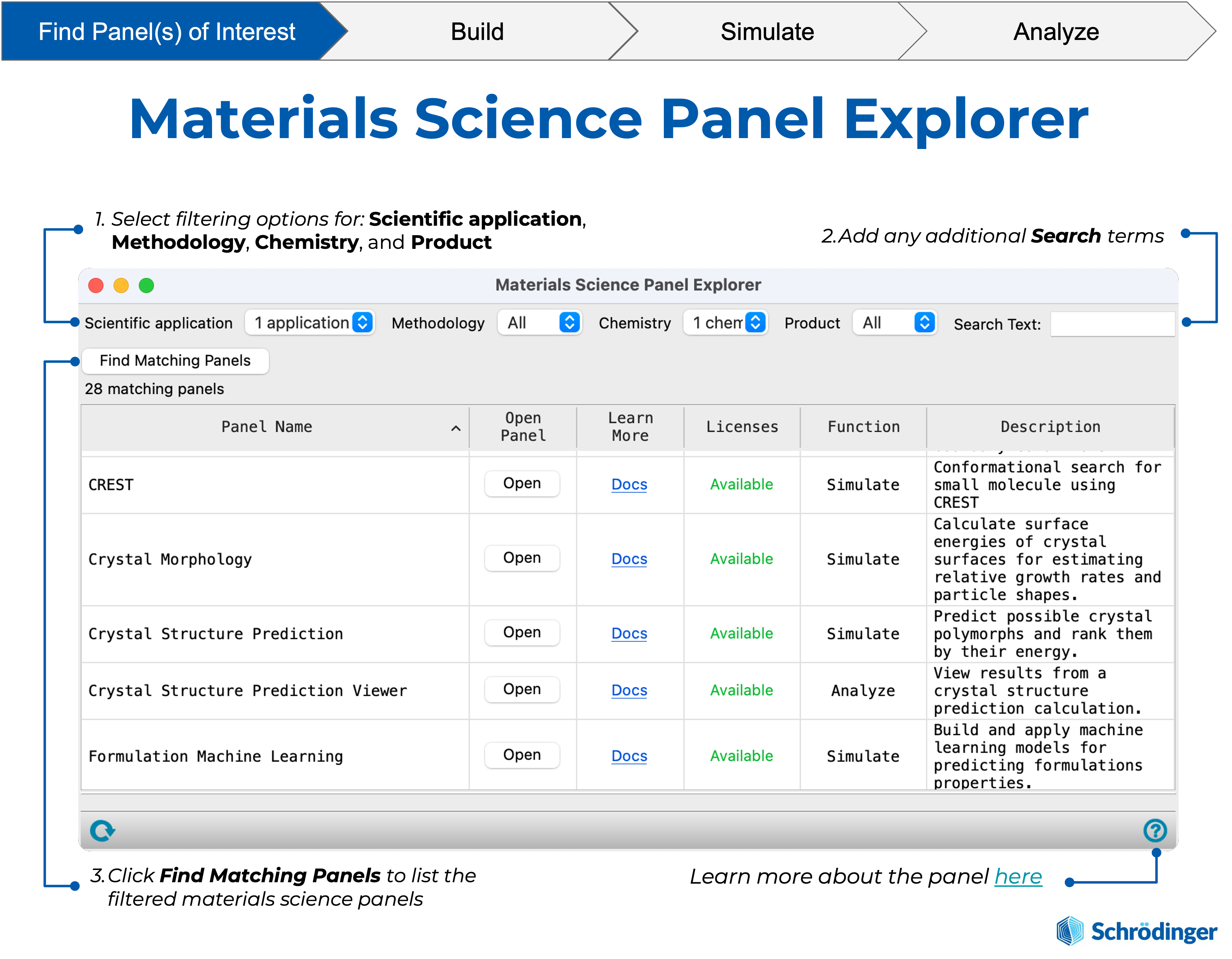
Materials Science Panel Explorer Panel Features
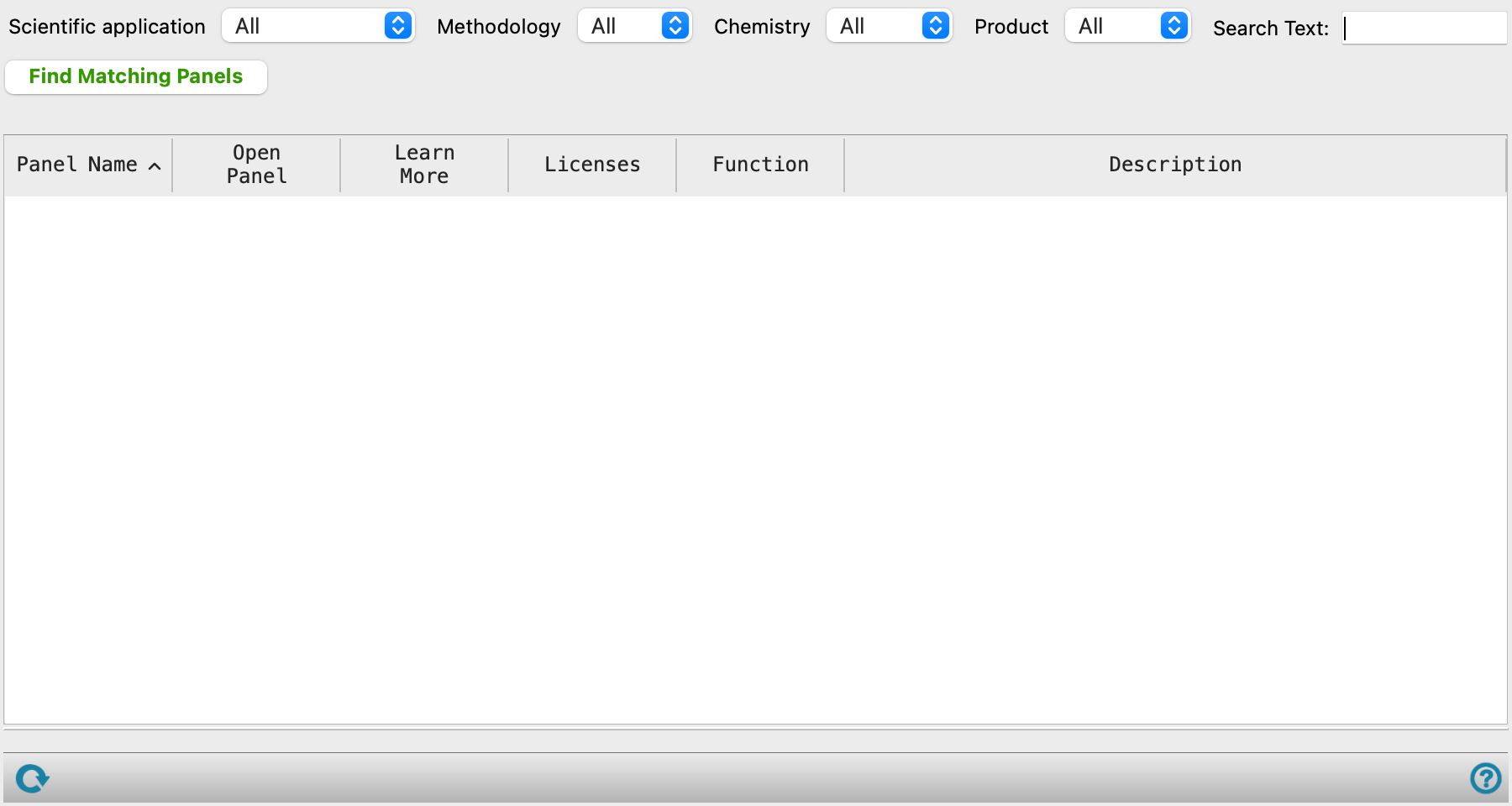
- Scientific application option menu
-
Choose the scientific application of interest. The available choices are: Catalysis & Reactivity, Consumer Packaged Goods, Energy Capture & Storage, Metals, Alloys & Ceramics, Organic Electronics, Pharmaceutical Formulation & Discovery, Polymeric Materials, and Thin Film Processing. To learn more about the materials science applications, click here.
- Methodology option menu
-
Choose the methodology of interest. The available choices are: All-Atom Molecular Dynamics, Coarse-Grained Modeling, Machine Learning, Machine Learning Force Fields, Molecular Quantum Mechanics, Multiscale Simulation, and Periodic Quantum Mechanics.
- Chemistry option menu
-
Choose the chemistry of the system of interest. The available choices are: Complex Blends, Crystals, Disordered Structures, Metal Complexes, Nanostructures & Nanoparticles, Small Molecules, and Surfaces & Interfaces.
- Product option menu
-
Choose the product of interest. To learn more about the materials science products, click here.
- Search Text text box
-
Type the text you want to search for in the panel name or description. The list of panels returned is restricted to those containing the search text entered.
- Find Matching Panels button
-
Click this button to populate the matching panels with the applied filters. The button will display green text to indicate the filters or text search have been changed and must be clicked again to redo the list. The number of matching panels is displayed as text under the button.
- Matching Panels table
-
Panels matching the options selected are listed here. Click on column headers to sort the data by alphanumerical value. All columns displayed in the table are noneditable.
-
Panel Name—The name of the panel. The Search Text text box applied to this column.
-
Open Panel— Click the button to open the panel.
-
Learn More—Click the link to read the documentation for the panel.
-
Licenses—Displays the status of the licenses required for using the panel. The options are Available, Limited, and Unavailable. For Limited or Unavailable licensing, hover over the text in this cell to see the names of the missing licenses in a tooltip. You can use this information to determine the simulations you can run. Note that the license checking is done on the machine local to MS Maestro and may not reflect the license availability on a remote submission machine.
-
Function—Displays whether the panel's main function is to build, simulate, or analyze a structure.
-
Description—Displays a brief summary of what the panel does. The Search Text text box applied to this column.
-
- Status bar
-
 to reset the panel to its default settings and clear any data from the panel.
If you can submit a job from the panel, the status bar displays information about the current job settings and status for the panel. The settings include the job name, task name and task settings (if any), number of subjobs (if any) and the host name and job incorporation setting. The job status can include messages about job start, job completion and incorporation.
The status bar also contains the Help button
 , which opens an option menu with choices to open the help topic for the panel (Documentation), launch Maestro Assistant, or if available, choose from an option menu of Tutorials. If the panel is used by one or more tutorials, hover over the Tutorials option to display a list of tutorials. Choosing a tutorial opens the tutorial topic.