Penetrant Loading Panel
Add a rigid penetrant, such as water or methane, to vacancies in a condensed system. This is done in cycles, each of which involves adjusting penetrant content and relaxation of the system.
To open this panel: click the Tasks button and browse to Materials → Classical Mechanics → Penetrant Loading → Penetrant Loading Calculations.
The following licenses are required to use this panel: MS Maestro, MS Penetrant, OPLS (optional), MS Force Field Applications (optional), Desmond
- Overview
- Features
- Additional Resources
Penetrant Loading Panel Overview
The Penetrant Loading panel allows you to perform simulations of the loading of a condensed system such as a polymer, zeolite, or molecular solid by a small rigid molecule such as water or methane. The calculation effectively involves transferring penetrant molecules from a separate vapor phase into the condensed phase provided. When converged, the calculation provides a measure of the hygroscopicity or loading capacity of the condensed phase.
The penetrant loading simulation is done in cycles consisting of two stages. In the first stage, a grand canonical Monte Carlo (GCMC) calculation in a μVT ensemble is used to add the penetrant to the vacancies in the system, with some thermal motion of the penetrant in the process. In the second stage, a molecular dynamics simulation is performed to relax the system as a whole. In each cycle, only a small amount of penetrant is added, and multiple cycles are needed to achieve saturation. The execution of these two stages is done automatically, where the two stages alternate in a single Desmond calculation.
For systems whose volume can change, such as polymers, the relaxation simulation can be done in the nPT ensemble, which allows the condensed phase to adjust and the entire system box to expand or contract in response to the presence of the penetrant. System expansion can create new locations for more penetrant and significantly affect the amount of penetrant that can be loaded. For rigid systems whose volume does not change on penetrant loading (such as zeolites), the simulation can be done in the nVT ensemble, thus preserving the volume while allowing relaxation internally.
If any molecules of the specified penetrant are in the system prior to the penetrant loading calculation, they are labeled with the b_matsci_penetrant_original_solvent property label by the workflow.
To write out the input file and a script for running the job from the command line, click the arrow next to the Settings button  and choose Write.
Penetrant Loading Panel Features
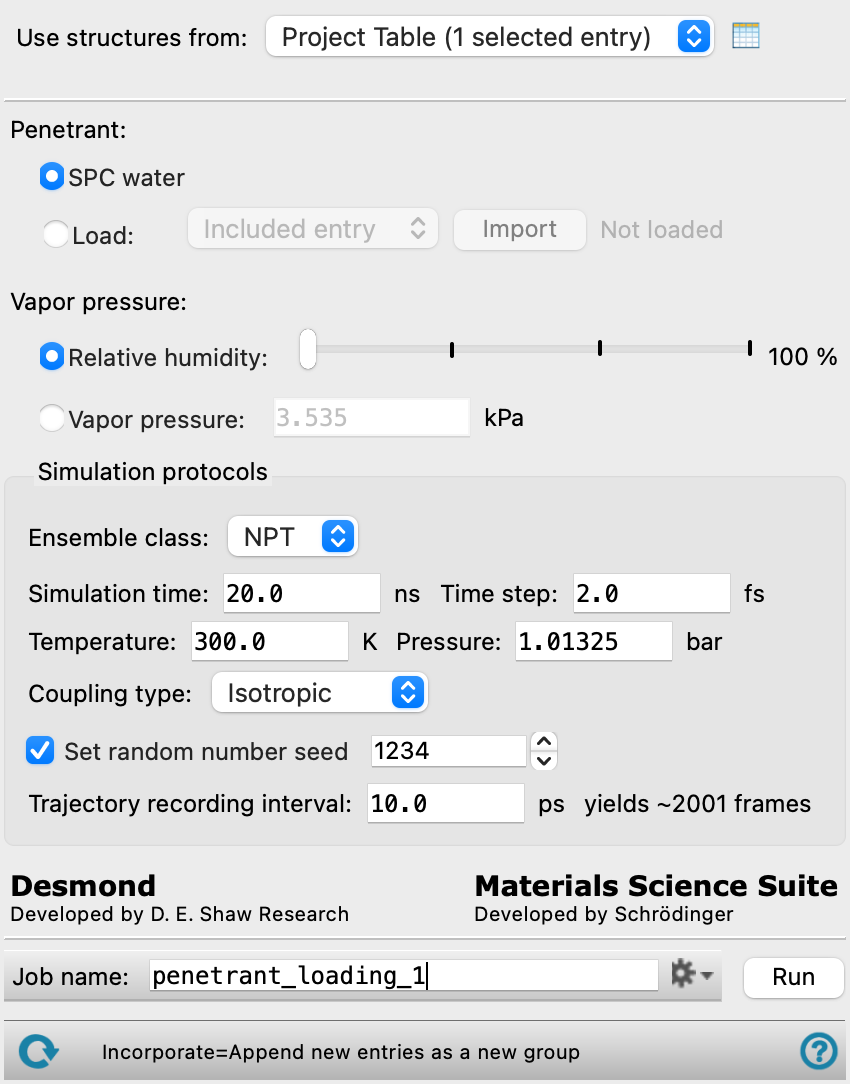
- Use structures from option menu
-
Choose the structure source for the condensed system. The input structure must be a prepared Desmond model system. If multiple structures are specified, a separate job is run for each structure.
- Project Table (n selected entries)—Use the entries that are currently selected in the Project Table or Entry List. The number of entries selected is shown on the menu item.
- Workspace (n included entries)—Use the entries that are currently included in the Workspace, treated as separate structures. The number of entries in the Workspace is shown on the menu item.
- File—Use the specified file. When this option is selected, the File name text box and Browse button are displayed.
- Project Table (n selected entries)—Use the entries that are currently selected in the Project Table or Entry List. The number of entries selected is shown on the menu item.
- Open Project Table button
-
Open the Project Table panel, so you can

- File name text box and Browse button
-
Enter the Desmond CMS file name in this text box, or click Browse and navigate to the Desmond CMS file. The name of the Desmond CMS file you selected is displayed in the text box.
- Penetrant options
-
Select an option to choose the penetrant molecule.
- SPC water option
-
Use water for the penetrant, performing the simulations with the SPC water model.
- Load option, menu and button
-
Load the penetrant structure. The structure must be a small, rigid molecule, like water or methane. Choose the source of the penetrant from the menu:
-
Included entry—use the structure that is displayed in the Workspace for the penetrant molecule. There must be only one entry in the Workspace. Click Import to load the Workspace structure as the penetrant.
-
From file—use a structure from a file. The first structure in the specified file is taken as the penetrant. Click Browse to locate and open the file in a file selector.
-
- Vapor pressure options
-
Specify the vapor pressure of the penetrant, using one of the following options. This information is used to determine the chemical potential.
- Simulation protocols section
-
Specify parameters for the simulations used to relax the system after loading with penetrant.
- Ensemble class option menu
-
Choose the ensemble class for the simulation, from NVT or NPT. NVT is useful for rigid systems, such as zeolites, where the volume doesn't change on loading. NPT is useful for systems that do change volume on loading, such as polymers.
- Simulation time text box
-
Specify the desired simulation time in ns. This is the total simulation time, including all load/relax cycles.
- Time step text box
-
Specify the time step for the simulation in fs. For the SPC water model, you can select a timestep of either 2 fs or 4 fs.
- Trajectory recording interval text box
-
Set the recording interval for saving points on the trajectory, in ps. This is the amount of time between frames in the trajectory. The entered value is rounded to an integer multiple of the far time step size. The resultant number of records to be written is reported to the right.
- Temperature text box
-
Set the temperature in kelvin for the simulation.
- Pressure text box
-
Set the pressure in bar for the simulation. This text box is only active for the NPT ensemble.
- Barostat isotropy option menu
-
Choose whether the pressure coupling is isotropic or anisotropic (Isotropic or Anisotropic). With anisotropic coupling, the cell lengths (a, b, c) can change, but the angles stay the same.
- Set random number seed option and text box
-
Select this option to specify a random seed to be used in the simulations. Specifying the seed allows you to reproduce the results, unless other factors affect them. If this option is not selected, a seed is chosen at random.
- Job toolbar
-
Manage job submission and settings. See Job Toolbar for a description of this toolbar.
The Job Settings button opens the Penetrant Loading - Job Settings Dialog Box, where you can make settings for running the job.
- Status bar
-
The status bar displays information about the current job settings and status for the panel. The settings includes the job name, task name and task settings (if any), number of subjobs (if any) and the host name and job incorporation setting. The job status can include messages about job start, job completion and incorporation.
Use the Reset button
 to reset the panel to its default settings and clear any data from the panel.
 The status bar also contains the Help button
 , which opens the help topic for the panel in your browser. If the panel is used by one or more tutorials, hovering over the Help button displays a
  button, which you can click to display a list of tutorials (or you can right-click the Help button instead). Choosing a tutorial opens the tutorial topic.