Penetrant Loading Viewer Panel
Show plots of the results of a penetrant loading simulation.
To open this panel: click the Tasks button and browse to Materials → Classical Mechanics → Penetrant Loading → Penetrant Loading Results.
To open this panel from the entry group for the results of a penetrant loading job .
.
The following licenses are required to use this panel: MS Maestro, MS Penetrant
- Features
- Additional Resources
Penetrant Loading Viewer Panel Features
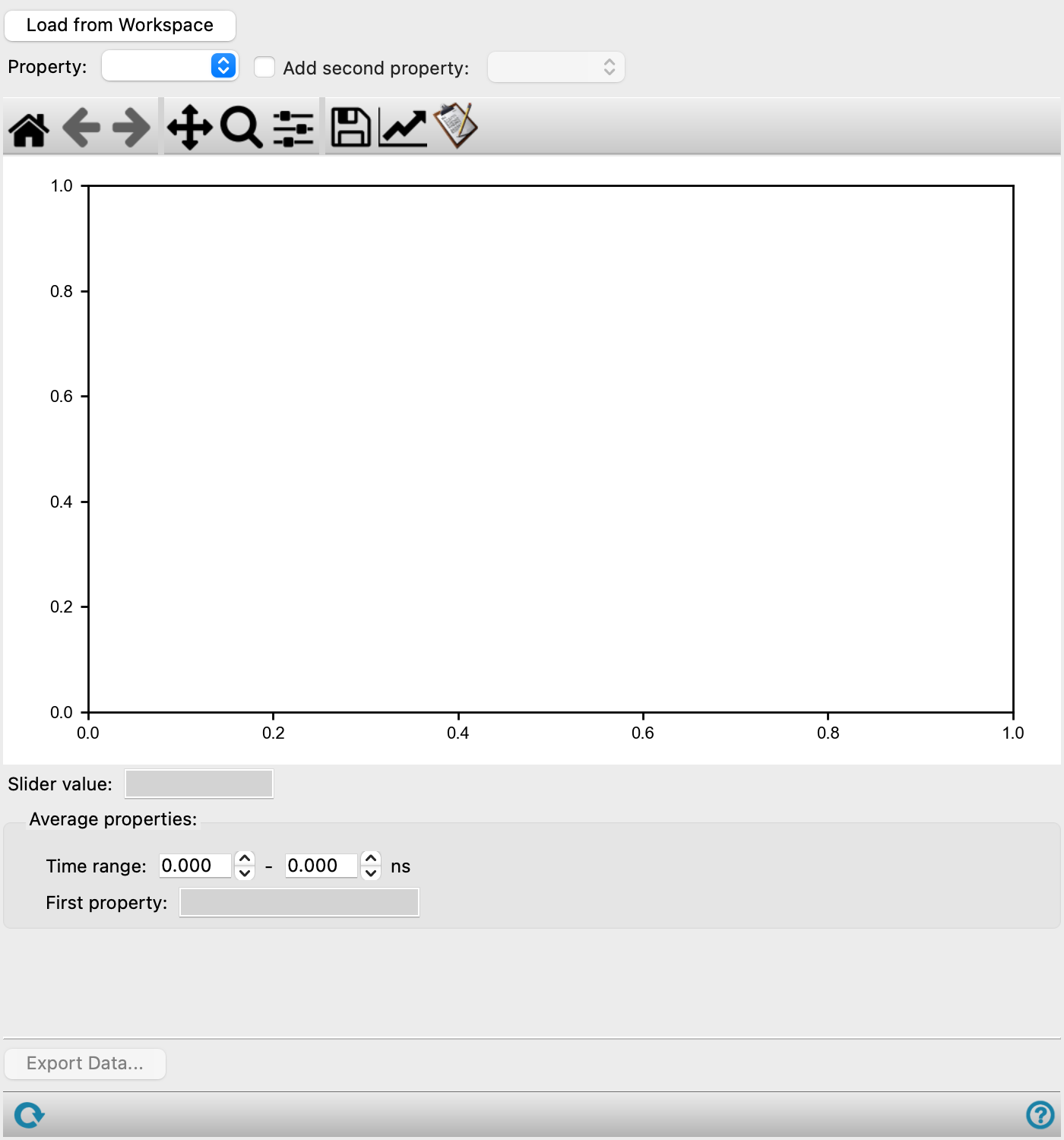
- Load from Workspace button
-
Load the output structure of a penetrant loading job from the Workspace. If there is no structure in the Workspace, or the structure has multiple results files, you are prompted to load a results text file (
-data.txt). - Property option menu
-
Choose the property to plot.
- Volume—The total volume.
- # Penetrants—The number of penetrant molecules. Penetrant molecules that are present in the initial system will be included in this count.
- % Weight Penetrant—The ration of the mass of penetrant molecules to mass of non-penetrant molecules expressed as a percentage. Penetrant molecules that are present in the initial system will be included in this calculation.

- % Volume Change—The percentage change of volume.

The properties available may depend on the method used in the calculation. The scale and property name are displayed on the left Y axis.
- Add second property option and menu
-
Add a second property to the plot, and choose the property from the menu. The scale and property name are displayed on the right Y axis.
- Plot toolbar
-
The toolbar has tools for manipulating the plot and for saving images. The buttons that are common to all plot toolbars are described in the Plot Toolbar topic.
- Plot area
-
Displays a plot of the selected properties as a function of the simulation time. In addition to the plot itself, a green horizontal line ("slider") is drawn which you can drag up and down. The slider can be used to help determine the converged value of a property; the value of the property at the slider position is reported in the Slider value text box, and is updated as you move the slider. A legend is displayed in the top right of the plot; the legend can be dragged to another location in the plot.
- Slider value text box
-
This noneditable text box displays the value of the property at the position of the horizontal green line (the slider). It is updated as you move the slider up and down. If you add a second property, the value tracks the second property.
- Average Properties section
-
This section displays the average value of the selected properties over a specified time range.
- Time range text boxes
-
Specify the time range of the simulation over which the properties are averaged.
- First property and Second property text boxes
-
These text boxes display the average value and standard deviation for the chosen properties. The values are noneditable but you can select them to copy the values.
- Export Data button
-
Export all analysis data to a CSV file, including plot data and quantities like weight and volume percentage changes. Opens a file selector so you can name and save the file in the desired location.
- Reset button
-
Reset the panel to its default settings, clearing all data.
- Status bar
-
 to reset the panel to its default settings and clear any data from the panel.
If you can submit a job from the panel, the status bar displays information about the current job settings and status for the panel. The settings include the job name, task name and task settings (if any), number of subjobs (if any) and the host name and job incorporation setting. The job status can include messages about job start, job completion and incorporation.
The status bar also contains the Help button
 , which opens an option menu with choices to open the help topic for the panel (Documentation), launch Maestro Assistant, or if available, choose from an option menu of Tutorials. If the panel is used by one or more tutorials, hover over the Tutorials option to display a list of tutorials. Choosing a tutorial opens the tutorial topic.