Periodic Descriptors Panel
Calculate descriptors for a periodic system, which can be used in machine learning.
To open this panel: click the Tasks button and browse to Materials → Informatics → Periodic.
The following licenses are required to use this panel: MS Maestro, MS Informatics
- Using
- Features
- Additional Resources
Using the Periodic Descriptors Panel
This panel is intended for generation of descriptors that can be used in a machine learning (ML) model to predict bulk properties such as ionic conductivity, band gap, bulk modulus, formation energy etc. When you generate descriptors for application of a ML model, you should make sure that you use the same settings as when you generated descriptors to construct the ML model.
The element, oxidation state and structure descriptors are calculated with MatMiner. Please cite the MatMiner reference [32] in any publication that contains results from the use of this panel. The intercalation descriptors are defined in the supplementary material of Ref. 30
The output includes a Maestro file, which can be incorporated into the project, an SDF file, which can be used with other applications, and a CSV file, in which structures are identified by their title in the first column.
To write out the input file and a script for running the job from the command line, click the arrow next to the Settings button  and choose Write.
Periodic Descriptors Panel Features
- Use structures from option menu
- Open Project Table button
- File name text box and Browse button
- Element descriptors option
- Oxidation state descriptors option
- Structure descriptors option
- Intercalation descriptors option
- Distance cutoff text box
- 3D-based SOAP descriptors with dimensionality reduction via PCA option
- Save SDF output option
- Job toolbar
- Status bar
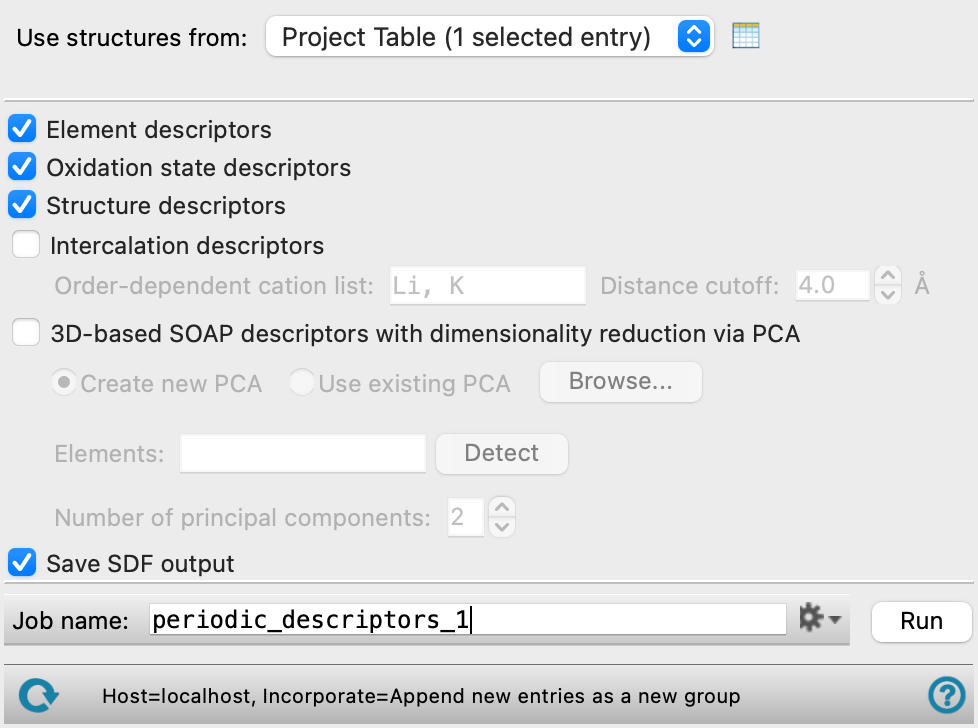
- Use structures from option menu
-
Choose the structure source for generation of descriptors.
- Project Table (n selected entries)—Use the entries that are currently selected in the Project Table or Entry List. The number of entries selected is shown on the menu item.
- Workspace (n included entries)—Use the entries that are currently included in the Workspace, treated as separate structures. The number of entries in the Workspace is shown on the menu item.
- File—Use the specified file. When this option is selected, the File name text box and Browse button are displayed.
- Project Table (n selected entries)—Use the entries that are currently selected in the Project Table or Entry List. The number of entries selected is shown on the menu item.
- Open Project Table button
-
Open the Project Table panel, so you can

- File name text box and Browse button
-
Enter the file name in this text box, or click Browse and navigate to the file. The name of the file you selected is displayed in the text box.
- Element descriptors option
-
Calculate element descriptors such as atomic weight, number of valence electrons in s-, p- and d-shells, electronegativity, etc.
- Oxidation state descriptors option
-
Calculate minimum, maximum, range, and standard deviation of oxidation state descriptors.
- Structure descriptors option
-
Calculate density, volume per atom, and packing fraction descriptors.
- Intercalation descriptors option
-
Calculate intercalation descriptors, such as atomic volume, cation and anion counts, crystal packing fraction, etc.
- Order-dependent cation list text box
-
List of elements for consideration as potential cations. The element used as the cation is the first one in the list that has a match in the structure.
- Distance cutoff text box
-
Cutoff to use for determining which atoms are neighbors. If the distance between two atoms is greater than the cutoff, they are not considered to be neighbors.
- 3D-based SOAP descriptors with dimensionality reduction via PCA option
-
Calculate 3D-based SOAP (Smooth Overlap of Atomic Positions [45]) descriptors, and reduce the dimensionality of the descriptors using principal components analysis.
- Create new PCA option
-
Create a new principal components analysis for the descriptors. The Elements text box and Detect button, and the Number of principal components text box are available for specifying the information needed to generate the descriptors and reduce the dimensionality. The information is returned to the job directory in a compressed file,
name_pca_data.gz.This option should be used when you want to construct a new ML model from a set of descriptors.
- Use existing PCA option and Browse button
-
Use an existing principal components analysis for the descriptors, which is read from a compressed file,
name_pca_data.gz. Click Browse to locate the file (by default in the job directory for the job that generated it) and load the PCA analysis data. The Elements and Number of principal components text boxes are populated from the file, and are not available for editing.This option should be used when generating descriptors to apply a ML model. You should make sure you load the same file as used for the descriptors for constructing the ML model.
- Elements text box and Detect button
-
Specify the elements to use in generating the SOAP descriptors, as a comma-separated list. Click Detect to detect the elements in the input structures. You can only set the elements if you are creating a new PCA. If you use an existing PCA, this text box is populated from the data.
- Number of principal components text box
-
Specify the number of principal components to use from the PCA analysis, taken largest first. You can only set the number of principal components if you are creating a new PCA. If you use an existing PCA, this text box is populated from the data.
- Save SDF output option
-
Save output in uncompressed SDF format. By default, output is returned in compressed SDF (
.sdfgz) format, as well as CSV format and Maestro format. - Job toolbar
-
Manage job submission and settings. See Job Toolbar for a description of this toolbar.
The Job Settings button opens the Periodic Descriptors - Job Settings Dialog Box, where you can make settings for running the job.
- Status bar
-
The status bar displays information about the current job settings and status for the panel. The settings includes the job name, task name and task settings (if any), number of subjobs (if any) and the host name and job incorporation setting. The job status can include messages about job start, job completion and incorporation.
Use the Reset button
 to reset the panel to its default settings and clear any data from the panel.
 The status bar also contains the Help button
 , which opens the help topic for the panel in your browser. If the panel is used by one or more tutorials, hovering over the Help button displays a
  button, which you can click to display a list of tutorials (or you can right-click the Help button instead). Choosing a tutorial opens the tutorial topic.