Powder Diffraction Pattern Panel
Calculate the powder diffraction pattern for a given X-ray source for a periodic structure.
To open this panel: click the Tasks button and browse to Materials → Tools → Powder Diffraction Pattern Calculations.
The following licenses are required to use this panel: MS Maestro
- Using
- Features
- Additional Resources
Using the Powder Diffraction Pattern Panel
Once you have calculated the diffraction pattern, you can plot the intensity against 2Θ in the Powder Diffraction Pattern Plot Panel (click the Tasks button and browse to Materials → Tools → Powder Diffraction Pattern Results). To open this panel from the entry group for the results of a job .
.
To write out the input file and a script for running the job from the command line, click the arrow next to the Settings button  and choose Write.
Powder Diffraction Pattern Panel Features
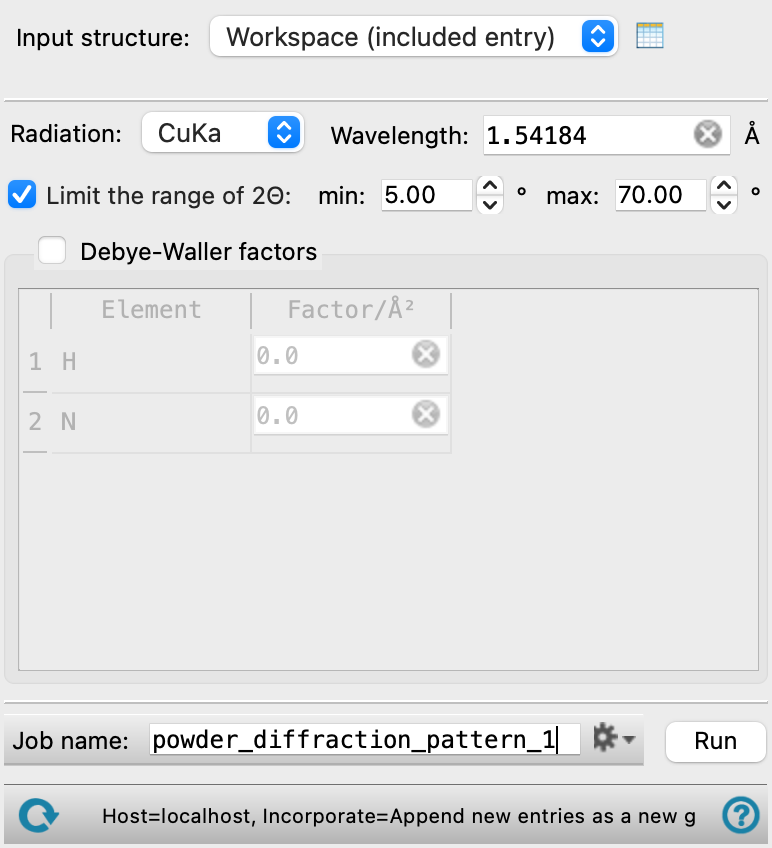
- Input structure option menu
-
Choose the structure source for the powder diffraction pattern. The structure must have periodic boundaries defined. Dummy atoms are ignored.
- Workspace (included entry)—Use the entry that is currently included in the Workspace. Only one entry must be included in the Workspace.
- File—Use the specified file. When this option is selected, the File name text box and Browse button are displayed.
- Open Project Table button
-
Open the Project Table panel, so you can

- File name text box and Browse button
-
Enter the file name in this text box, or click Browse and navigate to the file. The name of the file you selected is displayed in the text box.
- Radiation option menu
-
Choose the X-ray radiation source for which the diffraction pattern is to be generated, from a set of standard X-ray sources. The wavelength for the source is displayed in the Wavelength text box.
- Wavelength text box
-
Specify the X-ray wavelength in this text box. You might want to set the wavelength if you are generating a diffraction pattern for a synchrotron source, for example. The wavelength is automatically set when you choose from the Radiation option menu.
- Limit the range of 2Θ option and text boxes
-
Limit the range of the scattering angle (in degrees) to those given in the min and max text boxes. The maximum value of 2Θ is 180°.
- Debye-Waller factors table
-
Specify the Debye-Waller factors for each element in the structure. These are the mean squared displacements U = áu2ñ for a given temperature. No defaults are given.
- Job toolbar
-
Manage job submission and settings. See Job Toolbar for a description of this toolbar.
The Job Settings button opens the Powder Diffraction Pattern - Job Settings Dialog Box, where you can make settings for running the job.
- Status bar
-
The status bar displays information about the current job settings and status for the panel. The settings includes the job name, task name and task settings (if any), number of subjobs (if any) and the host name and job incorporation setting. The job status can include messages about job start, job completion and incorporation.
Use the Reset button
 to reset the panel to its default settings and clear any data from the panel.
 The status bar also contains the Help button
 , which opens the help topic for the panel in your browser. If the panel is used by one or more tutorials, hovering over the Help button displays a
  button, which you can click to display a list of tutorials (or you can right-click the Help button instead). Choosing a tutorial opens the tutorial topic.