Query Bonds Panel
Find and edit bonds in a structure by element pair, order, or length, and delete or change the order of selected bonds.
To open this panel: click the Tasks button and browse to Materials → Tools → Query Bonds.
The following licenses are required to use this panel: MS Maestro
- Using
- Features
- Additional Resources
Using the Query Bonds Panel
This panel is useful for finding all the bonds of a particular type in a structure, such as a polymer, and changing the bond orders. Changing the order does not change the rest of the structure, so you may have to add hydrogens when you have finished making changes, or adjust the structure by some other means to ensure that the valences of all the atoms are satisfied. Otherwise, if you use the structure for MD calculations, the force-field assignment stage can revert the changes in bonding.
Query Bonds Panel Features
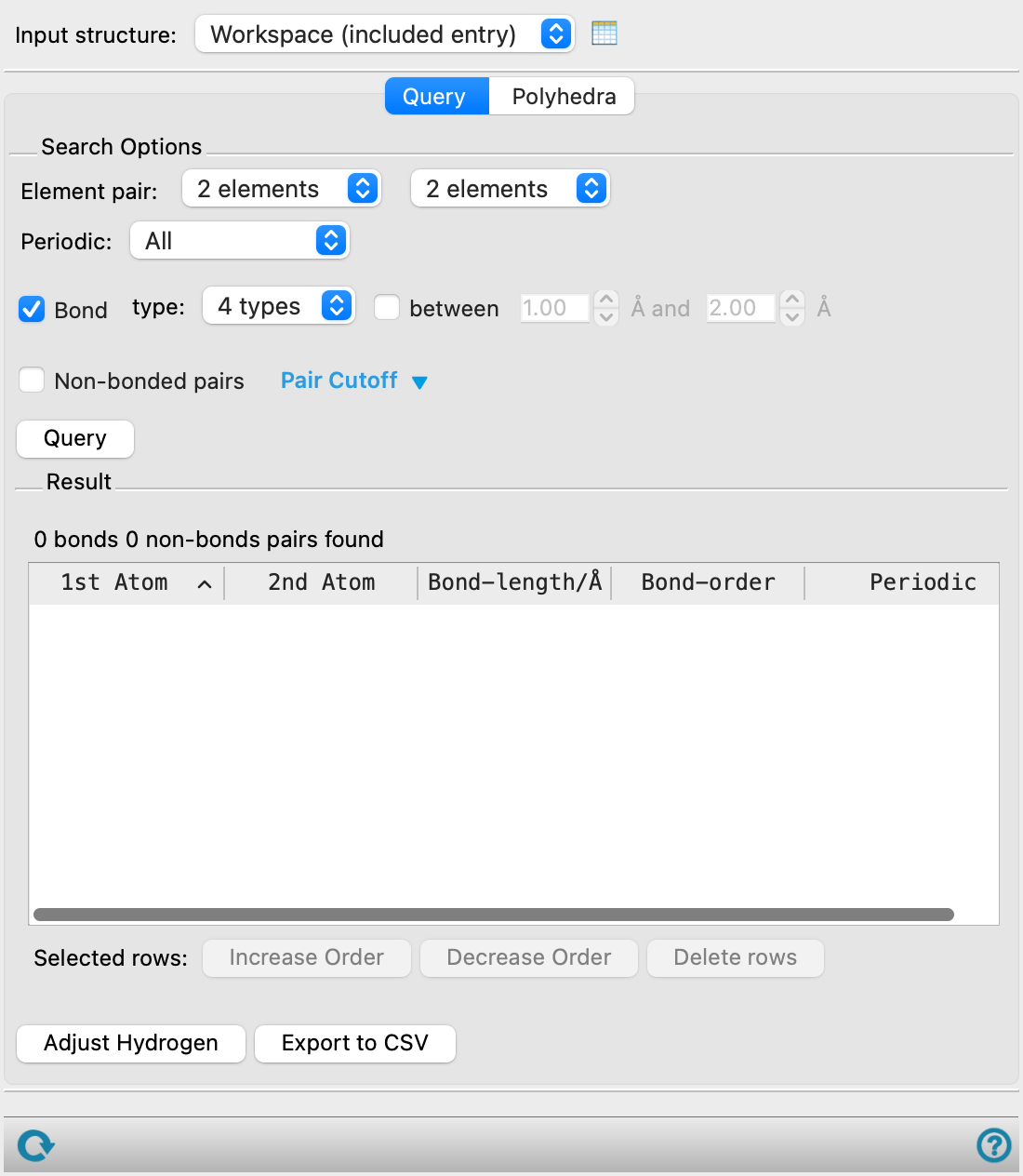
- Input structure option menu
-
Choose the structure source for the query.
- Workspace (included entries)—Use the entries that are currently included in the Workspace, treated as separate structures.
- Open Project Table button
-
Open the Project Table panel, so you can

- Query tab
-
- Search options section
-
Set up options to search for bonds or non-bonded pairs. Select either Bond or Non-bonded pairs to choose the search type.
- Element pair option menus
-
Choose the pair of elements that are involved in the bond to search for. The option menus are populated with the elements found in the input structure.
- Periodic option menu
-
Restrict the search to bonds of the selected periodicity, from All, Periodic, and Non-Periodic. If you select All, both Periodic and Non-Periodic bonds are returned.
This option menu is only available if the input structure contains periodic boundary conditions. Here Periodic bonds are those that cross the PBC and Non-Periodic bonds are those which do not cross the PBC.
- Bond type option menu and between option and text boxes
-
Choose one or more bond type to search for, from Single, Double, Triple, and Dative. Dative bonds are represented as zero-order bonds; this item selects all zero-order bonds.
-
Optionally, restrict the search to bonds whose length is between the values specified in the text boxes.
- Non-bonded pairs option
-
Choose to search for non-covalently bonded element pairs.
- Pair Cutoff link
-
Click to display a table of all element pairs and their corresponding minimum/ maximum distances. Edit the distance cutoffs to restrict the search to non-bonded pairs within the specified distance of each other. Only available when Non-bonded pairs is selected.
- Query button
-
Perform the search for bonds or non-bonded pairs, depending on the selected search type. The results are shown in the Result section.
- Result section
-
Examine the results of the search, and select bonds to perform an action.
- Bonds table
-
This table reports the identities of the two atoms involved in each bond, the bond length in angstroms, the bond order, and whether the bond is periodic. Select a row to zoom in to the corresponding bond in the Workspace. You can edit the cells to change individual values. You can select rows in the table to perform an action on multiple bonds. If you pick atoms in the Workspace, the rows that contain these atoms are selected.
- Selected rows buttons
-
Perform an action on the rows that are selected in the table to change the bond order or delete the bonds. No other adjustments to the structure are made in response to the change in bonding.
- Increase Order—increase the bond order of the selected rows by 1 for each click.
- Decrease Order—decrease the bond order of the selected rows by 1 for each click. You can decrease the order to 0 to create a zero-order or dative bond. You can also decrease the order until the bond is removed.
- Delete rows—delete the selected element pair. The bonds are deleted in the structure and removed from the table.
- Adjust Hydrogen button
-
Adjust the number of hydrogens on atoms for which the bonding changed, to complete the valence. This is not done automatically, but is recommended after you have changed the bond orders.
- Export button
-
Export the data in the Bonds table to a CSV file. Opens a file selector to navigate to a location and name the file.
- Polyhedra tab
-
- Polyhedra table
-
This table reports the elements, their coordination, count, color of polyhedra, and display option for the input structure. The coordination of the elements is determined from the Bonds table in the Query tab. Select the display option for any row to display clusters of 4-8 atomic anions around an atomic cation as polyhedrons in the Workspace, with the anions at the vertices of the polyhedron and the cation in the center. This representation can be useful for inorganic crystals, for example.
- Draw All button
-
Click to diplay polyhedra in the Workspace for all of the rows in the Polyhedra table. Selects the Display option in the Polyhedra table for all rows.
- Clear All button
-
Click to remove all polyhedra from the Workspace. Deselects the Display option in the Polyhedra table for all rows.
- Status bar
-
 to reset the panel to its default settings and clear any data from the panel.
If you can submit a job from the panel, the status bar displays information about the current job settings and status for the panel. The settings include the job name, task name and task settings (if any), number of subjobs (if any) and the host name and job incorporation setting. The job status can include messages about job start, job completion and incorporation.
The status bar also contains the Help button
 , which opens an option menu with choices to open the help topic for the panel (Documentation), launch Maestro Assistant, or if available, choose from an option menu of Tutorials. If the panel is used by one or more tutorials, hover over the Tutorials option to display a list of tutorials. Choosing a tutorial opens the tutorial topic.