Reaction Channel Enumeration Panel
For a given set of reactants, enumerate possible reaction channels for several kinds of reactions, either by choosing specific channels, by random selection, or by exhaustive enumeration.
To open this panel, click the Tasks button and browse to Materials → Enumeration → Reaction Channel.
The following licenses are required to use this panel: MS Maestro
- Using
- Features
- Additional Resources
Using the Reaction Channel Enumeration Panel
This panel can be used to enumerate the products for various reaction channels, given a set of reactants. The reactant and product structures can then be used as input for reaction path interpolation or a transition state search.
The structures are written to a file, with all the reactant molecules in the first entry, followed by entries containing the products. The products for each channel are placed consecutively in the file. If you chose to create one entry per product, the product molecules for a given product set for a given channel are placed consecutively in the file. The file is incorporated into the project by default.
To write out the input file and a script for running the job from the command line, click the arrow next to the Settings button  and choose Write.
To set up an enumeration for a random selection of channels:
-
Display the reactant molecules in the Workspace.
-
Choose whether to allow bonds to hydrogen to be considered in the reaction channels, by selecting or deselecting Allow reactive R-H bonds.
-
Choose whether to keep only the nonredundant channels by selecting or deselecting Unique products only.
-
Select Random channels.
-
Choose the channel types that you want to consider in the random selection, under Random channel types.
-
For Number of channels to generate, select Only and set the number of channels you want to generate.
-
(Optional) Specify the seed to be used in the random selection.
-
If you want to minimize the structures with the OPLS_2005 force field, select Clean up geometries.
-
If you want to place each product molecule into a separate project entry, select Create one entry per product.
-
Click Run to run the job.
To set up an enumeration of all possible channels:
-
Display the reactant molecules in the Workspace.
-
Choose whether to allow bonds to hydrogen to be considered in the reaction channels, by selecting or deselecting Allow reactive R-H bonds.
-
Choose whether to keep only the nonredundant channels by selecting or deselecting Unique products only.
-
Select Random channels.
-
Choose the channel types that you want to consider in the exhaustive enumeration, under Random channel types.
-
For Number of channels to generate, select All.
-
If you want to minimize the structures with the OPLS_2005 force field, select Clean up geometries.
-
If you want to place each product molecule into a separate project entry, select Create one entry per product. By default all product molecules for a given channel are in the same entry.
-
Click Run to run the job.
To set up an enumeration for specific channels:
-
Display the reactant molecules in the Workspace.
-
Choose whether to allow bonds to hydrogen to be considered in the reaction channels, by selecting or deselecting Allow reactive R-H bonds.
-
Choose whether to keep only the nonredundant channels by selecting or deselecting Unique products only.
-
Specify the first reaction channel by choosing a channel type and picking atoms in the Workspace. See below for instructions for each channel type.
-
To add another channel, click Add Channel, then choose the channel type and pick atoms.
-
If you want to minimize the structures with the OPLS_2005 force field, select Clean up geometries.
-
If you want to place each product molecule into a separate project entry, select Create one entry per product.
-
Click Run to run the job.
To set up a dissociation channel, A-B → A + B:
-
Choose Dissociation from the menu in the Channel Type column of the channels table.
-
Pick the two atoms in the reactant molecule to define the bond to be broken.
The Atom 1 and Atom 2 columns of the table row are filled in.
To set up an association channel, A + B → A-B:
-
Choose Association from the menu in the Channel Type column of the channels table.
-
Pick the atom in one reactant molecule that you want to form a bond with the other reactant molecule.
The Atom 1 column of the table row is filled in.
-
Pick the atom in the other reactant molecule that you want to form a bond with the first molecule.
The Atom 2 column of the table row is filled in.
To set up a single-displacement channel, A-B + C → A + B-C, B + A-C:
-
Choose Single displacement from the menu in the Channel Type column of the channels table.
-
Pick the two atoms in one reactant molecule to define the bond to be broken in that reactant.
The Atom 1 and Atom 2 columns of the table row are filled in.
-
Pick the atom in the other reactant molecule that the fragments from the first molecule should bond to.
The Atom 3 column of the table row is filled in.
To set up a double-displacement channel, A-B + C-D → A-C + B-D, A-D + B-C:
-
Choose Double displacement from the menu in the Channel Type column of the channels table.
-
Pick the two atoms in one reactant molecule to define the bond to be broken in that reactant.
The Atom 1 and Atom 2 columns of the table row are filled in.
-
Pick the two atoms in the other reactant molecule to define the bond to be broken in that reactant.
The Atom 3 and Atom 4 columns of the table row are filled in.
Reaction Channel Enumeration Panel Features
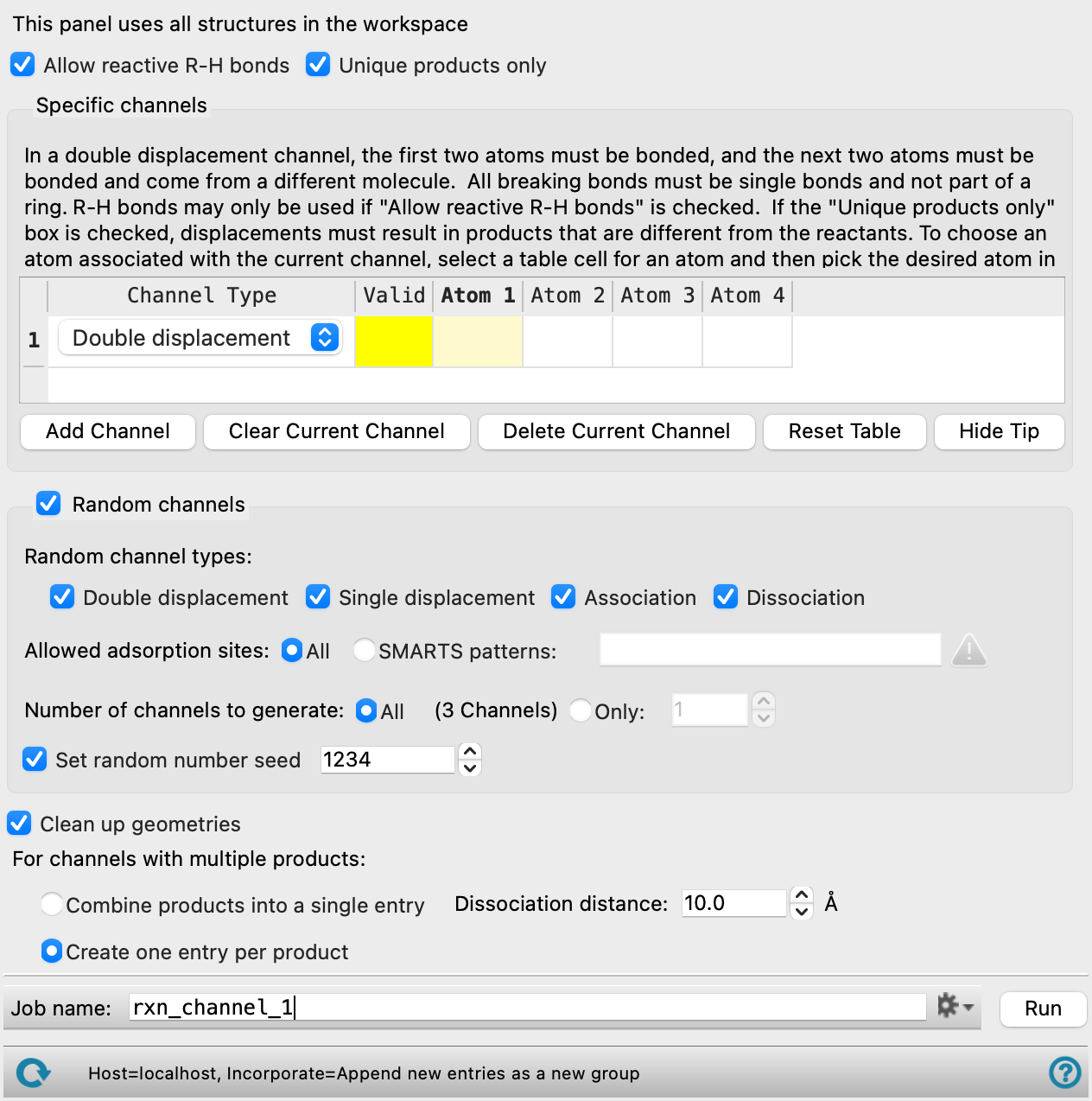
- Allow reactive R-H bonds option
-
Select this option if you want to consider reactions involving bonds to hydrogen atoms among the reaction paths.
- Unique products only option
-
Discard a reaction channel if the products are the same as the reactants or the same as the products for another channel. Only the nonredundant reaction channels are kept.
- Specific channels section
-
In this section you can define specific reaction channels to consider, i.e. breaking or forming specific bonds.
As a reaction involves only one or two reactants, if you include more than the required number of molecules for a single reaction in the Workspace, the other molecules are spectators and are included in the output reactant and product structures. Before using the output structures for other calculations, you may need to remove the spectators. You can do this by simply deleting the spectators in Maestro: the atom numbering of the reactants and products will remain consistent after removal of the spectators.
- Tip text
-
This text area explains what to do for each reaction channel type. It changes as you choose the channel type in the channel table.
- Channel table
-
This table lists specific channels to be included in the enumeration. The table columns are described below. You can select a single row in the table to delete or clear.
Channel Type This column has a menu from which you can choose the type of reaction channel. The channel types are: Double displacement—reaction of the type A-B + C-D → A-C + B-D, A-D + B-C, in which one bond in each molecule is broken, and both combinations of fragments are generated.
Single displacement—reaction of the type A + B-C → A-B + C, A-C + B, in which one bond is broken in one reactant, and both combinations of the fragments with the other molecule are generated. (This could be a typical SN2 reaction, for example).
Association—Reaction of the type A + B → C, in which a bond is formed between two molecules.
Dissociation—Reaction of the type A → B + C, in which a bond in a single molecule is broken to form two molecules.
Valid This column indicates whether the atoms picked for the channel type are valid or not. Red means invalid, yellow means incomplete, green means valid. Atom n There are four columns labeled for the atoms needed for a reaction. To pick a particular atom for a reaction, click in a cell in one of these columns, then pick the atom in the Workspace. The cell background is colored to indicate that the cell is active, i.e. you can pick the atom for this cell. The active cell moves to the next empty cell in the same row once you have picked an atom, so you don't need to click in each cell to pick atoms sequentially.
The channel type determines the number of atoms needed, which can be from 2 to 4. The cells that are not needed are grayed out. - Add Channel button
-
Click this button to add a new row to the table to define a new reaction channel.
- Clear Current Channel button
-
Select a row in the table and click this button to clear the data from the selected row.
- Delete Current Channel button
-
Select a row in the table and click this button to delete the row.
- Reset Table button
-
Click this button to clear all data from the table and reset it to its initial state.
- Hide Tip button
-
Hide the tip text that explains what to do for each channel type.
- Random channels section and option
-
Select the Random channels option to generate reactions of the chosen types by randomly selecting reaction types, structures, atoms and bonds; or by systematically generating all possible channels. The number of channels to form can be specified.
The channels generated in this section are in addition to (and exclusive of) the channels generated in the Specific channels section.
All molecules in the Workspace are considered in the generation of channels, so if you do not want to consider reactions between some of the molecules, you should ensure that the Workspace contains only those molecules whose reactions you do want to consider. You can run the enumeration multiple times to cover the reactions you do want to consider. For example, if you wanted to consider the association reaction of one molecule with a series of other molecules, you would have to do each independently; if you include all of the series, reactions between the members of the series will be considered.
- Random channel types options
-
Choose the types of channels for which to enumerate reactions:
-
Double displacement—reaction of the type A-B + C-D → A-C + B-D, A-D + B-C, in which one bond in each molecule is broken, and both combinations of fragments are generated.
-
Single displacement—reaction of the type A + B-C → A-B + C, A-C + B, in which one bond is broken in one reactant, and both combinations of the fragments with the other molecule are generated. (This could be a typical SN2 reaction, for example).
-
Association—Reaction of the type A + B → C, in which a bond is formed between two molecules.
-
Dissociation—Reaction of the type A → B + C, in which a bond in a single molecule is broken to form two molecules.
-
- Allowed adsorption sites options
-
When enumerating adsorption reactions on a surface (association), specify which sites on the surface to adsorb onto. The choices are All, to consider adsorption onto all possible sites, or SMARTS patterns, to specify sites by their SMARTS patterns. The SMARTS pattern must be separated by spaces, and are validated before use. Atoms from the SMARTS pattern are chosen at random for the site to use for adsorption, so the pattern should include only atoms at which you want to consider adsorption.
- Number of channels to generate options
-
Choose an option for the number of reaction channels to generate:
-
All—generate all possible reaction channels, in an exhaustive search. This could take some time.
-
Only n—generate the specified number of channels by random selection. The channels are generated by random selection of molecules, then random selection of channel types, then random selection of atoms.
-
- Set random number seed option and text box
-
Select this option to specify a random seed for the random selection of channels. Specifying the seed allows you to reproduce the results, unless other factors affect them. If this option is not selected, a seed is chosen at random.
- Other options
-
At the foot of the panel are options for treatment of the geometries and output of the products.
- Clean up geometries option
-
Perform a force-field minimization with the OPLS_2005 force field on the reactant molecules and on each of the sets of product molecules. The minimization is done on all molecules in a given entry; the reactant molecules are placed in a single entry.
You should ensure that the reactant structures are positioned in the Workspace so that they do not clash, both to prevent minimization problems with the reactants, and because the product structures are formed by making the minimum changes to the reactant structures and so will occupy a similar region of space.
- For channels with multiple products options
-
Specify how you want the product structures to be written out, either as a single entry, where they retain the atom numbering of the corresponding reactant atoms, or as multiple entries with one product molecule per entry.
If you chose a dissociation channel, you can set the distance at which the bond is considered to be broken, when the products are combined into a single entry, by specifying the distance in angstroms in the Dissociation distance text box.
- Job toolbar
-
Manage job submission and settings. See Job Toolbar for a description of this toolbar.
The Job Settings button opens the Reaction Channel Enumeration - Job Settings Dialog Box, where you can make settings for running the job.
- Status bar
-
The status bar displays information about the current job settings and status for the panel. The settings includes the job name, task name and task settings (if any), number of subjobs (if any) and the host name and job incorporation setting. The job status can include messages about job start, job completion and incorporation.
Use the Reset button
 to reset the panel to its default settings and clear any data from the panel.
 The status bar also contains the Help button
 , which opens the help topic for the panel in your browser. If the panel is used by one or more tutorials, hovering over the Help button displays a
  button, which you can click to display a list of tutorials (or you can right-click the Help button instead). Choosing a tutorial opens the tutorial topic.