Crystal Structure Prediction Viewer Panel
View results from a crystal structure prediction calculation.
To display this panel
To open this panel from the entry group for the results of a job .
.
To perform a Z'=2 or monohydrate/solvate/co-crystal crystal structure prediction, extract conformers from Z'=1 results using the Export button, then use the Workflow Action Menu () to launch the Crystal Structure Prediction Panel with the Perform packing search & ranking task and the appropriate output type. For more details, see Advanced Crystal Structure Prediction Workflows.
The following licenses are required to use this panel: Crystal Structure Prediction
- Features
- Additional Resources
Crystal Structure Prediction Viewer Panel Features
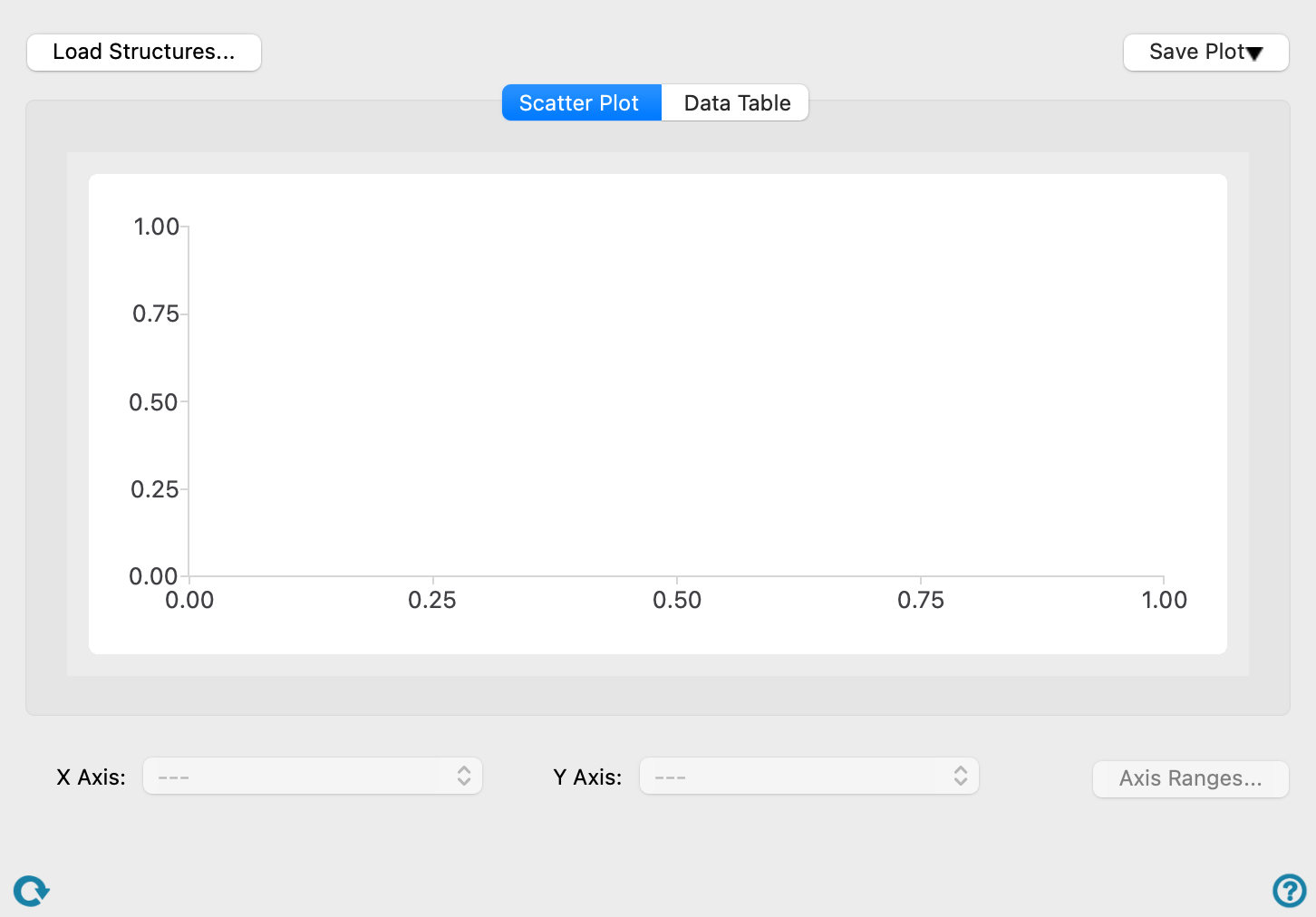
- Load Structures button
-
Load the output structures from a crystal structure prediction calculation.
- Export button
-
Choose Image to save the plot displayed in the Scatter Plot tab as a PNG or JPEG image. Choose Export to CSV to save the data in the Data Table tab as a CSV file. Choose Extract Conformers to extract the unique Z'=1 conformers from the top predicted structures for use in Z'=2 or monohydrate/solvate/co-crystal crystal structure prediction workflows.
- Scatter Plot tab
-
- Plot Area
-
Displays a scatter plot of the selected X and Y axes. Hover over a structure to display a tooltip with property values. Click on the structure to view it in the Workspace; the selected structure changes to red in the scatter plot.
- X Axis option menu
-
Select the property to plot on the X axis. The default is Unit Cell Density.
- Y Axis option menu
-
Select the property to plot on the Y axis. The default is md energy per molecule relative.
- Axis Ranges button
-
Open a pane where you can set ranges for the X and Y axes.
- Data Table tab
-
The Data Table lists the properties associated with each structure. Click on the column header to sort the table by the values of that column. You can save the data as a CSV file by clicking the Export button and choosing Export to CSV.
- Status bar
-
 to reset the panel to its default settings and clear any data from the panel.
If you can submit a job from the panel, the status bar displays information about the current job settings and status for the panel. The settings include the job name, task name and task settings (if any), number of subjobs (if any) and the host name and job incorporation setting. The job status can include messages about job start, job completion and incorporation.
The status bar also contains the Help button
 , which opens an option menu with choices to open the help topic for the panel (Documentation), launch Maestro Assistant, or if available, choose from an option menu of Tutorials. If the panel is used by one or more tutorials, hover over the Tutorials option to display a list of tutorials. Choosing a tutorial opens the tutorial topic.