Project Table — Property Tree Panel
Show, hide, classify, and find properties in the Project Table.
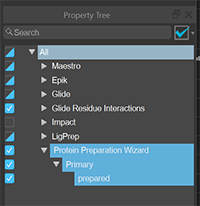
To open this panel, click the Tree button  in the Table Configuration pane. Open the Table Configuration pane by clicking the
  button on the right end of the toolbar.
or choose Window → Property Tree in the Project Table Panel.
This panel is docked to the right of the properties in the table by default.
- Features
- Additional Resources
Features
- Search box
-
The properties that are shown in the tree can be filtered, by entering the text you want to match in the search text box. This text can include wildcard characters: * to match any number of characters, ? to match a single character; and it can include character sets enclosed in square brackets, such as [a-z]. Filtering is done as you type, and the tree displays only the nodes that contain properties that match the filter. To show the full tree again, click the clear (X) button at the right side of the text box.
-
- Actions button

-
Perform various actions on the properties or tree.
- Return to Previous State—Undo the last change made to the visibility of the properties, returning the Project Table to the state before the last change.
- Hide All—Hide all project properties. Only the Row, In, and Title columns remain visible.
- Hide Empty—Hide properties that do not have any values for any entry.
- Maestro Defaults—Show the default set of properties. This is essentially a "reset" operation that returns the state to Maestro's default set of shown properties.
- All Properties in Selected Entries—Show only the properties that have values for one or more of the selected entries, and hide all other properties.
- Manage Custom Families—Create, edit, and delete custom property families. Opens the Manage Custom Families Panel.
-
- Property tree
-
The tree is organized by families, with one node for each family, and nodes underneath it for the primary and secondary properties, with properties sorted alphabetically under each node. Click on the turner arrow to show or hide the next level. If you want to expand or collapse all branches of the tree, right-click on the All row and choose Expand or Collapse.To show only properties from a specific family, select the family, then right-click on it and choose Show Only.
To show or hide any property or any group of properties (a property family, or the primary or secondary properties of a family), click the appropriate check box. If a group of properties has some but not all of its properties shown (checked), the check box is half filled, to indicate that the group is incompletely shown.
To show or hide multiple properties in one action, first select the properties using the usual click, shift-click, control-click actions for list selection, then right-click in the selection and choose from the available actions. The available actions depend on whether the selected properties are shown or hidden.
Since properties can belong to more than one family, when you select a property or a group of properties to be shown, other groups or properties can be selected. For example, selecting the secondary family for Glide also selects the Glide Residue Interactions family, because this family is a subset of Glide secondary properties.
The shortcut menu allows you to perform actions on the properties. The Show and Hide items define the properties that are shown or hidden in the Project Table.
-
Show—Show all the properties from the selected families
-
Show Only—Show only the properties from the selected families, and hide all others
-
Hide—Hide all the properties from the selected families
-
Expand—Expand the tree to all items at all levels in the selected families
-
Collapse—Collapse the tree for the selected families to only the toplevel items.
-
Copy Values from—Copy the values for the properties defined by the property selection to the clipboard, for the choice of entries made from the submenu (All Entries or Selected Entries). The values are copied in a tab-delimited format, which can be imported by spreadsheet programs. The selected properties and the selected entries do not need to be contiguous.
-
Export Spreadsheet—Export the values for the properties defined by the selection to a spreadsheet. Opens the Export Spreadsheet Panel.
-