Project Table — Table Configuration Pane
The Table Configuration pane has various buttons for showing and hiding sections of the Project Table. The buttons allow quick access to configure the content and layout of the Project Table.
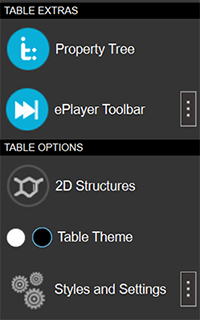
To open the Table Configuration pane, click the button on the right end of the toolbar.
- Features
- Additional Resources
Features
| TABLE EXTRAS | |

|
Show and hide the Project Table — Property Tree Panel. Menu equivalent: Window → Property Tree |

|
Show and hide the ePlayer Toolbar |

|
Opens the ePlayer Options Panel. |
| TABLE OPTIONS | |

|
Show the 2D structures for each entry in a separate column. |

|
Choose between a white or black visual theme for the Project Table. |

|
Change styles and settings of Fonts, Behavior, and Menu Shortcuts in the Preferences Panel. |