Connect to LiveDesign Dialog Box
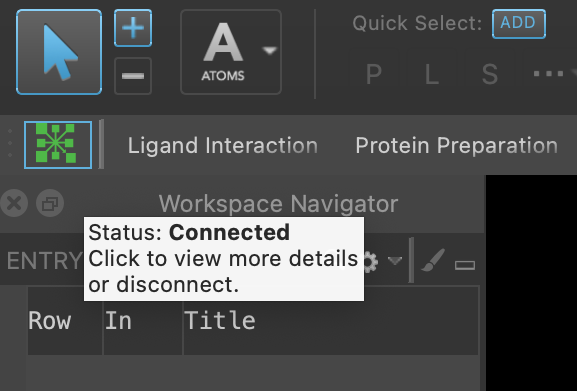
To display the LiveDesign icon in the Maestro main window, choose Window → LiveDesign Connection. The connection status is indicated by the color of the LiveDesign icon, and by hover-over text.
A green icon indicates that you are currently connected to a LiveDesign server:
A gray icon indicates that you are not connected:
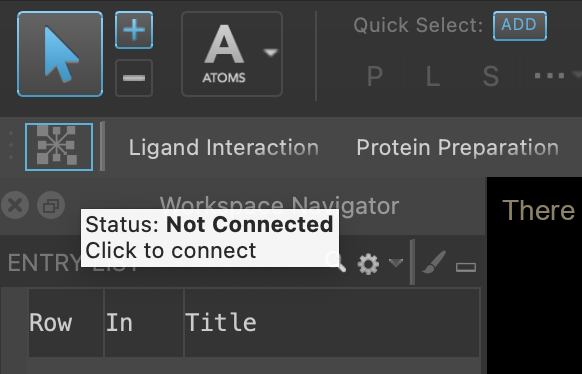
Clicking the LiveDesign icon will open the Connect To LiveDesign dialog box. The dialog box also opens if you are not connected to a LiveDesign server and you open the LiveDesign to Maestro Import Panel or Maestro to LiveDesign Export Panel.
Note
Each Maestro session will have own ldclient log file, with the naming format: `ldclient_YYYY-MM-DD_HH-MM-SS_UUID.log`.
The Directory for log files is: `{schrodinger temp directory}/ldclient_logs`.
- Using
- Additional Resources
- Sign in with options
-
Choose the preferred sign-in method by selecting either the LiveDesign credentials option, or the Single sign-on option. The selection will determine which options below become available:
-
LiveDesign credentials option
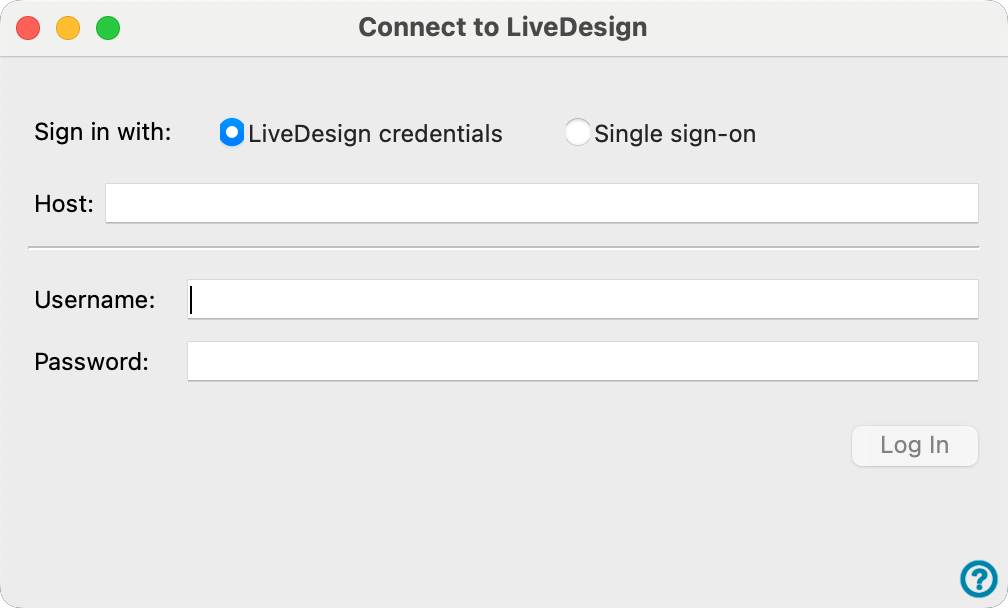
To log in to the LiveDesign server, you need the URL of your LiveDesign instance (host) and your username and password. Recent hosts are saved and can be selected from the dropdown menu that appears when you click on the Host text box. After entering your credentials, click Connect.
-
Single sign-on option
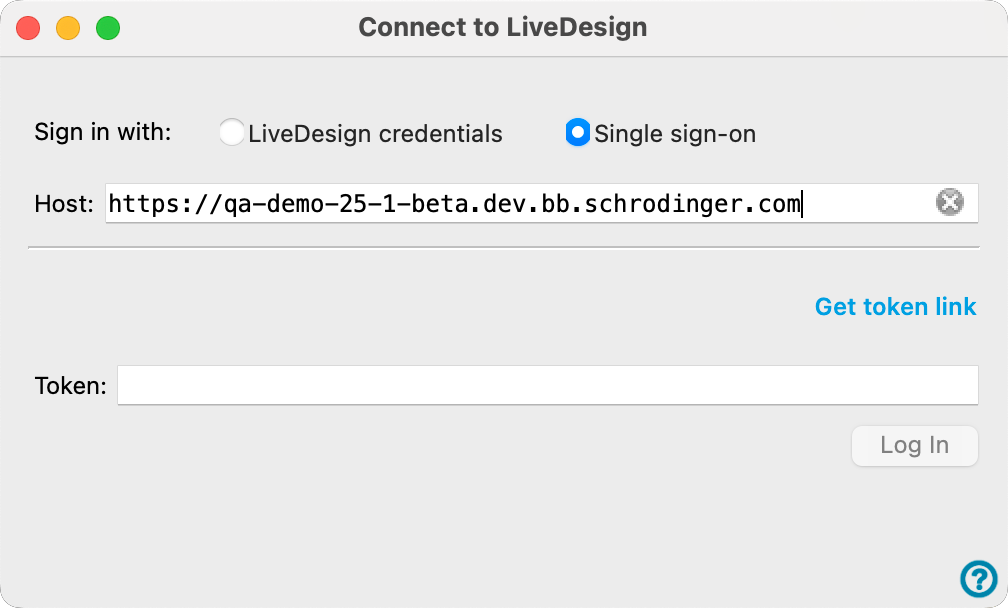
Enter the URL of your host address and click Get token link. A link will appear to obtain your token, then type or paste it into the Token field, and click Connect to connect to the LiveDesign server. Between sessions, Maestro will retain and reuse the token for as long as it is valid once obtained for Maestro to LiveDesign Export.
In the event an invalid username, password, or token is entered for either sign-in option, an error message will appear indicating that then authentication failed and to check the credentials.
-
-
Disconnect from LiveDesign
-
To disconnect from a LiveDesign server, click the green LiveDesign icon. The Connect to LiveDesign dialog box appears with the current host URL. Click Disconnect to disconnect from the server, or click Cancel to close the dialog box and remain connected.
Note
You may need to restart Maestro after disconnecting in order to connect to a different LiveDesign server.