LiveDesign to Maestro Import Panel
Import structures and data from a LiveDesign project into Maestro.
To open this panel: in the Maestro main window, choose File → Import From → LiveDesign.
- Using
- Features
- Additional Resources
Using the LiveDesign to Maestro Import Panel
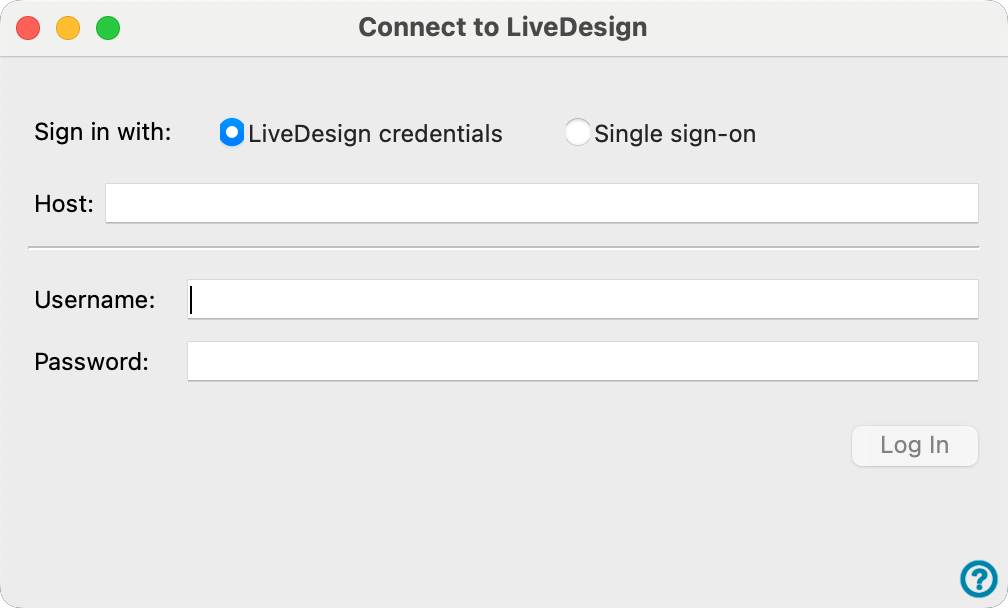
If you are already connected to your LiveDesign server, the panel opens immediately. If you are not connected to your LiveDesign server, the Connect to LiveDesign Dialog Box opens first.
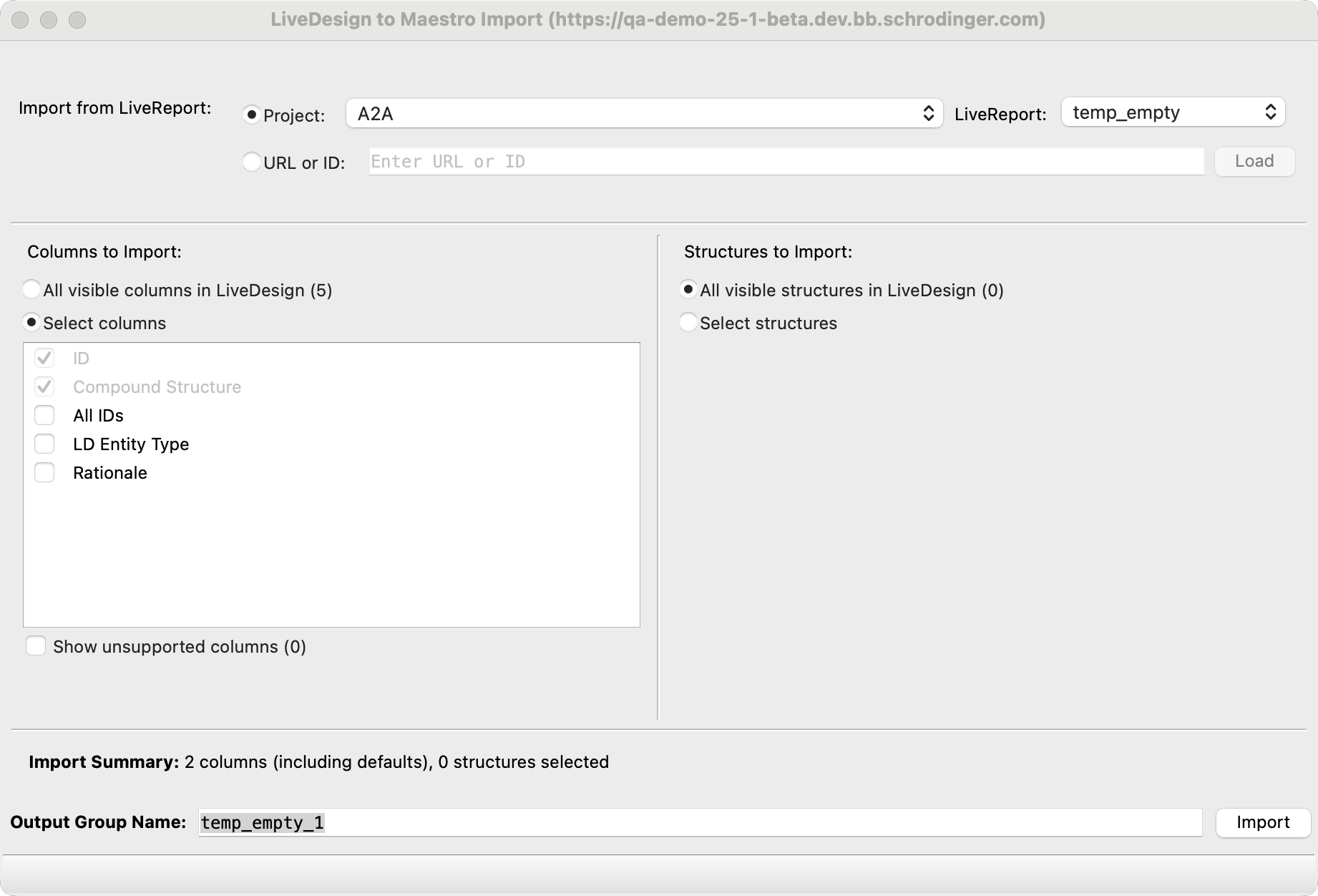
When the panel opens, you can select the LiveDesign project and report, choose the properties to import and then perform the import.
To import data, make selections in the panel and click Import. An import is done for a particular choice of project and LiveReport. If you want to do multiple imports, you can set up and start the next import as soon as an import is submitted. The status of the imports is shown in the status area at the bottom of the panel.
Note
Each Maestro session will have own ldclient log file, with the naming format: `ldclient_YYYY-MM-DD_HH-MM-SS_UUID.log`.
The Directory for log files is: `{schrodinger temp directory}/ldclient_logs`.
Note
If you close the Maestro project, the panel closes, and the server connection is also closed. If you close the panel, the information is cleared.
LiveDesign to Maestro Import Panel Features
- Import from LiveReport options
- Columns to Import section
- Structures to Import section
- Import Summary text
- Output Group Name text box
- Settings button
- Import button
- Status bar
- Import from LiveReport options
-
Choose the means of specifying the LiveReport to import from.
-
Project option—Choose the LiveDesign project you want to import the data from. The dropdown menu lists the projects that are available on the LiveDesign server you connected to. From the Liveport dropdown menu, select a LiveReport from the Project selected.
-
Paste LiveReport URL or ID text box and button—import from the LiveReport specified by a URL or by a report ID (number). Paste or type the URL or the ID in the text box. You can choose recently used LiveReport URLs or IDs from the dropdown menu that appears when you click the text box. Click the Load button to the right of the text box to load the information specified by the URL or ID. The project and LiveReport associated with the URL or ID are reported below.
-
- Columns to Import section
-
Choose the properties (columns) to import into Maestro from the selected LiveReport. Imported properties can be viewed in the Project Table.
- All visible columns in LiveDesign (n) option
-
Import all columns that are not hidden in the LiveReport and are available for import as properties in Maestro. The number in parenthesis (n) shows the number of columns to be imported.
- Select columns option and list
-
When this option is selected, a list of all the columns that can be imported from the LiveReport as properties into Maestro appears. Select the check box next to the column name to include it in the import. Properties that are not available for import are not shown, unless you select the Show unsupported columns option below.
The ID property is mapped to the Title property in Maestro. It is selected by default and cannot be deselected, so it is grayed out.
The Compound Structure property is used to generate the 3D structure of the ligand in Maestro. It is selected by default and cannot be deselected, so it is grayed out.
- Show unsupported columns (n) option
-
Show the columns which are not available for import (unsupported columns) in the Select columns list. The number of unsupported columns (n) are shown in parenthesis. The unsupported columns are unselected in the list and grayed out, as they cannot be selected, only shown.
- Structures to Import section
-
Choose the structures to import into Maestro from the selected LiveReport. The structures are displayed in the Entry List by the entity ID and are grouped under a name described in the Output Group Name text box section.
- All visible structures in LiveDesign (n) option
-
Import all structures that are not hidden in the LiveReport into the Maestro project. The number in parenthesis (n) shows the number of structures to be imported.
- Select structures option and list
-
When this option is selected, a list of the entity ID of structures that can be imported from the LiveReport appears. Select the check box next to the entity ID to include that structure in the import. Structures that are not available for import are not shown. The supported structure formats are Maestro, PDB, SMILES, SDF, MOL, and MOL2.
-
Note:
The LiveDesign to Maestro Import Panel always imports structures as per the "Row Per Entity" view of the LiveReport and will not import hidden, filtered row structures.
- Import Summary text
-
Lists a summary of the total number of columns and structures to be imported into the Maestro project. The default columns (ID and Compound Structure) are always included in the total number of columns.
- Output Group Name text box
-
Set the name for the import task. A default name is automatically given with the format "LiveReportName_n", where n increases incrementally with every import. The imported entities are grouped under ld_import_LiveReportName (x) in the Maestro project where x is the number of entities in the group. For example, if the selected LiveReport name is "demo", the first import from this LiveReport has the Output Group Name "demo_1" and the group name of 5 imported entities in Maestro would be "ld_import_demo_1 (5)".
- Settings button (
 )
) -
Click the arrow and choose Reset to reset all panel settings to their defaults.
- Import button
-
Start the import. A status report is shown below in the Status bar. When the import finishes, new entries from the import appear in the project. The entries are added in groups that reflect the data source, e.g. there is a group for the 2D structures, and one for each 3D data column, which may contain subgroups containing proteins and their ligands, etc.
Once the import starts, you can set up and start another import, as the imports are run asynchronously.
- Status bar
-
If the panel has a Job toolbar, you can reset the panel from the Settings button menu.
If you can submit a job from the panel, the status bar displays information about the current job settings and status for the panel. The settings include the job name, task name and task settings (if any), number of subjobs (if any) and the host name and job incorporation setting. The job status can include messages about job start, job completion and incorporation.
The status bar also contains the Help button
 , which opens an option menu with choices to open the help topic for the panel (Documentation), launch Maestro Assistant, or if available, choose from an option menu of Tutorials. If the panel is used by one or more tutorials, hover over the Tutorials option to display a list of tutorials. Choosing a tutorial opens the tutorial topic.
Note:
If there is an error encountered during an import task, a warning dialog will appear with traceback information. Please review the imported entries to begin troubleshooting. If there are any missing structures, the selected columns may contain invalid data. Try re-running the model, or refresh the LiveReport and try again.