Export Mappings Manager Dialog Box
To open the Export Mappings Manager Dialog Box, click the "..." link to the right of the Mapping dropdown in the Maestro to LiveDesign Export Panel.
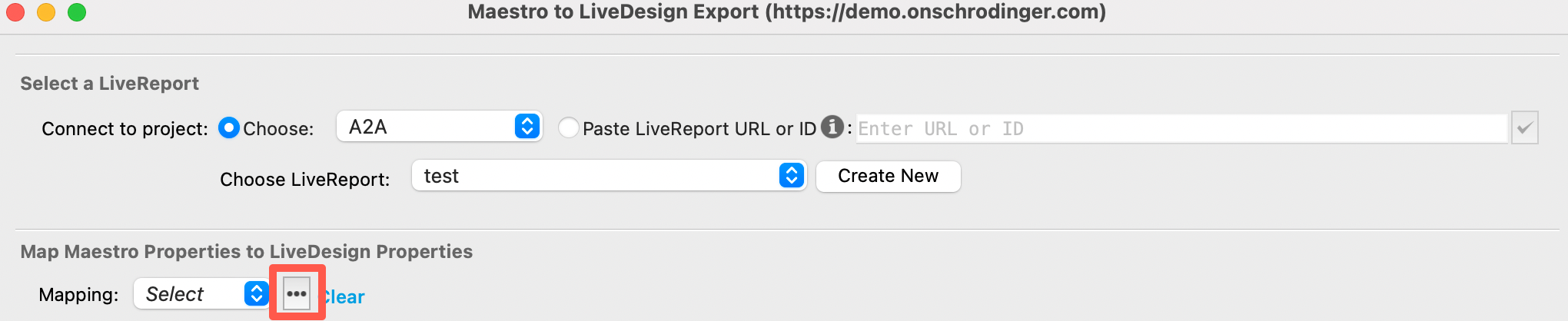
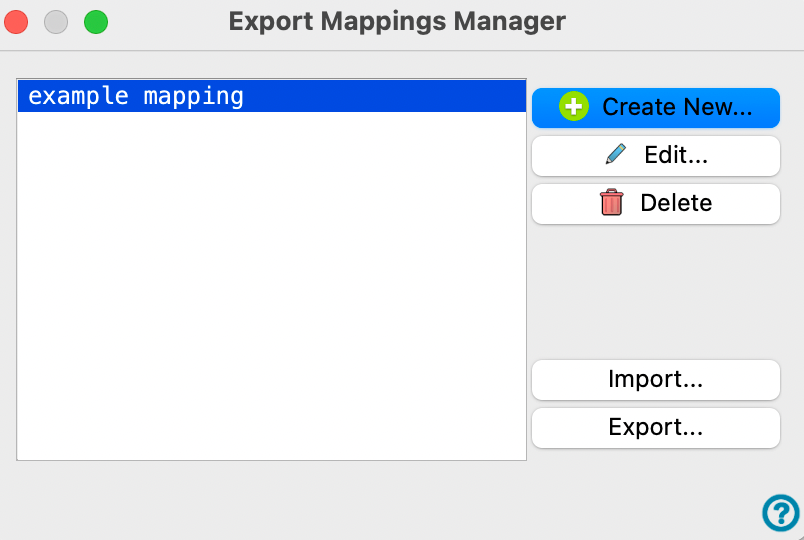
Using the Export Mappings Manager, you can Create New, Edit, and Delete mappings, as well as Import or Export mappings directly from the Maestro to LiveDesign Export Panel..
- Using
- Additional Resources
List of mappings
The list of mappings is displayed on the left side of the dialog box. If there are no saved mappings, the list will be blank, and the options on the right side of the dialog box will be unavailable except for Create New and Import.
Clicking to select a mapping from the list will make all of the options available:
-
Create New option
Opens the Create New Mapping Dialog Box, with several options to define the new custom mapping:
-
Mapping name: enter a title to identify the saved custom mapping.
-
Select Maestro properties: Check the boxes in the dropdown to select the desired Maestro properties for the custom mapping, which are then displayed in the table beneath. The options for LiveDesign Columns and LiveDesign Properties can then be selected from the corresponding dropdowns in the table cells.
-
Match existing compounds by: Choose by Structure or Corporate ID. If a compound does not have a Corporate ID, it will be matched by Structure instead.
-
Choose data accessibility: Choose either button to select the option: Unpublished, to make the data accessible for only this LiveReport, or Published, to make the data accessible throughout the project.
-
Use pose name: To define a pose name, check the box in combination with clicking the Define button to open a dialog box where you can enter custom text and choose an option to include and select structure properties.
After you have selected all of the desired options, click Save at the bottom right of the dialog box to save the custom mapping.
-
Edit option
Opens the Edit Mapping Dialog Box for the selected custom mapping, allowing you to rename it or alter the same list of options as the Create New Mapping Dialog Box above.
-
Delete option
Removes the selected mapping from the list and deletes the corresponding file.
-
Import option
Opens a file browser, allowing you to import one or multiple mappings from a selected location.
-
Export option
Opens a file browser, allowing you to export one or multiple mappings from a selected location.