Zooming and Fitting
To zoom in or out on the Workspace structures, do one of the following:
- Rotate the mouse wheel.
- On a trackpad, use the pinch gesture.
- Hold down the middle and right (2nd and 3rd) mouse buttons and move the mouse to the right (zoom in) or left (zoom out).
- Hold down the SHIFT and CTRL keys and the middle mouse button and move the mouse to the right (zoom in) or left (zoom out).
- Press the K key to zoom in or J key to zoom out.
- Choose View → Zoom In or View → Zoom Out.
You can customize the mouse actions for zoom in the Customize Mouse Actions Panel, which you open with Workspace → Customize Mouse Actions.
Fitting is another form of zooming in or out, so that a group of atoms fills the Workspace. Fitting changes the Workspace zoom so that the fitted objects fill the Workspace, with a margin so that rotation can be done without any part of the structure going outside the Workspace. For more control over fitting, you can set preferences in the Fitting settings, under Workspace – Fitting.
There are three main ways of fitting to a collection of atoms: the Fit section of the toolbar, the View → Fit submenu, and keyboard shortcuts.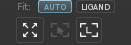
Fitting can be done for the following atom collections:
-
All atoms—fit the Workspace view to all atoms. Choose View → Fit → All. On a Mac, you can use a two-finger double tap with no atoms selected.
This item is useful if you want to fit to the full atom set, but don't want to clear your atom selection.
-
All displayed atoms—Fit the Workspace view to all the visible atoms. Click the Fit to Workspace toolbar button:

-
All selected atoms—Fit the Workspace view to the selected atoms. Choose View → Fit → Selected, press Z, or click the Fit to Selection button. On a Mac, use a two-finger double tap.

-
Ligand—Fit the Workspace view to a ligand. Choose View → Fit → Ligand, press (L, or click the Fit to Ligand button.

When multiple ligands are present, repeated fits move to the next ligand in sequence. Not present in the BioLuminate or Materials Science profiles. -
Workspace component—Fit the Workspace view to the atoms in a component defined in the Structure Hierarchy panel. Double-click a row in the Structure Hierarchy panel to fit to the atoms represented by the row.

Fitting can be done automatically when the Workspace content changes, to all atoms or to the ligand.
-
Auto-Fit—automatically fit the Workspace view to all displayed atoms when entry inclusion is changed. To turn on auto-fit, choose View → Fit → Autofit, or click the Auto button.
-
Ligand Auto-Fit—automatically fit the Workspace view to the ligand when entry inclusion is changed. The button is not present if Auto-Fit is off, or in the BioLuminate or Materials Science profiles. To turn on ligand auto-fit, choose View → Fit → Autofit to Ligand, or click the Ligand button.

When a project is closed, all view information (rotation, translation, and zoom) is saved with the project and restored when it is opened again.
The Preferences Panel has a number of preferences that affect zooming and fitting to the Workspace, under Workspace – Fitting.