Assign Space Group Panel
Assign the space group for one or more crystal structures in the project, and generate new standardized structures with space group properties added.
To open this panel, click the Tasks button and browse to Materials → Tools → Assign Space Group .
The following licenses are required to use this panel: MS Maestro
- Using
- Features
- Additional Resources
Using the Assign Space Group Panel
The assignment of the space group is mainly useful for reducing the cell to a primitive cell. For this task, the space group must be assigned. Three new entries are generated for each input entry, one containing the original structure with the space group updated, one containing the conventional cell and one containing the primitive cell, in a standardized form. These are the smallest possible conventional and primitive cells. The properties Space Group ID and PDB CRYST1 Space Group are added to these structures. The Hermann-Mauguin (international) notation is used for the space groups.
The structures that you use must have periodic boundary conditions assigned.
To write out the input file and a script for running the job from the command line, click the arrow next to the Settings button  and choose Write.
Assign Space Group Panel Features
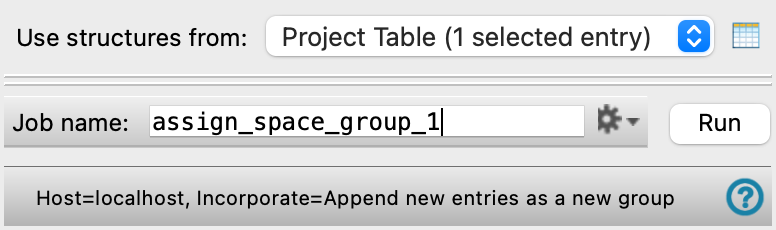
- Use structures from option menu
-
Choose the structure source for assignment of the space group.
- Project Table (n selected entries)—Use the entries that are currently selected in the Project Table or Entry List. The number of entries selected is shown on the menu item.
- Workspace (n included entries)—Use the entries that are currently included in the Workspace, treated as separate structures. The number of entries in the Workspace is shown on the menu item.
- Project Table (n selected entries)—Use the entries that are currently selected in the Project Table or Entry List. The number of entries selected is shown on the menu item.
- Open Project Table button
-
Open the Project Table panel, so you can

- Job toolbar
-
Manage job submission and settings. See Job Toolbar for a description of this toolbar.
The Job Settings button opens the Assign Space Group - Job Settings Dialog Box, where you can make settings for running the job.
- Status bar
-
The status bar displays information about the current job settings and status for the panel. The settings includes the job name, task name and task settings (if any), number of subjobs (if any) and the host name and job incorporation setting. The job status can include messages about job start, job completion and incorporation.
Use the Reset button
 to reset the panel to its default settings and clear any data from the panel.
 The status bar also contains the Help button
 , which opens the help topic for the panel in your browser. If the panel is used by one or more tutorials, hovering over the Help button displays a
  button, which you can click to display a list of tutorials (or you can right-click the Help button instead). Choosing a tutorial opens the tutorial topic.