Beta Elimination Reactions Panel
Calculate energies of beta hydrogen elimination reactions (1,2 elimination) and return product and unoptimized intermediate structures.
To open this panel, click the Tasks button and browse to Materials → Quantum Mechanics → Workflows → Beta Elimination Reactions.
The following licenses are required to use this panel: MS Maestro, Jaguar, MS Force Field Applications (optional)
- Overview
- Using
- Features
- Additional Resources
Overview of Beta Elimination Reactions
The beta hydrogen elimination reaction can be written as
Nu–X–Y–H → X=Y + Nu–H
where Nu is the nucleofuge (the leaving group that carries the electron pair) and H is at the beta position relative to Nu. See the Wikipedia article, Elimination Reaction for more background information.
Using the Beta Elimination Reactions Panel
For each input structure, a search is done for possible beta hydrogen elimination reactions, where the atom on the leaving group (nucleofuge) that forms a new bond to the leaving hydrogen is restricted to a set of defined elements. The available elements are determined from the input structures. Both E1 and E2 reaction mechanisms are considered.
The structures must be single molecules, and the breaking of the Nu–X bond must result in two separate molecules: that is, Nu–X is not part of a ring. However, X and Y can be members of a ring. The X–Y bond can be a single bond or a double bond in the input structure; the bond order of this bond in the product is increased by one, i.e. to a double or a triple bond.
The reaction energy for each elimination reaction is returned as a Maestro property, Beta Elimination Energy (kcal/mol). The property is added to the product structures. The optimized structures for each reaction are returned in a separate entry group.
As beta-H elimination is an important reaction step in many reaction sequences, the unoptimized intermediate structures are also returned by default. These are the syn-periplanar (sp) or anti-periplanar (ap) structures that are likely to be close to the transition state for the reaction. If you want to locate the transition state, you can use these structures and the reactant and product structures to do a transition state search with Jaguar. See Transition-State Optimizations and Transition State Search Panel.
There are some other tools available for calculating different kinds of reaction energies, which are linked in the Related Topics section.
Beta Elimination Reactions Panel Features
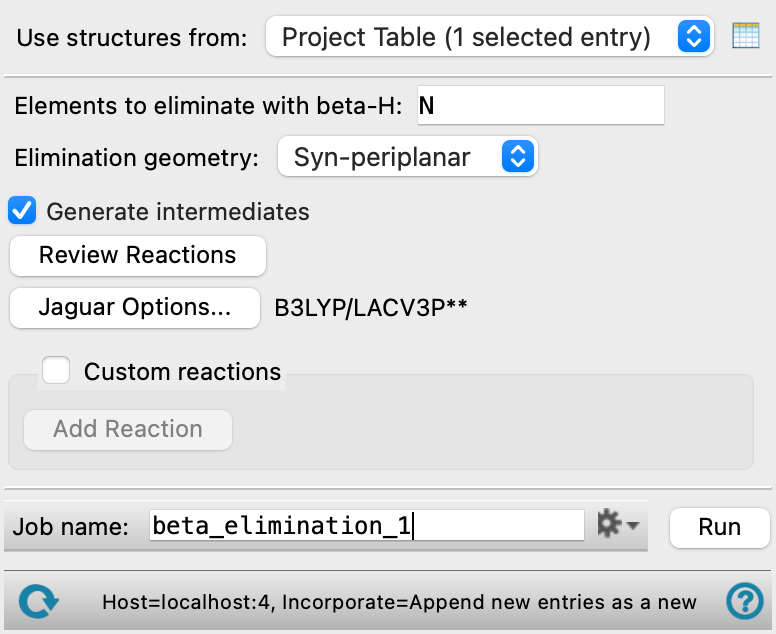
- Use structures from option menu
-
Choose the structure source for the beta elimination reactions. The input entries must all be single molecules.
- Project Table (n selected entries)—Use the entries that are currently selected in the Project Table or Entry List. The number of entries selected is shown on the menu item.
- Workspace (included entry)—Use the entry that is currently included in the Workspace. Only one entry must be included in the Workspace.
- Project Table (n selected entries)—Use the entries that are currently selected in the Project Table or Entry List. The number of entries selected is shown on the menu item.
- Open Project Table button
-
Open the Project Table panel, so you can

- Elements to eliminate with beta-H text box
-
Specify the elements that can be eliminated with the beta hydrogen, as a comma-separated list. All possible nucleofuges (Nu) are considered that have one of the specified elements attached to the alpha atom (X) with a non-aromatic hydrogen attached to the beta atom (Y). By default, the list includes the non-hydrogen elements detected in the input structures.
- Elimination geometry option menu
-
Choose the desired elimination geometry, from Syn-periplanar, Anti-periplanar, or Both. The products generated for the reactions are restricted by this choice.
- Generate intermediates option
-
Generate the syn/anti-periplanar unoptimized intermediate structures. This option is selected by default; deselect it if you do not want the intermediate structures.
- Review Reactions button
-
Generates structures for the reactions that can occur for the input structures and adds them to the Project Table, so you can examine them in the Workspace and check that you have the desired reaction or reactions. After review, remember to select the input structures again.
- Options button
-
Set Jaguar options for the optimization of the reactant and products. Machine learning force fields can be used in place of the quantum mechanics calculations. Opens the Jaguar Options - Dialog Box. This dialog box also allows you to specify additional Jaguar keywords. The solvent (if any), level of theory, and basis set are shown to the right of the button.
- Custom reaction option
-
Specify one or more custom reactions by importing the reactant and products. When selected, the Add Reaction button is activated.
This option is primarily intended for restarting failed Jaguar optimization jobs, so that the results for the reaction are processed to produce the output properties and structures as for the successful jobs. You could in principle specify any unimolecular decomposition reaction here, but the energy would be labeled as Beta Elimination Energy (kcal/mol). This might be appropriate for beta elimination reactions where a group other than hydrogen was eliminated from the beta atom. No intermediates are written out when you use this option.
- Add Reaction button
-
Add a set of tools for specifying a custom reaction, above this button. You can click this button multiple times, to add as many reactions as you want.
- Reaction tools
-
Specify a custom reaction by importing entries from the Workspace. Each entry must consist of a single structure. To import the structures, display each one in turn in the Workspace and click the Import Included Entry button for the structure.
-
To delete a custom reaction, click the delete button (trash can).
- Job toolbar
-
Manage job submission and settings. See Job Toolbar for a description of this toolbar.
The Job Settings button opens the Beta Elimination Reactions - Job Settings Dialog Box, where you can make settings for running the job.
- Status bar
-
 to reset the panel to its default settings and clear any data from the panel.
If you can submit a job from the panel, the status bar displays information about the current job settings and status for the panel. The settings include the job name, task name and task settings (if any), number of subjobs (if any) and the host name and job incorporation setting. The job status can include messages about job start, job completion and incorporation.
The status bar also contains the Help button
 , which opens an option menu with choices to open the help topic for the panel (Documentation), launch Maestro Assistant, or if available, choose from an option menu of Tutorials. If the panel is used by one or more tutorials, hover over the Tutorials option to display a list of tutorials. Choosing a tutorial opens the tutorial topic.