Cluster Analysis Panel
surfactant, detergent
Analyze the geometrical properties and size distribution of molecular clusters from a trajectory as a function of simulation time.
To open this panel: click the Tasks button and browse to Materials → Classical Mechanics → Trajectory Analysis → Cluster Analysis Calculations.
The following licenses are required to use this panel: MS Maestro
- Using
- Features
- Additional Resources
Using the Cluster Analysis Panel
The primary purpose of this panel is to analyze molecular clusters from a simulation to extract information on size distribution, cluster shape, number of clusters, and composition. The input trajectory should represent a simulation of a suitable system. For example you may have a system in which clusters are formed from randomly distributed surfactant molecules in solution, or one in which the distribution of cluster sizes stabilizes. The analysis is not limited to surfactants, but can be applied to other types of systems.
As each trajectory frame is analyzed independently, cluster analysis calculations can be run in parallel to reduce computational time. Use the Job toolbar to set Job Settings.
You can plot the results of the calculation using the Cluster Analysis Viewer Panel (click the Tasks button and browse to Materials → Classical Mechanics → Trajectory Analysis → Cluster Analysis Results). To open this panel from the entry group for the results of a job .
.
Cluster Analysis Panel Features
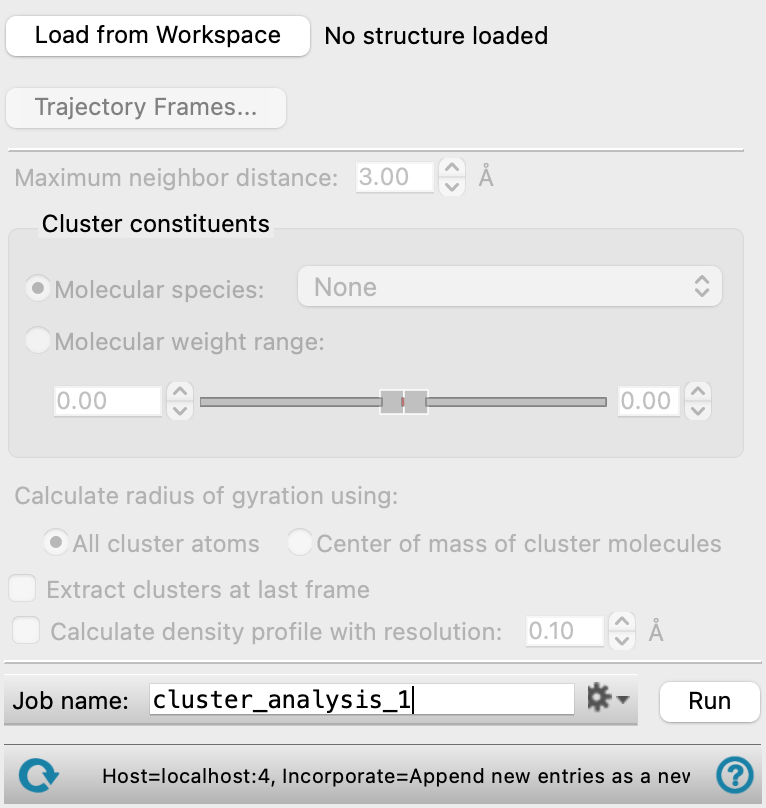
- Load from Workspace button
-
Load the structure in the Workspace into the workflow. The structure must be the output structure from an MD simulation, with an associated trajectory which is used for the analysis.
- Trajectory Frames button
-
Set the range and interval of trajectory frames to use in the analysis. The total number of frames to be used and the time range (in ns) corresponding to the selected frames are shown to the right of the button.If you are interested in the equilibrium distribution, you might want to filter out the initial part of the trajectory; if you want to look at the progress of cluster (aggregate) formation from solution, you might want to keep the entire trajectory. Opens the Trajectory Frames dialog box, in which you can set the following:
-
- Frame range text boxes—Set the range of frames to use. You can also use the slider to select the range.
- Step size text box—Set the interval at which trajectory frames are taken. For a step size of n, every nth frame is taken within the selected range. The first and last frames are always included. Increasing the step size decreases the number of frames to be used and the computational time needed.
- Frames text—Lists the corresponding frame numbers of the selected frame range and step size.
- Time text—Lists the corresponding time range and interval (in ns) of the selected frame range and step size.
- OK button—Apply the selected trajectory frame range and step size and close the dialog box.
- Maximum neighbor distance text box
-
Specify the maximum distance between the closest atoms in two molecules for them to be considered neighbors.
- Cluster constituents section
-
Specify the molecules that should be included in clustering using one of the following selection methods:
- Molecular species option menu
-
Select the molecular species that should be included in the clustering, or choose All to include all molecular species in the trajectory, or None to reset the molecule selection. The molecular species shown in the menu are populated from the input structure selected in the Workspace. For all-atom structures, the molecular formula or polymer name is displayed, followed by the number of occurrences of that molecule in the input structure. For course-grained structures, the bead name is displayed, followed by the number of beads. If this selection method is used, at least one molecular species must be selected.
- Molecular weight range slider and text boxes
-
Specify the range of molecular weights of molecules that should be included in clustering. Molecules with molecular weights outside this range is excluded. Use the slider or the text boxes to specify the maximum and minimum values
- Calculate radius of gyration using options
-
Calculate the radius of gyration of each cluster using one of the following methods for the cluster center:
- All cluster atoms—use all atoms in the cluster to calculate its mass-weighted radius of gyration.
- Center of mass of cluster molecules—use the centers of mass of the molecules in the cluster to calculate its unweighted radius of gyration.
- Extract clusters at last frame option
-
Extract the clusters from the last frame of the trajectory and import them into Maestro. This is useful for examining components that might have self-assembled in the simulation.
- Calculate density profile with resolution option and text box
-
Calculate radial density profile for each cluster at the specified resolution in Angstroms. The density profile measures the spatial distribution of species relative to the cluster center of mass.
- Job toolbar
-
Manage job submission and settings. See Job Toolbar for a description of this toolbar.
The Job Settings button opens the Cluster Analysis - Job Settings Dialog Box, where you can make settings for running the job.
- Status bar
-
 to reset the panel to its default settings and clear any data from the panel.
If you can submit a job from the panel, the status bar displays information about the current job settings and status for the panel. The settings include the job name, task name and task settings (if any), number of subjobs (if any) and the host name and job incorporation setting. The job status can include messages about job start, job completion and incorporation.
The status bar also contains the Help button
 , which opens an option menu with choices to open the help topic for the panel (Documentation), launch Maestro Assistant, or if available, choose from an option menu of Tutorials. If the panel is used by one or more tutorials, hover over the Tutorials option to display a list of tutorials. Choosing a tutorial opens the tutorial topic.