Elastic Constants Panel
Calculate strain properties of an orthorhombic system using molecular dynamics simulations. The properties are obtained by fitting, using small changes to the cell dimensions.
To open this panel: click the Tasks button and browse to Materials → Classical Mechanics → Elastic Constants → Elastic Constants Calculations.
The following licenses are required to use this panel: MS Maestro, OPLS (optional), MS Force Field Applications (optional), Desmond
- Using
- Features
- Additional Resources
Using the Elastic Constants Panel
The elastic constants are calculated by a stress based method. In the strain-based method, the stress derived from uniaxial and biaxial tension simulations is used in a linear fit to obtain the elastic constants.
The input structure must be a Desmond model system (.cms), prepared with OPLS2005, OPLS4, OPLS5, or MLFF. You can use the System Builder Panel to prepare the model system for any structure that you have. If you want to build an amorphous structure from scratch, you can use the Disordered System Builder Panel to create a model system. After preparing the model system, you should run an MD simulation to relax it, as this panel does not provide for relaxation of the input model system.
You can run calculations on multiple systems simultaneously, by using multiple project entries as input. Each system is run as a separate job, and you can specify the number of processors or GPUs to use for each job in the Job Settings Dialog Box. Multiple GPUs can be used on a single system, one GPU for each deformation subjob.
To write out the input file and a script for running the job from the command line, click the arrow next to the Settings button  and choose Write.
To visualize the results, you can use the Elastic Constants Results Viewer Panel (click the Tasks button and browse to Materials → Classical Mechanics → Elastic Constants → Elastic Constants Results).
The full list of available properties is:
- Universal Anisotropy
- Lamé Lambda
- Lamé Mu
- Young's Modulus
- Shear Modulus
- Lamé Bulk Modulus
- Poisson Ratio
These properties are included as Maestro properties of the relaxed system in the output. Some of these might not be computed, depending on the options you select for the simulations. See https://docs.materialsproject.org/methodology/elasticity/#derived-elastic-properties for more information on these properties.
Elastic Constants Panel Features
- Use structures from option menu
- Open Project Table button
- File name text box and Browse button
- Strain calculations section
- Simulation protocols section
- Job toolbar
- Status bar
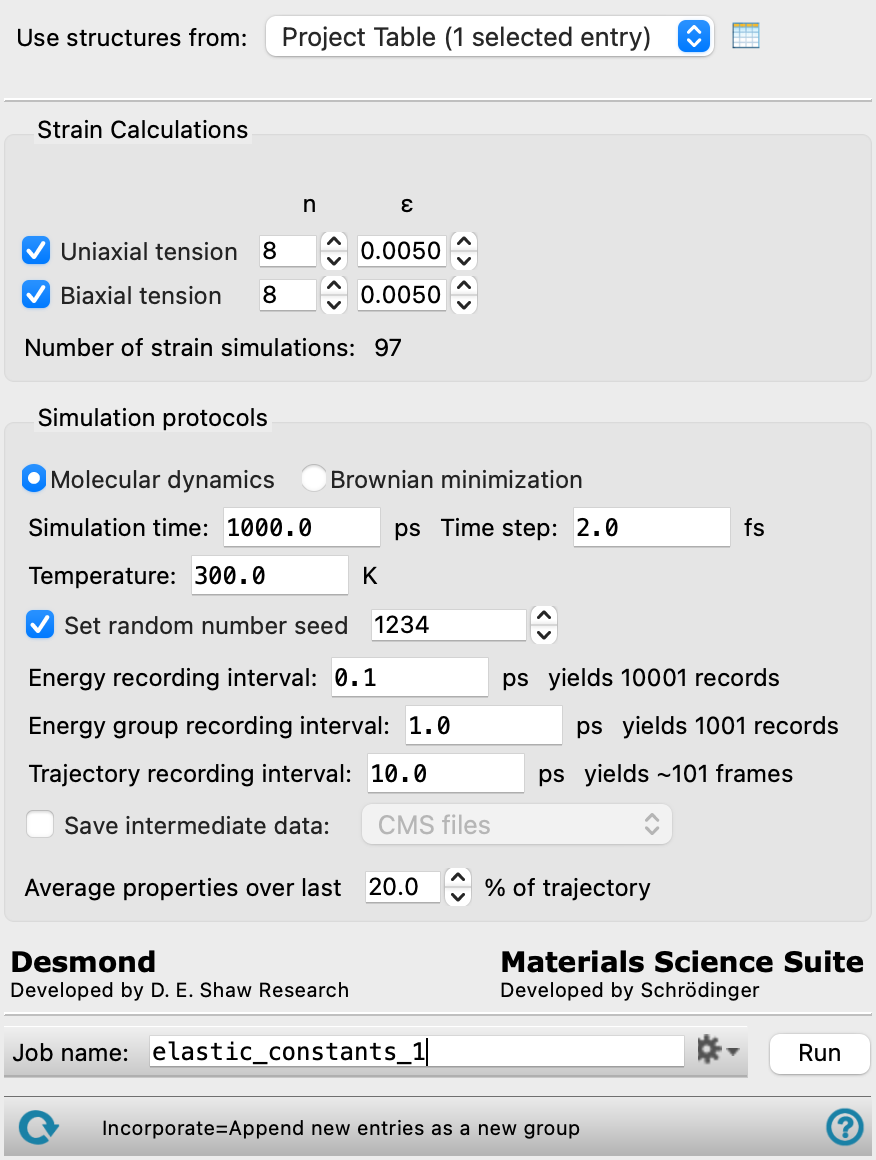
- Use structures from option menu
-
Choose the structure source for the elastic constants calculation. The structures must be properly prepared and equilibrated Desmond model systems.
- Project Table (n selected entries)—Use the entries that are currently selected in the Project Table or Entry List. The number of entries selected is shown on the menu item.
- Workspace (n included entries)—Use the entries that are currently included in the Workspace, treated as separate structures. The number of entries in the Workspace is shown on the menu item.
- File—Use the specified file. When this option is selected, the File name text box and Browse button are displayed.
- Project Table (n selected entries)—Use the entries that are currently selected in the Project Table or Entry List. The number of entries selected is shown on the menu item.
- Open Project Table button
-
Open the Project Table panel, so you can

- File name text box and Browse button
-
Enter the Desmond CMS file name in this text box, or click Browse and navigate to the Desmond CMS file. The name of the Desmond CMS file you selected is displayed in the text box.
- Strain calculations section
-
Select options for the strain property to calculate, and specify the number and the size of the increments in the box dimensions (a, b, and c) used for fitting to obtain the strain properties. The number of increments n includes both positive and negative increments, so the number of points and hence number of simulations in any given dimension (or combination) is 2n. The increment ε is a fraction of the cell dimension, so for example the value of a is incremented to a(1±kε), where k runs from 1 to n.
The accuracy of the properties depends on both the number of increments and the size of the increments. Smaller increments decrease the error due to fitting, but also decrease the precision of the strain properties due to smaller differences between the values that are being subtracted. Using more increments decreases the error due to higher-order terms in the fit, but increases the cost.
The elastic constants are calculated from a linear fit of the stress as a function of applied strain. Both Uniaxial tension and Biaxial tension must be selected as the calculation types.
- Uniaxial tension option and text boxes
-
Specify the number of increments (n) and the size of the increments (ε) to calculate the uniaxial tension. Independent increments and decrements in a, b, and c are taken to calculate this property, so the number of simulations run is 6n.
- Biaxial tension option and text boxes
-
Specify the number of increments (n) and the size of the increments (ε) to calculate the biaxial tension (volume-conserving deformation that increases one axis and decreases another). Increments and decrements in each pair of a, b, and c are taken to calculate this property, so the number of simulations run is 6n.
The total number of simulations is reported below the controls, and includes the relaxed system as well as the system under strain.
- Simulation protocols section
-
In this section you can choose the protocol for simulating the system at each set of cell dimensions, as well as the initial simulation of the relaxed system. The volume of the cell is held fixed during the simulations.
- Brownian minimization option
-
Perform Brownian minimization to relax the strain. The simulation is performed at 10K. The settings are:
- Molecular dynamics option
-
Perform an MD simulation to relax the strain. The settings available for the simulation are:
- Simulation time text box
-
Specify the desired simulation time in ps.
- Time step text box
-
Specify the time step for the simulation in fs.
- Temperature text box
-
Simulation temperature in kelvin.
- Energy recording interval text box
-
Set the recording interval for saving energies, in ps. The resultant number of records to be written is reported to the right.
- Energy group recording interval text box
-
Set the recording interval for saving energy component information, in ps. The resultant number of records to be written is reported to the right.
- Trajectory recording interval text box
-
Set the recording interval for saving points on the trajectory, in ps. This is the amount of time between frames in the trajectory. The entered value is rounded to an integer multiple of the far time step size. The resultant number of records to be written is reported to the right.
- Set random number seed option and text box
-
Select this option to specify a random seed to be used in the simulations. Specifying the seed allows you to reproduce the results, unless other factors affect them. If this option is not selected, a seed is chosen at random.
- Save intermediate data option and menu
-
Select this option to save data from the Desmond MD simulations.
- CMS files—save the CMS files from each of the Desmond simulations. These are the files that contain the structure and force field information.
- CMS and trajectory—save the CMS files and the trajectories from each of the Desmond simulations. Note that trajectory files can be large and may take up a lot of disk space.
- Average stress over last N% of trajectory text box
-
Specify the percentage of the trajectory that is to be used for averaging the stress. This percentage is taken from the end of the trajectory, where the results are expected to be stable.
- Job toolbar
-
Manage job submission and settings. See Job Toolbar for a description of this toolbar.
The Job Settings button opens the Elastic Constants - Job Settings Dialog Box, where you can make settings for running the job.
- Status bar
-
The status bar displays information about the current job settings and status for the panel. The settings includes the job name, task name and task settings (if any), number of subjobs (if any) and the host name and job incorporation setting. The job status can include messages about job start, job completion and incorporation.
Use the Reset button
 to reset the panel to its default settings and clear any data from the panel.
 The status bar also contains the Help button
 , which opens the help topic for the panel in your browser. If the panel is used by one or more tutorials, hovering over the Help button displays a
  button, which you can click to display a list of tutorials (or you can right-click the Help button instead). Choosing a tutorial opens the tutorial topic.