Electrolyte Analysis Viewer Panel
Display results from electrolyte analysis calculations, including coordination analysis, structural properties (RDF, structure factor, density isosurface), cluster composition, and residence time analysis.
The data plotted in this panel is computed across all trajectory frames in the range selected when the calculation was run. The coordination distributions, chain coordination data, cluster composition, and structural analyses all reflect time-averaged or time-resolved statistics from the entire analyzed trajectory range.
The structures in the Project Table show a snapshot from the last analyzed frame only. They serve as a visual reference for the coordination environment and are independent of the plotted data.
The Summary tab shows system information and isosurface parameters. The Aggregate Coordination tab shows the distribution of coordination numbers across all ions. The Chain Coordination tab shows how individual ions interact with polymer chains over time. The Cluster Composition tab shows how cluster types evolve and their populations. The Structural Analysis tab displays density isosurface, RDF, and structure factor results. The Residence Time tab shows how long molecules remain in the coordination shell.
To open this panel: click the Tasks button and browse to Materials → Classical Mechanics → Trajectory Analysis → Electrolyte Analysis Results.
The following licenses are required to use this panel: MS Maestro
- Features
- Additional Resources
Electrolyte Analysis Viewer Panel Features
- Load from Workspace button
-
Load the results from the electrolyte analysis calculation for the structure in the Workspace. If the results can't be located automatically, a dialog opens where you can browse to the results file
jobname_chain_numbers.csv. - Summary tab
-
Display a summary of the parameters and results from the electrolyte analysis calculation.
- System Information section
-
For the loaded structure, this section provides the number of atoms (Atom #), number of molecules (Molecule #), Total Weight in atomic mass units, and Total Charge.
- Isosurface summary section
-
Displays a summary of the parameters used for the density isosurface calculation.
- Transference ion text
-
Displays the transference ion. Noneditable.
- Counterion Molecule text
-
Displays the counterion molecule. Noneditable.
- Resolution text
-
Displays the resolution used for the isosurface calculation, in angstroms. Noneditable.
- Cutoff distance for ion species text
-
Displays the cutoff distance used for the isosurface calculation, in angstroms. Noneditable.
- Calculated Isodensity text
-
Displays the calculated isodensity value. Noneditable.
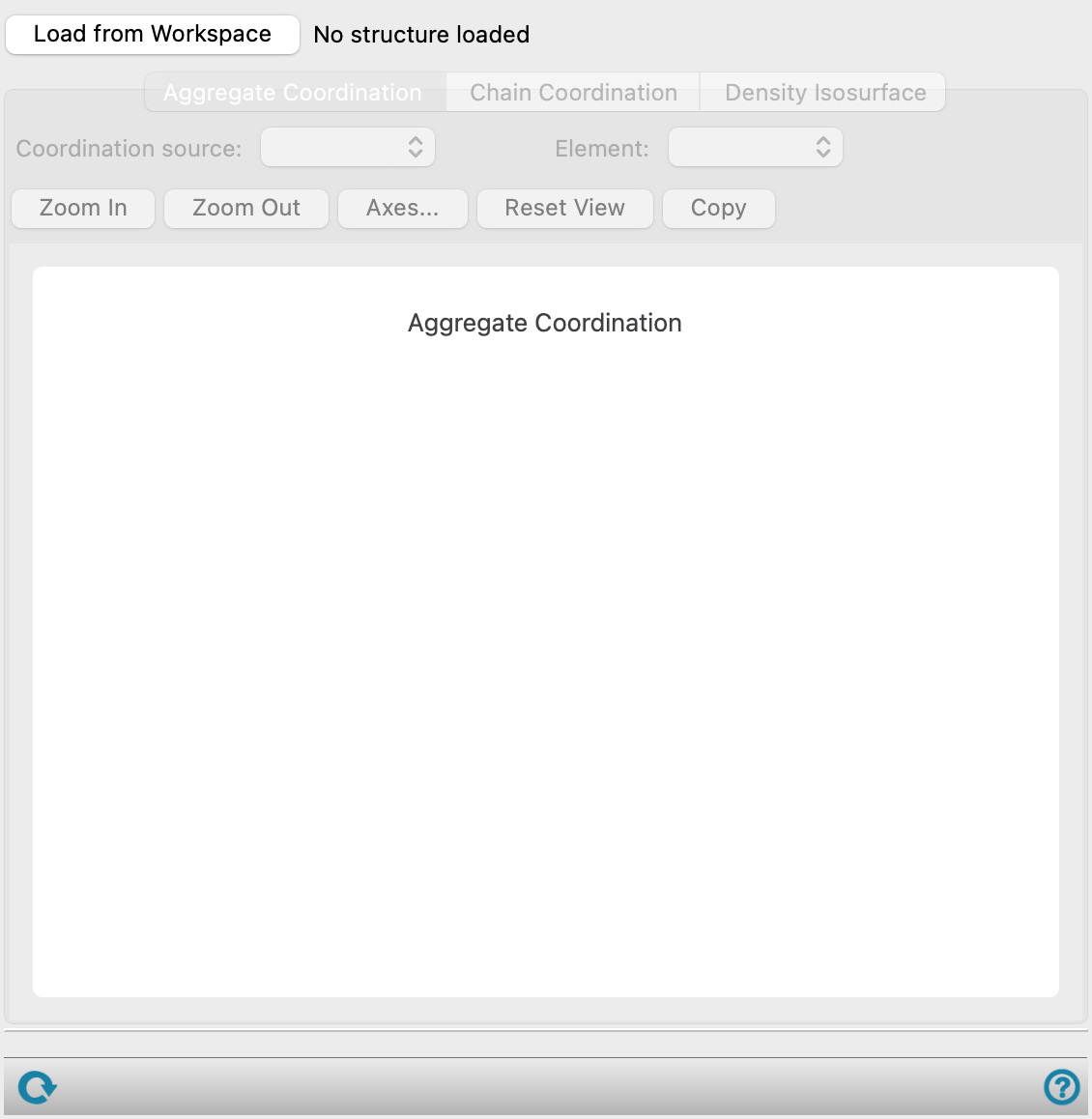
- Aggregate Coordination tab
-
Show the distribution of numbers of coordinated atoms.
- 1D Coordination tab
-
Display the coordination number distribution as a histogram plot.
- Coordination source menu
-
Select the species from which the distribution of coordinated atoms is analyzed, or choose All chains to view the distribution accumulated for all polymer chains, or All molecules to include the counterions as well as the polymer chains.
- Element menu
-
Select an element for which the coordination distribution is analyzed, or choose Any to view the aggregate coordination of all coordinated atoms from the Coordination source.
- Plot buttons
-
Use these buttons to configure the plot.
- Zoom In—Zoom in on the plot. Each click zooms in by a predefined factor, enlarging the view of the current center of the plot. You can also zoom in on a particular area by dragging out a rectangle.
- Zoom Out—Zoom out by a predefined factor. Each click zooms out by a predefined factor, to show more of the plot.
- Axes—Set the range and labeling options for the axes. Opens the Axes Parameters Dialog Box.
- Reset View—Reset the view of the plot to the original zoom and pan values.
- Copy—copy an image of the plot to the clipboard, for use in other applications.
- Update axes ranges option
-
Update the ranges of the axes automatically when the plotted data changes. When this option is not selected, the axis range does not change with changes in the plotted data (choices from the list. Deselecting this option is useful when you set the axis range in the Axes Parameters Dialog Box. This option is reselected when structures are loaded, a different property is plotted or the units change.
- Plot area
-
The frequency of occurrence is plotted against the number of atoms within the coordination cutoff distance as a histogram in this area.
You can zoom in to an area by dragging out a rectangle.
- 2D Coordination tab
-
Display a 2D coordination distribution as a heatmap, showing the frequency of different atoms on different species coordinating a transference ion.
- Chain Coordination tab
-
Show how individual transference ions interact with polymer chains as a function of time. The plot is updated when the selection in the Ion atom number list is updated.
- Filter text box
-
Filter the Ion atom number list by values that contain the value entered in the text box.
- Ion atom number list
-
Select a transference ion from this list to update the plot area with coordination data for the selected ion.
- Multi-ion clusters list
-
Select a multi-ion cluster from this list to update the plot with combined coordination data for the selected cluster. Only present when the Combine coordination shells for nearby transference ions option was selected in the Electrolyte Analysis Calculations Panel.
- Plot buttons
-
Use these buttons to configure the plot.
- Zoom In—Zoom in on the plot. Each click zooms in by a predefined factor, enlarging the view of the current center of the plot. You can also zoom in on a particular area by dragging out a rectangle.
- Zoom Out—Zoom out by a predefined factor. Each click zooms out by a predefined factor, to show more of the plot.
- Axes—Set the range and labeling options for the axes. Opens the Axes Parameters Dialog Box.
- Reset View—Reset the view of the plot to the original zoom and pan values.
- Copy—copy an image of the plot to the clipboard, for use in other applications.
- Coordination tab
-
Display a plot of chain molecule number against simulation time. This plot shows which polymer chains the selected transference ion interacts with during the MD simulation.
- Number of chains tab
-
Display a plot of number of chains against simulation time. This plot shows how many polymer chains the selected transference ion interacts with during the MD simulation.
- Cluster Composition tab
-
Display cluster composition analysis showing the composition and population of clusters found in the trajectory.
- View relative probability option
-
Select this option to display relative probabilities rather than absolute counts for cluster populations.
- Speciation dynamics tab
-
Display a plot of speciation dynamics over the simulation trajectory, showing how cluster types evolve over time.
- Composition and population tab
-
Display the composition and population of clusters ranked based on occurrence.
- Structural Analysis tab
-
This tab provides structural analysis results including density isosurface visualization, radial distribution functions (RDF), and structure factors S(q).
- Density Isosurface tab
-
Visualize the density isosurface of the transference ion with respect to the center of mass of the counterion in the Workspace. Only available when the Generate density isosurface option was selected in the Electrolyte Analysis Calculations Panel.
- Surface color button
-
Set the color used for the density isosurface in the Workspace. The current color is displayed on the button.
- Isodensity slider
-
Set the isodensity value for displaying the density isosurface in the Workspace.
- Transparency slider
-
Set the transparency of the isosurface displayed in the Workspace.
- RDF tab
-
Display the radial distribution function for each coordination element pair. Only available when Calculate RDF for transference ion element was selected in the Electrolyte Analysis Calculations Panel.
- S(q) tab
-
Display the structure factor S(q) for each coordination element pair. Only available when Calculate structure factor was selected in the Electrolyte Analysis Calculations Panel.
- Residence Time tab
-
Display residence time analysis for molecules in the first coordination shell of transference ions.
- Apply rattling buffer time (ps) option and text box
-
Select this option and specify a rattling buffer time, in picoseconds, to merge two events if they are closer than the specified time.
- Species to plot menu
-
Select the species to include in the residence time analysis. Multiple species can be selected.
- Survival Probability tab
-
Display a plot of the survival probability S(t) as a function of time for the selected species. S(t) represents the probability that a molecule remains in contact beyond time t. If a rattling buffer time is applied, coordination events separated by less than the buffer time are merged.
- Residence Time Distribution tab
-
Display a histogram of the residence time distribution for the selected species. A residence interval is the duration a species remains in the transference ion's first coordination shell. The data is averaged across all ion-species pairs, binned by the specified bin size, and normalized by the total number of events times the bin size. If a rattling buffer is applied, coordination events separated by less than the buffer time are merged.
- Calculated Residence Time tab
-
- Residence time table
-
Displays the mean residence time and characteristic residence time for each selected species, in picoseconds. The mean residence time is the integrated area under the survival probability curve. The characteristic residence time is obtained from an exponential decay fit of the survival probability.
- Status bar
-
 to reset the panel to its default settings and clear any data from the panel.
If you can submit a job from the panel, the status bar displays information about the current job settings and status for the panel. The settings include the job name, task name and task settings (if any), number of subjobs (if any) and the host name and job incorporation setting. The job status can include messages about job start, job completion and incorporation.
The status bar also contains the Help button
 , which opens an option menu with choices to open the help topic for the panel (Documentation), launch Maestro Assistant, or if available, choose from an option menu of Tutorials. If the panel is used by one or more tutorials, hover over the Tutorials option to display a list of tutorials. Choosing a tutorial opens the tutorial topic.