Import Favorite Structures Panel
Import structures from a set of favorites, which you can also create and maintain in this panel.
To open this panel: click the Tasks button and browse to Materials → Tools → Import Favorite Structures.
The following licenses are required to use this panel: MS Maestro
- Using
- Features
- Additional Resources
Using the Import Favorite Structures Panel
This panel is designed so you can create and maintain a list of favorite structures—ones that you may want to use multiple times in different projects, for example. It is intended as an alternative to using the Import Dialog Box to locate the file in the filesystem each time you want to import, or the recently imported files item (in the Project Table panel, choose File → Import Recent Structures), which may not have the structures you want.
Favorites can consist of a single entry or multiple entries, and are created from entries in the current project. They are written to your User resources directory when you create a favorite, as multi-structure Maestro files, or as CMS files for periodic structures. As the structures can include systems that are prepared for MD and may include a trajectory, you should make sure you have enough space in this directory if you create favorites that have large data sets associated with them.
Once you have created favorites, you can import them into a project and display them in the Workspace from this panel.
Import Favorite Structures Panel Features
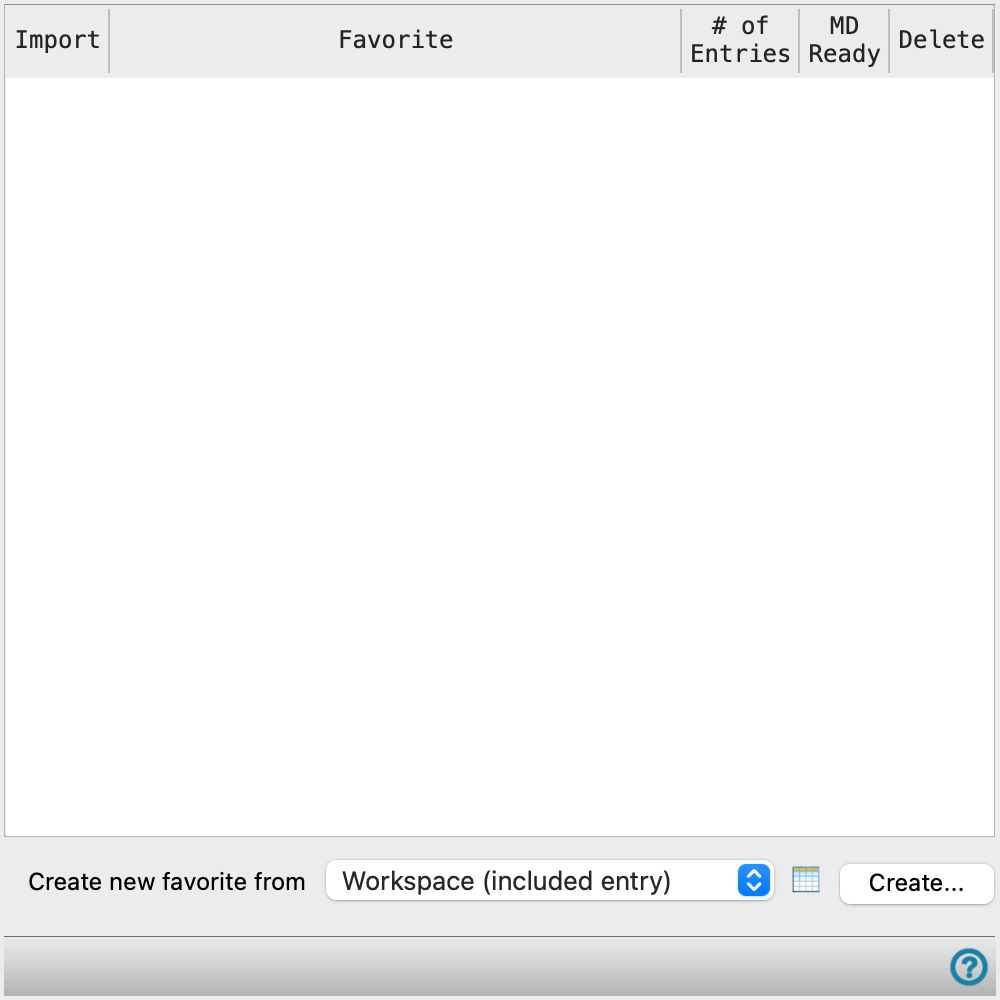
- Favorites table
-
Lists the favorites in a table with information about them and actions to perform. The table columns are described below.
-
Import Click the green + button to import the favorite into the project and replace the Workspace with the first entry in the favorite. Favorite Name of the favorite, which is set when you create the favorite. # of Entries Number of entries in the favorite. The entries are imported as an entry group, named after the favorite. MD Ready Displays a green check mark if the structure is ready for MD simulations. Also displays a blue T icon if the structure has a trajectory. Delete Click the trash can to delete the favorite from the list. The structure file is also deleted from your User resources directory. - Create new favorite from option menu
-
Choose the structure source for creating a favorite.
- Project Table (n selected entries)—Use the entries that are currently selected in the Project Table or Entry List. The number of entries selected is shown on the menu item.
- Workspace (included entries)—Use the entries that are currently included in the Workspace, treated as separate structures.
- Project Table (n selected entries)—Use the entries that are currently selected in the Project Table or Entry List. The number of entries selected is shown on the menu item.
- Open Project Table button
-
Open the Project Table panel, so you can

- Create button
-
Create the favorite. Opens a dialog box that prompts for a name, which is used to name the files in which the structures are stored for the favorite. You cannot subsequently change the name. When you click OK, a row is added to the table, with the name you provided shown in the Favorite column.