Restart Hopping Parameter Calculations Panel
Restart calculations for charge hopping parameters that failed, optionally with changed keywords and values.
To open this panel: click the Tasks button and browse to Materials → Quantum Mechanics → KMC Charge Mobility → Restart Hopping Parameter Calculations.
The following licenses are required to use this panel: MS Maestro, MS Mobility, Jaguar
- Using
- Features
- Additional Resources
Using the Restart Hopping Parameter Calculations Panel
This panel is intended for restarting failed hopping parameter jobs. When hopping parameter jobs fail, the output from the failed QSite or Jaguar calculations is returned to the job start directory. Often, the failure is because the SCF calculation did not converge. This panel identifies failures and reports the number of missing parameters. For the input structure, it locates the QM database for the failed jobs, and allows you to restart the calculations for the failed jobs with different keyword values, which you can add or modify to help improve convergence. It is recommended that you do not change the keywords that specify the basis set or density functional, as this would introduce an inconsistency in the results, rather than just improving convergence. The successful job returns the updated QM database, named with the job name. You can then run the KMC calculations with the returned structure and database from the Compute KMC Charge Mobility Panel.
Restart Hopping Parameter Calculations Panel Features
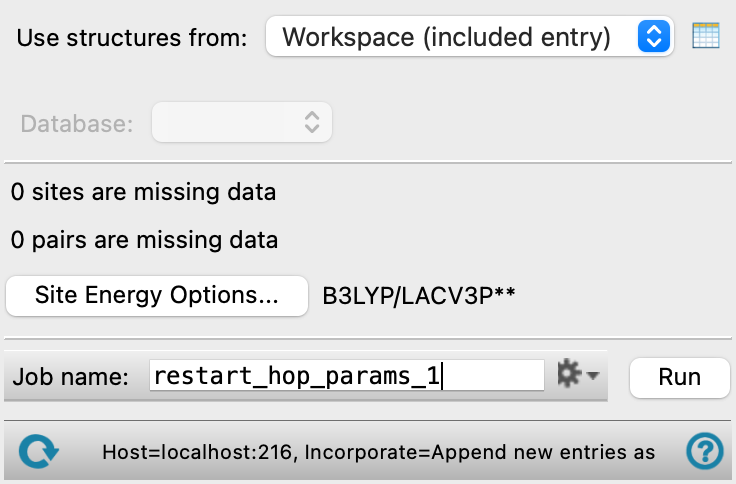
- Use structure from option menu
-
Choose the structure source for restarting the charge hopping calculations. The source must have a hopping parameter database associated with it.
- Workspace (included entry)—Use the entry that is currently included in the Workspace. Only one entry must be included in the Workspace.
- File—Use the specified file. When this option is selected, the File name text box and Browse button are displayed.
- Database—Use the structure whose identity is recorded in the specified SQL database. When this option is selected, the File name text box and Browse button are displayed, so you can specify the database.
- Open Project Table button
-
Open the Project Table panel, so you can

- File name text box and Browse button
-
Enter the file name in this text box, or click Browse and navigate to the file. The name of the file you selected is displayed in the text box. The database is located from information stored with the structures in the file; if not found, the file directory is used to locate it.
- Database option menu
-
This menu displays the KMC databases associated with the Workspace entry. You can choose any of them to restart the job, as they all originate from the same QM database.
- Missing data report
-
This text reports the number of sites that are missing and the number of pairs that are missing from the hopping parameter database.
- Options button
-
Set Jaguar options for the site energy calculations. These settings are passed to QSite for the QM part of the calculation. Opens the Jaguar Options - Restart Hopping Parameter Dialog Box. This dialog box also allows you to specify additional Jaguar keywords. The solvent (if any), level of theory, and basis set are shown to the right of the button.
-
As the calculation with the default parameters failed, you will need to change some of these keywords to improve convergence. Increasing the value of
vshiftto 1.0 often helps the Jaguar or QSite calculations to converge. Increasing the maximum iterations may also be helpful. You can modify other keywords, but it is not recommended to change settings that specify the type of calculation, e.g. the basis set or density functional, as this would introduce an inconsistency into the hopping parameters.See The gen Section of the Jaguar Input File for information on Jaguar keywords.
- Job toolbar
-
Manage job submission and settings. See Job Toolbar for a description of this toolbar.
The Job Settings button opens the Restart Hopping Parameter Calculations - Job Settings Dialog Box, where you can make settings for running the job.
- Status bar
-
The status bar displays information about the current job settings and status for the panel. The settings includes the job name, task name and task settings (if any), number of subjobs (if any) and the host name and job incorporation setting. The job status can include messages about job start, job completion and incorporation.
Use the Reset button
 to reset the panel to its default settings and clear any data from the panel.
 The status bar also contains the Help button
 , which opens the help topic for the panel in your browser. If the panel is used by one or more tutorials, hovering over the Help button displays a
  button, which you can click to display a list of tutorials (or you can right-click the Help button instead). Choosing a tutorial opens the tutorial topic.