Visualize KMC Charge Transport Panel
Visualize the results of kinetic Monte Carlo charge mobility calculations in the Workspace, using data from sites and nearest neighbors to configure the display.
To open this panel: click the Tasks button and browse to Materials → Quantum Mechanics → KMC Charge Mobility → Visualize KMC Charge Transport.
To open this panel from the entry group for the results of a job .
.
The following licenses are required to use this panel: MS Maestro, MS Mobility
- Using
- Features
- Additional Resources
Using the Visualize KMC Charge Transport Panel
The visualization allows you to configure the display to show only the molecules, sites, and nearest-neighbor connections that match criteria for site properties or neighbor connection properties, and to change the representation of sites (spheres at the molecular center of mass) and connections (tubes between sites) by radius and color. This allows you to represent multiple site and connection properties in the Workspace at the same time, and adjust the cutoffs on the property values to highlight sites and connections that have particular characteristics.
Visualize KMC Charge Transport Panel Features
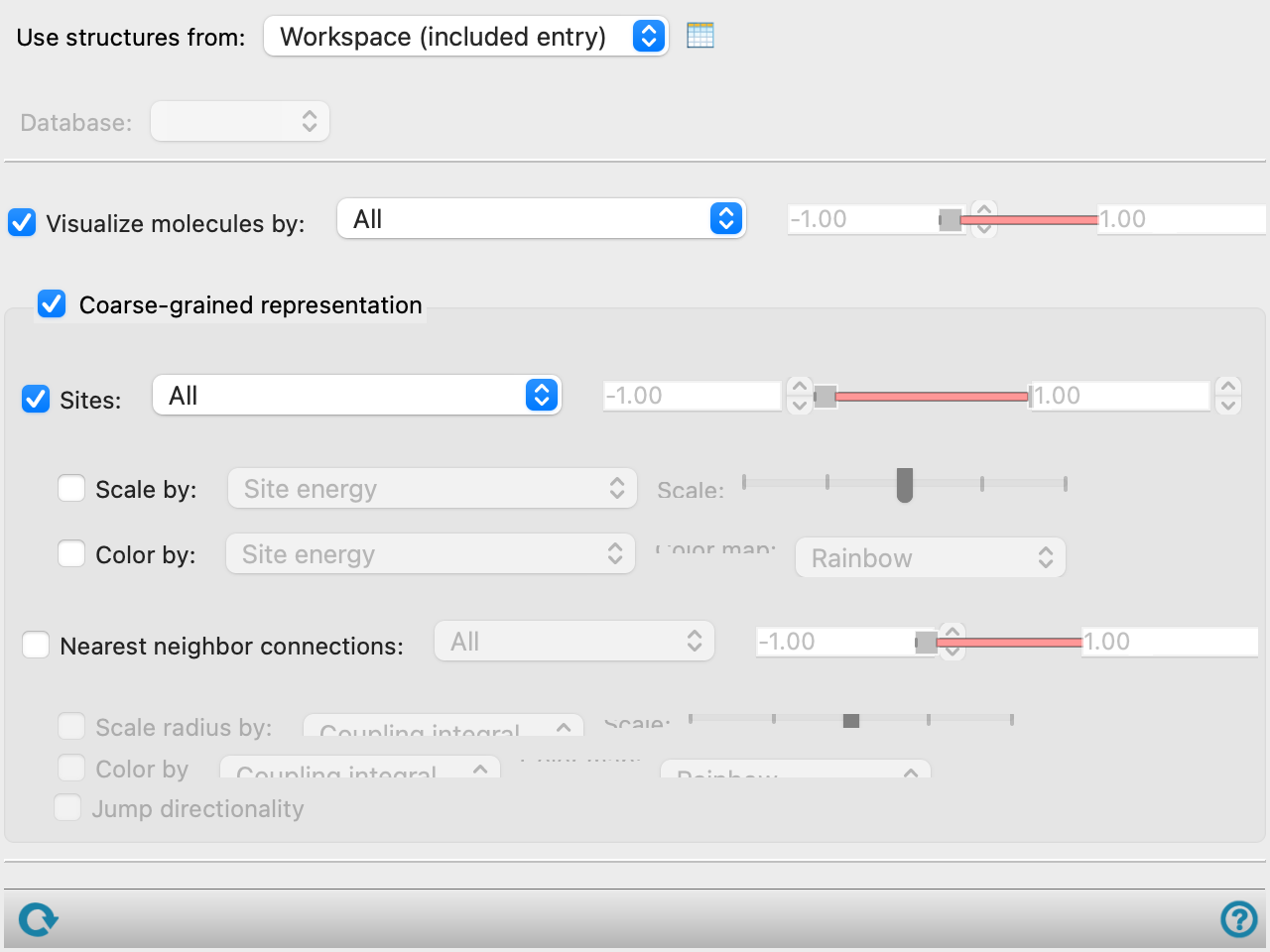
- Use structure from option menu
-
Choose the structure source for the visualization.
- Workspace (included entry)—Use the entry that is currently included in the Workspace. Only one entry must be included in the Workspace.
- Database—Use the structure whose identity is recorded in the specified SQL database. When this option is selected, the File name text box and Browse button are displayed, so you can specify the database.
- Open Project Table button
-
Open the Project Table panel, so you can

- File name text box and Browse button
-
Enter the file name in this text box, or click Browse and navigate to the file. The name of the file you selected is displayed in the text box.
-
This item is present when you choose Database as the structure source.
- Database option menu
-
This menu displays the KMC databases associated with the Workspace entry. You can choose any of them to display the visualization for the charge type and applied field associated with that database.
This menu is only available if you choose Workspace for the structure source.
- Site property menu items
-
These items are common to several option menus.
- Site energy—the difference in energy between the charged state and the neutral state for the site.
- Occupancy—the fraction of total simulation time in which the site is charged.
- Number of jumps—number of times a charge moved to this site.
- Average residence time—average time spent by a charge on this site per jump.
- Connection property menu items
-
These items are common to several option menus for nearest neighbor connections.
- Coupling integral—the value of the coupling integral between the sites.
- Excess jumps—the magnitude of the difference between the number of jumps in each direction between two sites.
- Pair jumps—the total number of jumps between the sites (in both directions).
- Visualize molecules by option menu and slider
-
Show molecules in the Workspace that match conditions on the site property chosen from the option menu, in the range specified by the slider with its text boxes. The items on the menu are common and are described above.
- Coarse-grained representation option and section
-
Use a coarse-grained representation of the molecules, in which each molecule is represented by a sphere at its center of mass, and connections to nearest neighbors are represented by "bonds".
- Sites option, menu, and slider
-
Display coarse-grained sites in the Workspace that match conditions on the site property chosen from the option menu, in the range specified by the slider with its text boxes. The items on the menu are common and are described above.
- Scale by option, menu, and slider
-
Scale the radius of the sites by the values of the site property chosen from the option menu, by an amount set by the Scale slider.
- Scale slider
-
Set the relative magnitude of the scaling of the site radii.
- Color by option and menu
-
Color the sites according to the values of the site property chosen from the option menu.
- Color map option menu
-
Choose the color map for coloring the sites by the chosen property.
- Nearest neighbor connections option, menu, and slider
-
Show nearest neighbor connections that match conditions on the connection property chosen from the option menu, in the range specified by the slider with its text boxes. The connections are shown as thin tubes between the sites.
- Scale radius by option and menu
-
Scale the radius of the connections according to the value of the connection property chosen from the menu.
- Scale slider
-
Set the relative magnitude of the scaling of the connections.
- Color by option and menu
-
Color the connections according to the values of the connection property chosen from the option menu.
- Color map option menu
-
Choose the color map for coloring the connections by the chosen connection property.
- Jump directionality option
-
Show the direction in which the majority of the jumps (or hops) between connected sites takes place, by drawing the connections as arrows.
- Status bar
-
 to reset the panel to its default settings and clear any data from the panel.
If you can submit a job from the panel, the status bar displays information about the current job settings and status for the panel. The settings include the job name, task name and task settings (if any), number of subjobs (if any) and the host name and job incorporation setting. The job status can include messages about job start, job completion and incorporation.
The status bar also contains the Help button
 , which opens an option menu with choices to open the help topic for the panel (Documentation), launch Maestro Assistant, or if available, choose from an option menu of Tutorials. If the panel is used by one or more tutorials, hover over the Tutorials option to display a list of tutorials. Choosing a tutorial opens the tutorial topic.