Mark Monomer Head and Tail Panel
Mark the head and tail atoms and the capping atoms of a monomer unit so that they can be identified in subsequent applications, such as for use in the Machine Learning Property Prediction Panel.
To open this panel, click the Tasks button and browse to Materials → Tools → Mark Monomer Head and Tail.
The following licenses are required to use this panel: MS Maestro
- Using
- Features
Using the Mark Monomer Head and Tail Panel
The monomer structure that you use to mark must have a hydrogen atom attached to the head atom and to the tail atom that represents the rest of the polymer. Put another way, you could consider making the required monomer structure from the polymer by deleting the rest of the polymer and capping the dangling bonds of the monomer with hydrogens. This might not be the same as the monomer used in the actual polymerization reaction: for example, if you were polymerizing 4-hydroxy benzoic acid by esterification, the monomer unit would be represented by benzoic acid, with the hydrogen of the carboxylic acid and the 4-hydrogen of the ring as the capping groups, and the OH oxygen and the 4-carbon as the head and tail atoms.
You can mark the head and tail atoms in multiple related monomer structures by selecting them in the Project Table and choosing The same atom indexes in all selected entries from the Apply to option menu. These structures must have a common atom numbering for the part that includes the head and tail atoms—this is usually the case when you enumerate a side chain on the base monomer to generate variations.
Mark Monomer Head and Tail Panel Features
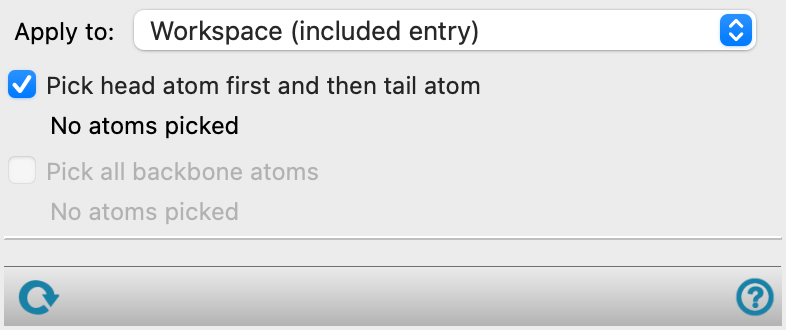
- Apply to option menu
-
Choose the monomers on which the head and tail atoms are to be marked.
-
Workspace (included entry)—Mark the head and tail atoms in the Workspace structure.
-
The same atom indexes in all selected entries—Mark the head and tail atoms in the entries that are selected in the Project Table. One of these structures must be included in the Workspace so that you can pick the head and tail atoms. The other structures must have the same atom numbering for the part of the structure that is common to the structure in the Workspace. This will be the case, for example, if you build the monomers by changing a substituent attached to the backbone part of the monomer.
-
- Pick type options
-
Select the atom type to pick for definition of the head and tail. The option you select affects the behavior of the pick option. This feature is only available if the panel is opened by clicking the Workspace button in the Polymer Builder Panel
-
Monomer head and tail atoms—pick the heavy (non-hydrogen) atoms for the head and the tail. The capping hydrogen atoms are chosen and selected automatically.
-
Capping atoms—pick the hydrogen atoms that cap the head and tail. The corresponding head and tail atoms are selected automatically.
-
- Pick head atom first and then tail atom option
- Pick head capping atom first and then tail capping atom option
-
Select this option to pick the head and tail atoms or the capping atoms in the Workspace. The option depends on the choice of pick type. You must pick the atom for the head first, then the atom for the tail atom. The head, tail, and capping atoms are marked in the Workspace as you pick. The backbone atoms are automatically populated and marked in red in the workspace after your selection.
If you pick the head and tail atoms, they must have a hydrogen attached where the monomer is joined to the next unit in the polymer: this is the capping atom. So for example, if the polymerization reaction is an esterification, you would have an H atom in place of the OH group of the carboxylic acid in the monomer unit. If you pick the capping atoms, they can be any terminal atom, not necessarily hydrogen.
The Pick head capping atom first and then tail capping atom option is only available if the panel is opened by clicking the Workspace button in the Polymer Builder Panel
- Pick backbone atoms option
-
This option is only available after first setting the head and tail atoms.
-
The backbone atoms are automatically populated and marked in red in the workspace after selection of head and tail atoms. After this, the backbone atoms can be manually edited.
- Save Monomer button
-
Click this button to save the monomer with the marked head, tail, and capping atoms and close the dialog box. Only available if the panel is opened by clicking the Workspace button in the Polymer Builder Panel