MPNICE Embedding ML Panel
Build and apply machine learning models for predicting structure properties using the MPNICE embeddings featurizer.
To display this panel: click the Tasks button and browse to Materials → Informatics → MPNICE Embedding Machine Learning
The following licenses are required to use this panel: MS Maestro, MS Informatics, MS Force Field Applications
- Using
- Features
- Additional Resources
Using the MPNICE Embedding ML Panel
The MPNICE Embedding ML panel enables the creation and application of machine learning models to predict molecular and material properties based on their 3D structures. The hidden layers—or embeddings—of these models contain highly dense, 3D-aware, and chemistry-aware features that can be utilized for downstream property prediction tasks. Both periodic (PBC) and non-periodic structures are supported, but all structures in a single job must be the same type. A minimum of 20 structures is required for training.
The four tabs in the panel enable a complete ML workflow:
-
Training Data—Load and view structure properties for training ML models.
-
Build—Specify featurizers, embedding types, machine learning models, and other parameters for training.
-
Performance—Analyze the quality of trained models with a parity plot.
-
Predict—Make predictions on structures using a trained MPNICE embedding ML model.
Due to the inherent randomness of selected steps in the workflow (e.g. train/test split and hyperparameter selection), running a job with the exact same structures and parameters as another job may not generate the same machine learning models with the same performance.
Training jobs produce .model files and a trained_models.json index file. The final model is an ensemble of the three top-performing models: the prediction is the ensemble average, and the variation among ensemble members provides an estimate of prediction uncertainty. Prediction jobs produce a .maegz output file with predictions and uncertainties merged into the input structures, which can be loaded into the Maestro Project Table. To re-use a trained model, load it into the Performance or Predict tab using the Import Model button, or manage it with the ML Model Manager Panel.
To write out the input file and a script for running the job from the command line, click the arrow next to the Settings button  and choose Write.
MPNICE Embedding ML Panel Features
- Use structures from option menu
- Open Project Table button
- File name text box and Browse button
- Load Structure button
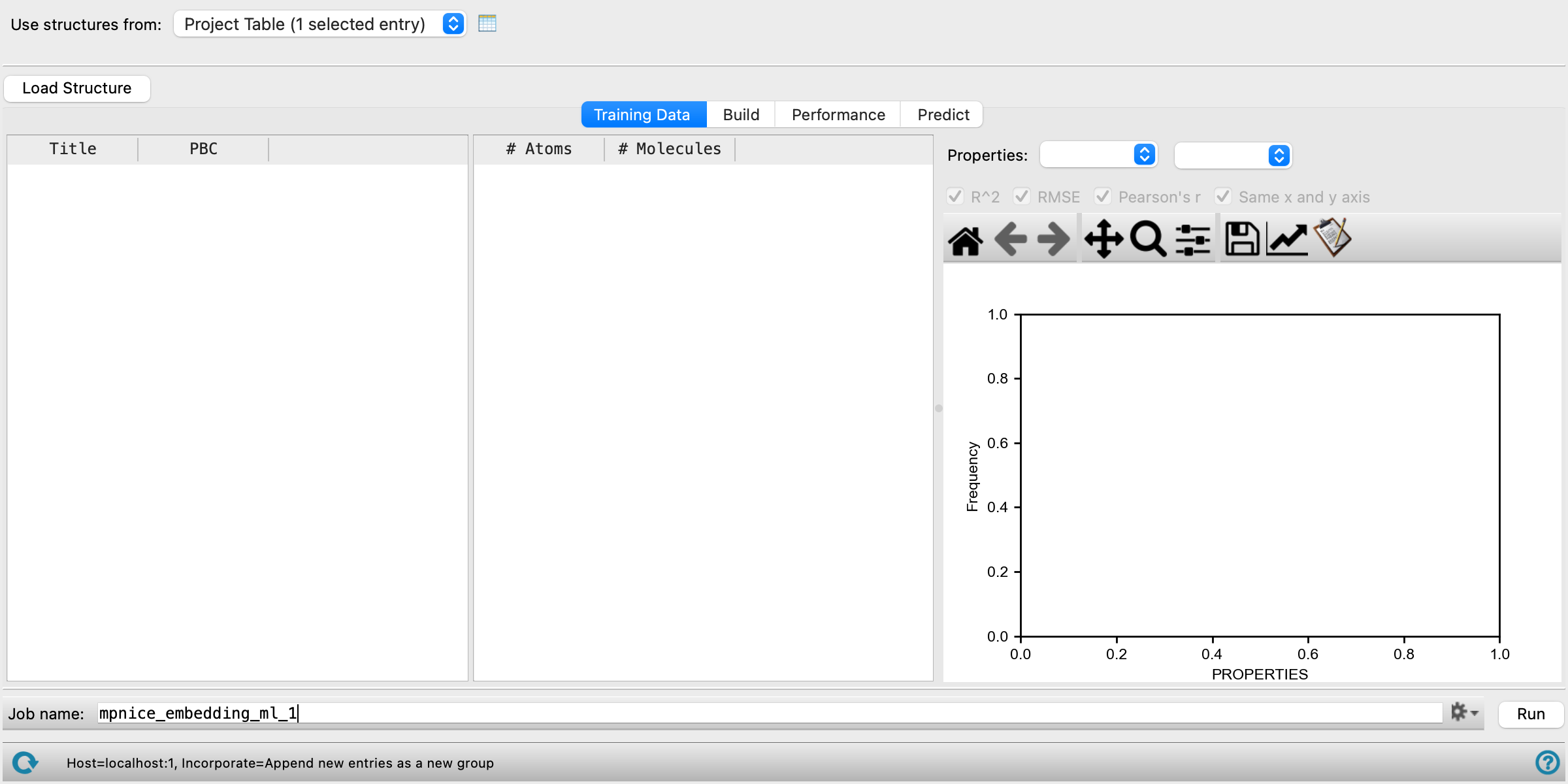
- Training Data tab
- Build tab
- Performance tab
- Predict tab
- Job toolbar
- Status bar
- Use structures from option menu
-
Choose the structure source for the current task.
- Project Table (n selected entries)—Use the entries that are currently selected in the Project Table or Entry List. The number of entries selected is shown on the menu item.
- File—Use the specified file. When this option is selected, the File name text box and Browse button are displayed.
- Project Table (n selected entries)—Use the entries that are currently selected in the Project Table or Entry List. The number of entries selected is shown on the menu item.
- Open Project Table button
-
Open the Project Table panel, so you can

- File name text box and Browse button
-
Enter the file name in this text box, or click Browse and navigate to the file. The name of the file you selected is displayed in the text box.
- Load Structure button
-
Click this button to load the structures specified by the Use structures from selector, populating the structure data table and the Target property option menu. Available on the Training Data, Build, and Predict tabs; structures must be loaded with this button before running a training or prediction job. After resetting the panel, click this button again to reload the structures.
- Training Data tab
-
Load, view, and plot structure properties for training ML models.
- Structure data table
-
Displays the structures loaded by clicking the Load Structure button, using the source selected in the Use structures from selector, with their properties. Frozen columns show the structure Title and PBC status. Scrollable columns show the number of atoms, number of molecules, and numeric properties from the input structures. Click a property column header to plot that property. The size of the table and plot can be adjusted by dragging the divider between them.
- Properties option menus
-
Choose the x and y axes to display in the plot. Options are the numeric properties from the loaded structures. To view a histogram of the property on the x axis, set the y axis to (none).
- Plot options
-
Select an option to show a statistic in the displayed scatter plot or modify the plot appearance. Statistics are not available for histograms. The options include:
-
R^2—R-squared value (coefficient of determination)
-
RMSE—Root-mean-square error
-
Pearson's r—Pearson's correlation coefficient
-
Same x and y axis—Select this option to enforce the x and y axis to have the same scale and range
-
- Plot toolbar
-
The toolbar has tools for manipulating the plot and for saving images. The buttons that are common to all plot toolbars are described in the Plot Toolbar topic.
- Plot area
-
Displays the plot of the x vs y axes chosen in the Properties option menus. This can be a histogram or a scatter plot.
- Build tab
-
Specify parameters for training ML models and the property to be predicted.
- Featurizers option menu
-
Select the featurizers to use in training ML models. The available featurizers are Per Molecule Featurizer and Per Atom Featurizer. All featurizers are tested independently. The number of featurizers selected is shown in the option menu. Featurizers and machine learning models are interdependent; some machine learning models are not available for some featurizers.
Per Atom Featurizer uses the MPNICE embedding for every individual atom in its local environment, producing one feature vector per atom. This is recommended for the prediction of properties sensitive to the local atomic environment. Per Molecule Featurizer aggregates all atomic feature vectors into a single feature vector for the whole structure, providing a coarse-grained description.
- Embedding type option menu
-
Select the embedding types to use for the selected featurizers. The available types are Hybrid, Organic, and Inorganic. At least one embedding type must be selected. The number of types selected is shown in the option menu.
Each type corresponds to the MLFF model used for the embedding: Organic for pure organic systems, Inorganic for pure inorganic systems, and Hybrid for mixed organic-inorganic and pure inorganic systems.
- Use chiral embedding option
-
Select this option to use chiral-aware MPNICE embeddings. Only available when Per Atom Featurizer is selected.
- Machine learning models option menu
-
Select the machine learning algorithms to use in training. The available models include Elastic Net, Random Forest, XGBoost, Support Vector Machine, Dense Neural Network, and Graph-based Models. Each category trains one or more model variants internally. The number of models selected is shown in the option menu. Graph-based Models is only available when Per Atom Featurizer is selected. Elastic Net, Random Forest, XGBoost, Support Vector Machine, and Dense Neural Network are only available when Per Molecule Featurizer is selected.
- Target property option menu
-
Select the properties on which models are trained and used for prediction. The target property must be a numeric property present in the loaded structures. If multiple target properties are selected, individual models are trained sequentially for each.
- Hyperparameter tuning steps option and text box
-
Set the number of hyperparameter optimization cycles n. In the initial steps, hyperparameters are randomly selected to train the first model. In subsequent steps, the hyperparameters and performance of the previous models are used to select hyperparameters by Bayesian Optimization to maximize the model performance of the next model. A total of n model architectures are explored. The optimizer stops automatically if 50 consecutive models are trained without improving the ensemble score. The final model uses an ensemble of 3 top-performing models to generate predictions and uncertainties. As a result, a minimum value of 3 is required for this parameter. Increasing values of this setting increases the computation time and model accuracy.
- Time limit option and text box
-
Specify the maximum training time in hours. When this time elapses, the training completes for the current model, but no new models are trained. The elapsed time can be significantly longer than the limit specified here, if a model takes a long time to train.
- Training set size text box
-
Specify the percentage of the data to use for training. The remaining data is used to test the model.
- Advanced Options button
-
Set further options for training the ML model. Opens the Training Options dialog box.
- Downsample option and text box
-
Select this option to downsample the data by the specified factor for hyperparameter tuning. This can speed up training, particularly for large (> 10,000 structures) training sets.
- Cross validation splits text box
-
Specify the number of splits for cross validation.
- Random seed for training/test set splitting text box
-
Specify the random seed for splitting the training and test sets.
- Performance tab
-
Analyze the quality of a trained model by viewing a parity plot of predicted versus observed values.
- Import Model button
-
Load an MPNICE embedding ML model (
.modelfile) for performance analysis. Opens a dialog box where you can load and manage MPNICE models. - Plot options
-
Select options to modify the parity plot appearance. The options include:
-
Same x and y axis—Select this option to enforce the x and y axis to have the same scale and range
-
Plot XY—Select this option to plot a dashed line for x=y
-
Show marginals—Select this option to display individual distributions of the x-axis and y-axis
-
Show stats—Select this option to display the relevant statistics for the model on the plot
-
- Plot area
-
Displays a parity plot (scatter plot of predicted versus observed target property values) for the loaded model.
- Predict tab
-
Run predictions on structures using a trained MPNICE embedding ML model.
- Import Model button
-
Load an MPNICE embedding ML model (
.modelfile) for making predictions. Opens a dialog box where you can load and manage MPNICE models. - Prediction results table
-
Displays the prediction results, including the structure title, predicted values, and prediction uncertainties. Results are loaded from the prediction output
.maegzfile when a prediction job completes. The output file can also be loaded into the Maestro Project Table. The size of the table and plot can be adjusted by dragging the divider between them. - Properties option menus
-
Choose the x and y axes to display in the plot. Options include the properties from the prediction results.
- Plot options
-
Select an option to show a statistic in the displayed scatter plot or modify the plot appearance. The options include:
-
R^2—R-squared value (coefficient of determination)
-
RMSE—Root-mean-square error
-
Pearson's r—Pearson's correlation coefficient
-
Same x and y axis—Select this option to enforce the x and y axis to have the same scale and range
-
- Plot toolbar
-
The toolbar has tools for manipulating the plot and for saving images. The buttons that are common to all plot toolbars are described in the Plot Toolbar topic.
- Plot area
-
Displays the plot of the x vs y axes chosen in the Properties option menus.
- Job toolbar
-
Manage job submission and settings. See Job Toolbar for a description of this toolbar.
The Job Settings button opens the MPNICE Embedding ML - Job Settings Dialog Box, where you can make settings for running the job.
- Status bar
-
 to reset the panel to its default settings and clear any data from the panel.
If you can submit a job from the panel, the status bar displays information about the current job settings and status for the panel. The settings include the job name, task name and task settings (if any), number of subjobs (if any) and the host name and job incorporation setting. The job status can include messages about job start, job completion and incorporation.
The status bar also contains the Help button
 , which opens an option menu with choices to open the help topic for the panel (Documentation), launch Maestro Assistant, or if available, choose from an option menu of Tutorials. If the panel is used by one or more tutorials, hover over the Tutorials option to display a list of tutorials. Choosing a tutorial opens the tutorial topic.