ML Model Manager Panel
Re-train machine learning models with the software release version in use.
To display this panel: click the Tasks button and browse to Materials → Informatics → ML Model Manager
The following licenses are required to use this panel: MS Maestro, MS Formulation ML (optional), MS Layered Device ML (optional), MS Informatics (optional)
- Using
- Features
- Additional Resources
Using the ML Model Manager Panel
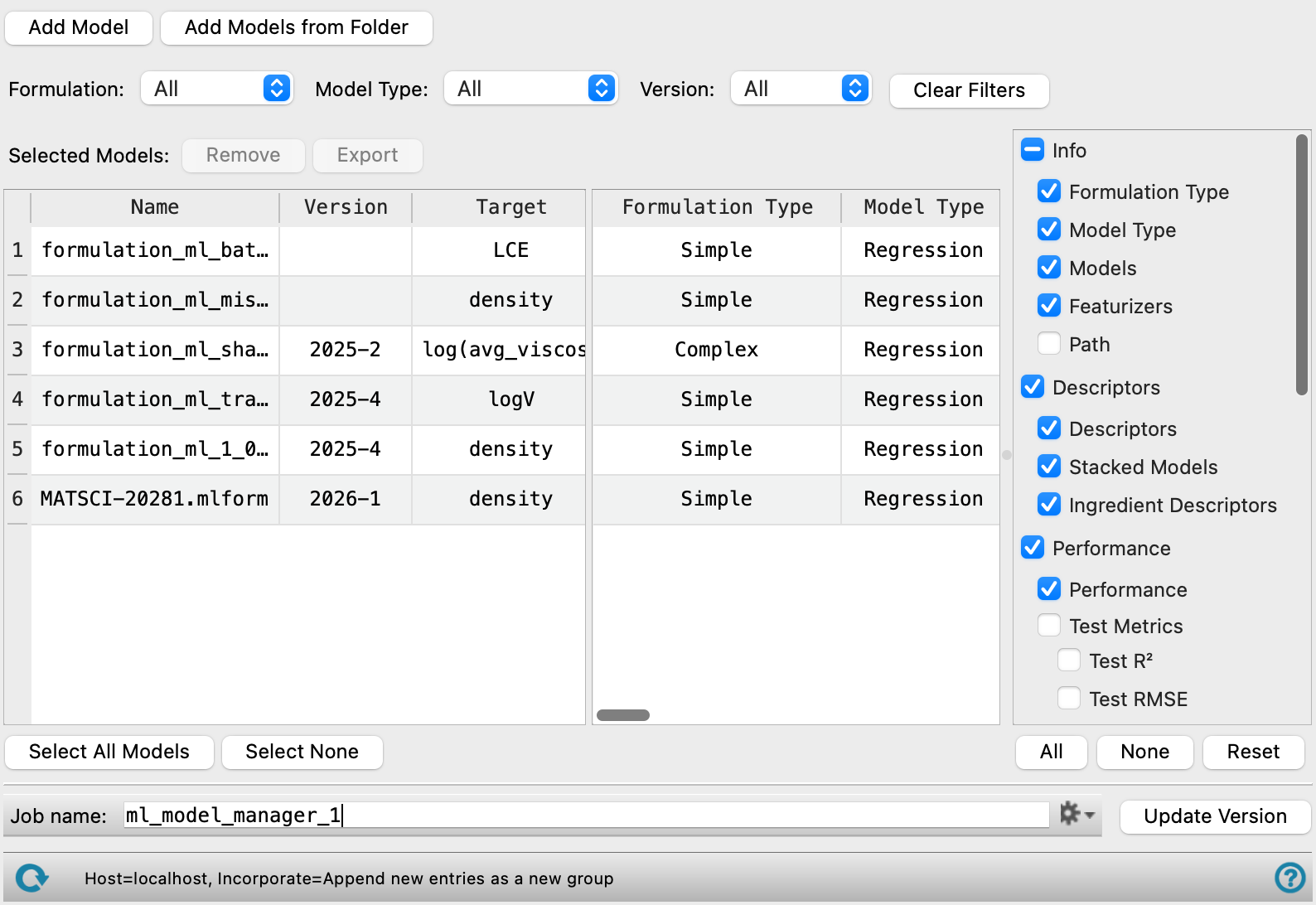
The ML Model Manager panel enables machine learning model maintenance and fast model re-training with Schrödinger's latest ML technology. Collaboration is made easy as models can be exported to a directory and shared with others.
Efficient model re-training is available for ML models generated using the Formulation Machine Learning Panel and OLED Device Machine Learning Panel. The calculation requires at least one ML model file system file with the extension -.mlform and re-trains the selected model(s) with the software release version in use.
The name of this tool and the options present may vary according to the location from which it is opened.
ML Model Manager Panel Features
- Add Model button
- Add Models from Folder button
- Data Type option menu
- Model Type option menu
- Version option menu
- Clear Filters button
- Remove button
- Export button
- Model table
- Select All Models button
- Select None button
- Model information options
- All button
- None button
- Reset button
- Job toolbar
- Update Version button
- Status bar
- Add Model button
-
Load a ML model generated using the Formulation Machine Learning Panel or OLED Device Machine Learning Panel. The model can be found in the corresponding job directory with the extension
-.mlform. Click to open the Select the model file dialog box, where you can navigate to the file. The name of the file you selected is displayed and can be edited in the Model Name dialog box. Model names are required to be unique. - Add Models from Folder button
-
Load all ML models in a folder with the extension
-.mlform. Click to open the Select the folder containing ML models dialog box, where you can navigate to the folder. The name of the folder you selected is displayed in the text box. Click Choose to open the Model Name dialog box to edit the model names. Model names are required to be unique. - Data Type option menu
-
Select the data type to use as a filter for listing models in the model table. The menu items include:
-
All—List all models in the table.
-
Simple Formulation—List models for simple formulations in the table. Simple formulations consist of single chemical species with composition ratios of each species. See the Formulation Machine Learning Panel.
-
Complex Formulation—List models for complex formulations in the table. Complex formulations are mixtures of simple formulations such that the composition of each simple formulation can be varied. See the Formulation Machine Learning Panel.
-
OLED—List models for OLED devices in the table. See the OLED Device Machine Learning Panel.
-
MPNICE Embedding—List models for MPNICE embeddings in the table. See the MPNICE Embedding ML Panel.
-
- Model Type option menu
-
Select the model type to use as a filter for listing models in the model table. The menu items include Regression and Classification.
- Version option menu
-
Select the software release version to use as a filter for listing models in the model table.
- Clear Filters button
-
Remove all of the filters applied to the model table.
- Remove button
-
Delete the selected model(s) from the table. Only available when one of more models are selected in the table.
- Export button
-
Save the selected model(s) to a directory. Click to open the Select the folder to export models to dialog box, where you can navigate to the folder. The name of the folder you selected is displayed in the text box. Only available when one or more models are selected in the table.
- Model table
-
Displays information about the ML models. Select model(s) for re-training from this list by clicking on it. The size of a column can be toggled by dragging the divider between it and the next column side to side.
-
Name—The name of the model taken from the file name. Double-click the model name to edit it.
Version—The software version release used when training the model. Noneditable.
-
Target—The property on which the model was trained. Noneditable.
-
Additional columns—Additional properties specified through the model information options. The presence of these columns is determined by which model information options are selected. Noneditable.
- Select All Models button
-
Select all the models in the table.
- Select None button
-
Select none of the models in the table.
- Model information options
-
Select model information to display. Each selected option is added to the table as a column.
- All button
-
Select and display all of the available model information options.
- None button
-
Select and display none of the available model information options.
- Reset button
-
Reset the selected available model information options to the defaults.
- Job toolbar
-
Manage job submission and settings. See Job Toolbar for a description of this toolbar.
The Job Settings button opens the ML Model Manager - Job Settings Dialog Box, where you can make settings for running the job.
- Update Version button
- Run the calculation to re-train the selected model(s) with the current software release version in use.
- Status bar
-
 to reset the panel to its default settings and clear any data from the panel.
If you can submit a job from the panel, the status bar displays information about the current job settings and status for the panel. The settings include the job name, task name and task settings (if any), number of subjobs (if any) and the host name and job incorporation setting. The job status can include messages about job start, job completion and incorporation.
The status bar also contains the Help button
 , which opens an option menu with choices to open the help topic for the panel (Documentation), launch Maestro Assistant, or if available, choose from an option menu of Tutorials. If the panel is used by one or more tutorials, hover over the Tutorials option to display a list of tutorials. Choosing a tutorial opens the tutorial topic.