Review and Apply Optoelectronics Active Learning Model Panel
Review machine learning models generated from the optoelectronics active learning workflow and use them to make predictions on optoelectronics properties.
To open this panel: click the Tasks button and browse to Materials → Informatics → Optoelectronics Active Learning Prediction.
For a tutorial, see Optoelectronics Active Learning.
The following licenses are required to use this panel: MS Maestro, Active Learning
- Using
- Features
- Additional Resources
Using the Review and Apply Optoelectronics Active Learning Model Panel
The machine learning (ML) models generated in each step of the active learning workflow in the Optoelectronics Active Learning Training Panel can be reviewed and compared in this panel. These models can also be used to make property predictions on selected structures.
Review and Apply Optoelectronics Active Learning Model Panel Features
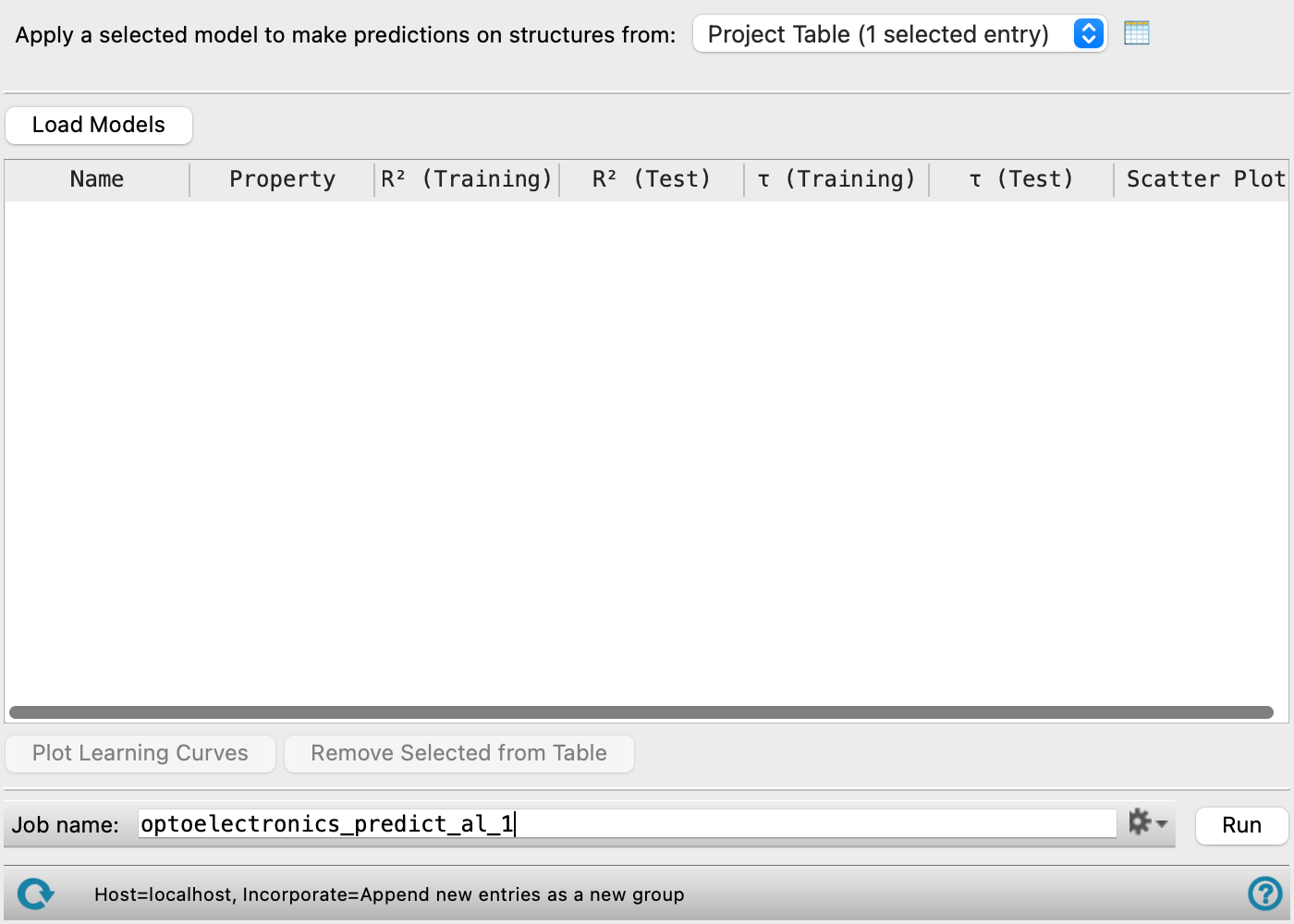
- Apply a selected model to make predictions on structures from option menu
-
Choose the structure source for applying selected ML models.
- Project Table (n selected entries)—Use the entries that are currently selected in the Project Table or Entry List. The number of entries selected is shown on the menu item.
- Workspace (n included entries)—Use the entries that are currently included in the Workspace, treated as separate structures. The number of entries in the Workspace is shown on the menu item.
- File—Use the specified file. When this option is selected, the File name text box and Browse button are displayed.
- Project Table (n selected entries)—Use the entries that are currently selected in the Project Table or Entry List. The number of entries selected is shown on the menu item.
- Open Project Table button
-
Open the Project Table panel, so you can

- File name text box and Browse button
-
Enter the file name in this text box, or click Browse and navigate to the file. The name of the file you selected is displayed in the text box.
- Load Models button
-
Select one or more models to load into the Summary table. Only the .alomgz file type is accepted. These files are generated as part of the active learning workflow in the Optoelectronics Active Learning Training Panel. A model for predicting the MPO has the naming scheme
<jobname>_mpo_x.alomgz, wherexis the iteration number. Models for predicting individual properties has the naming scheme<jobname>_property_x.alomgz, wherepropertyis the electronic property that the model can predict (e.g.,<jobname>_triplet_x.alomgzfor a model that predicts the Triplet energy). - Summary table
-
The Summary table displays information about an imported model. Click on a column header to sort the table by the values of that header. An up or down arrow appears to the right of the column header to indicate whether you are sorting by ascending or descending values. Hover over the vertical bar dividing the columns and drag to change the width of the column. Highlight a model in the Summary table, and click Run to use the model to predict the property shown in the Property column for the selected set of structures. The Summary table contains the following columns:
-
Name— The filename of the model.
-
Property— The property the model is able to predict. If a model is for predicting the MPO score of a compound, all the properties and options selected as part of the MPO in the Optoelectronics Active Learning Training Panel is displayed.
-
R2 (Training)— R-squared value (coefficient of determination) for the training set. The scatter plot used to determine this value can be viewed from the Scatter Plot column.
-
R2 (Test)— R-squared value (coefficient of determination) for the test set.
-
τ (Training)— Kendall tau value for the training set. More information about how this value is computed can be found here.
-
τ (Test)— Kendall tau value for the test set. More information about how this value is computed can be found here.
-
Scatter Plot— Click the Show button to open up the Optoelectronics Active Learning Model Scatter Plot Pane.
-
- Plot Learning Curves button
-
Click this button to plot the R2 (Training), R2 (Test) for an ML model at each iteration of the active learning loop. The best and average property values are also plotted on a secondary y-axis. This learning curve is useful for checking the convergence of a model. You must select two or more rows of models which predict the same property from the Summary table in order for learning curves to be plotted. If the models were generated from the Optoelectronics Active Learning Training Panel, the iteration number is included in the model Name. Opens the Optoelectronics — Learning Curves Plot Pane.
- Remove Selected from Table button
-
Highlight a row in the Summary table and click this button to remove it from the table.
- Job toolbar
-
Manage job submission and settings. See Job Toolbar for a description of this toolbar.
The Job Settings button opens the Review and Apply Optoelectronics Active Learning Model - Job Settings Dialog Box, where you can make settings for running the job.
- Status bar
-
 to reset the panel to its default settings and clear any data from the panel.
If you can submit a job from the panel, the status bar displays information about the current job settings and status for the panel. The settings include the job name, task name and task settings (if any), number of subjobs (if any) and the host name and job incorporation setting. The job status can include messages about job start, job completion and incorporation.
The status bar also contains the Help button
 , which opens an option menu with choices to open the help topic for the panel (Documentation), launch Maestro Assistant, or if available, choose from an option menu of Tutorials. If the panel is used by one or more tutorials, hover over the Tutorials option to display a list of tutorials. Choosing a tutorial opens the tutorial topic.